Administrator workflows
Ability to Change Exam Status from the UI
This article provides an overview of the system functionality that supports manual exam status updates via the UI to facilitate troubleshooting.
Required Permissions |
|---|
The ability to manually change exam status through the UI is controlled by role-based permissions. As this functionality is intended for troubleshooting rather than routine use, it is recommended that access be limited to administrators. |
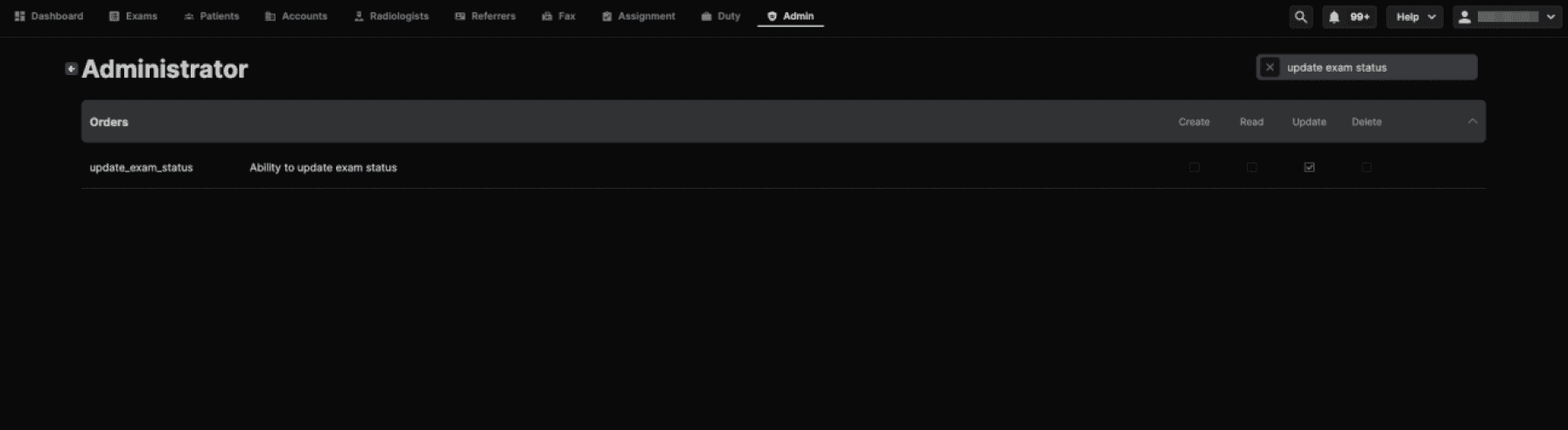 |
Navigate to the Administrative menu > Roles, and select the role for which you want to enable permissions. In the upper-right corner, use the search field to locate the “Ability to update exam status” permission and ensure the Update option is selected. This will grant all users assigned to the selected role the ability to manually change exam status through the UI. |
Allowed Status Transitions |
|---|
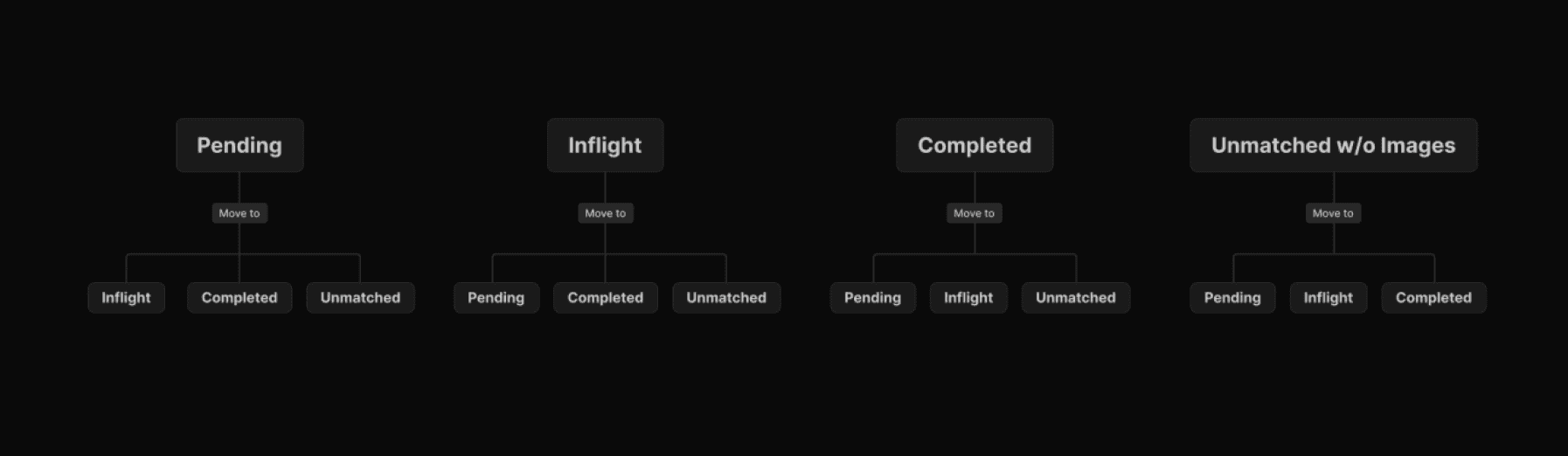 |
The above diagram shows the allowed status transitions:
|
Conditions to Change Status Manually in Completed Exams |
|---|
Completed exams may be manually moved to the Unmatched, Pending, or Inflight status only when the following conditions are met: • The exam does not have a “Once signed” exam event (this event is present on all exams signed in the platform). |
User Interface to Change Exam Status |
|---|
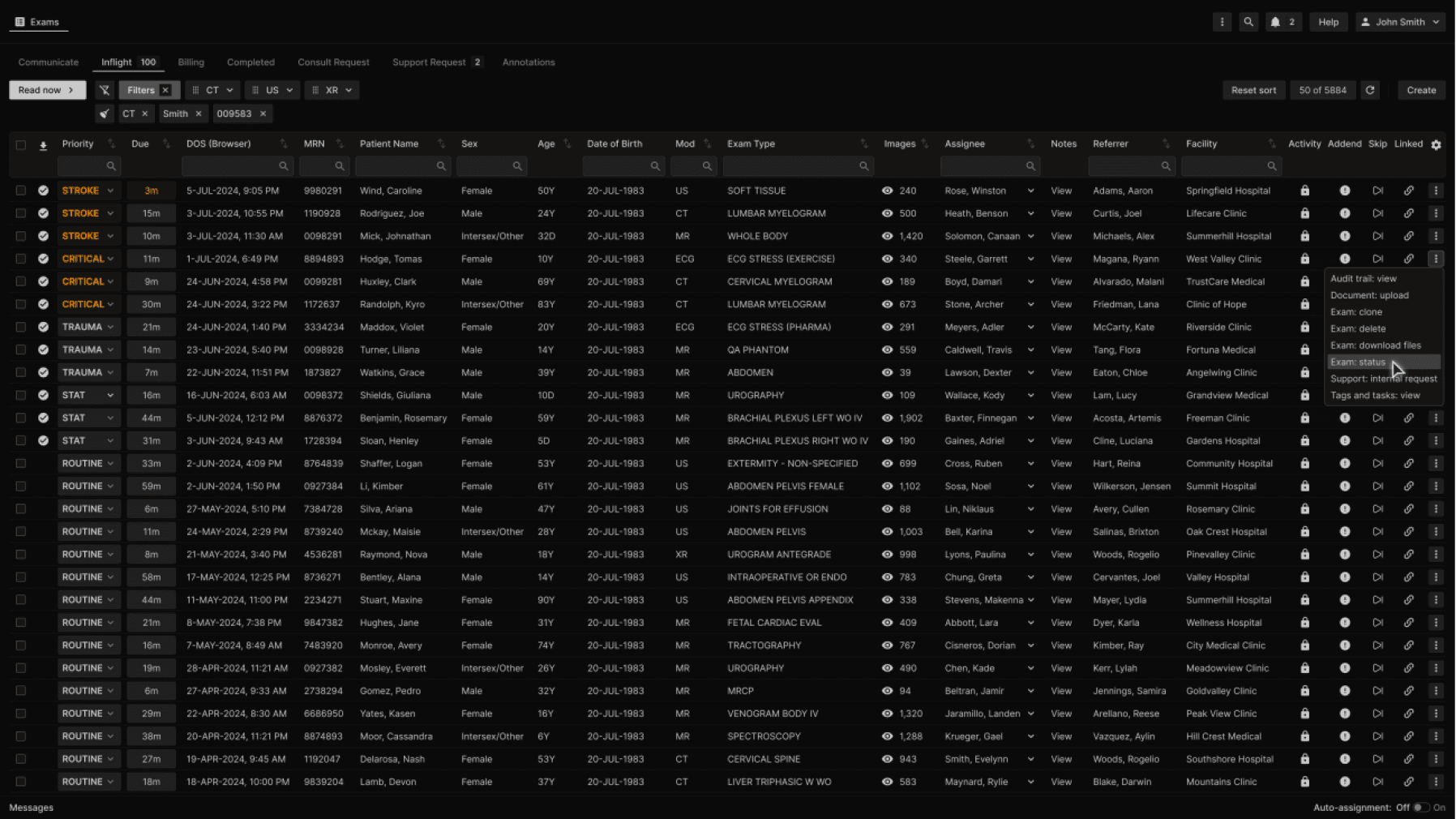 |
From the Exam List, click the Actions button and select Exam: Status. The dialog box shown below is displayed. |
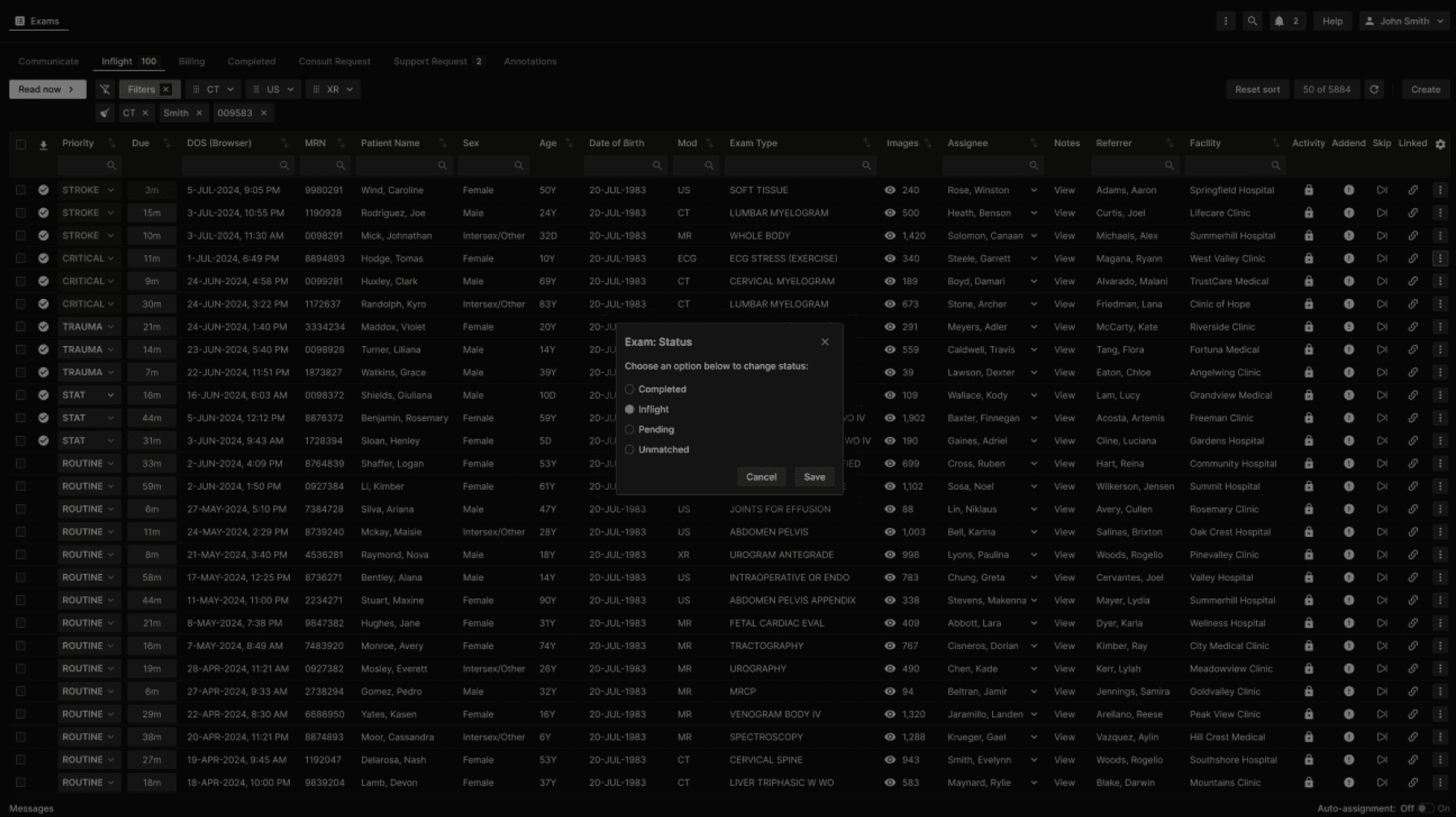 |
Choose the desired status and click Save to move the exam. |
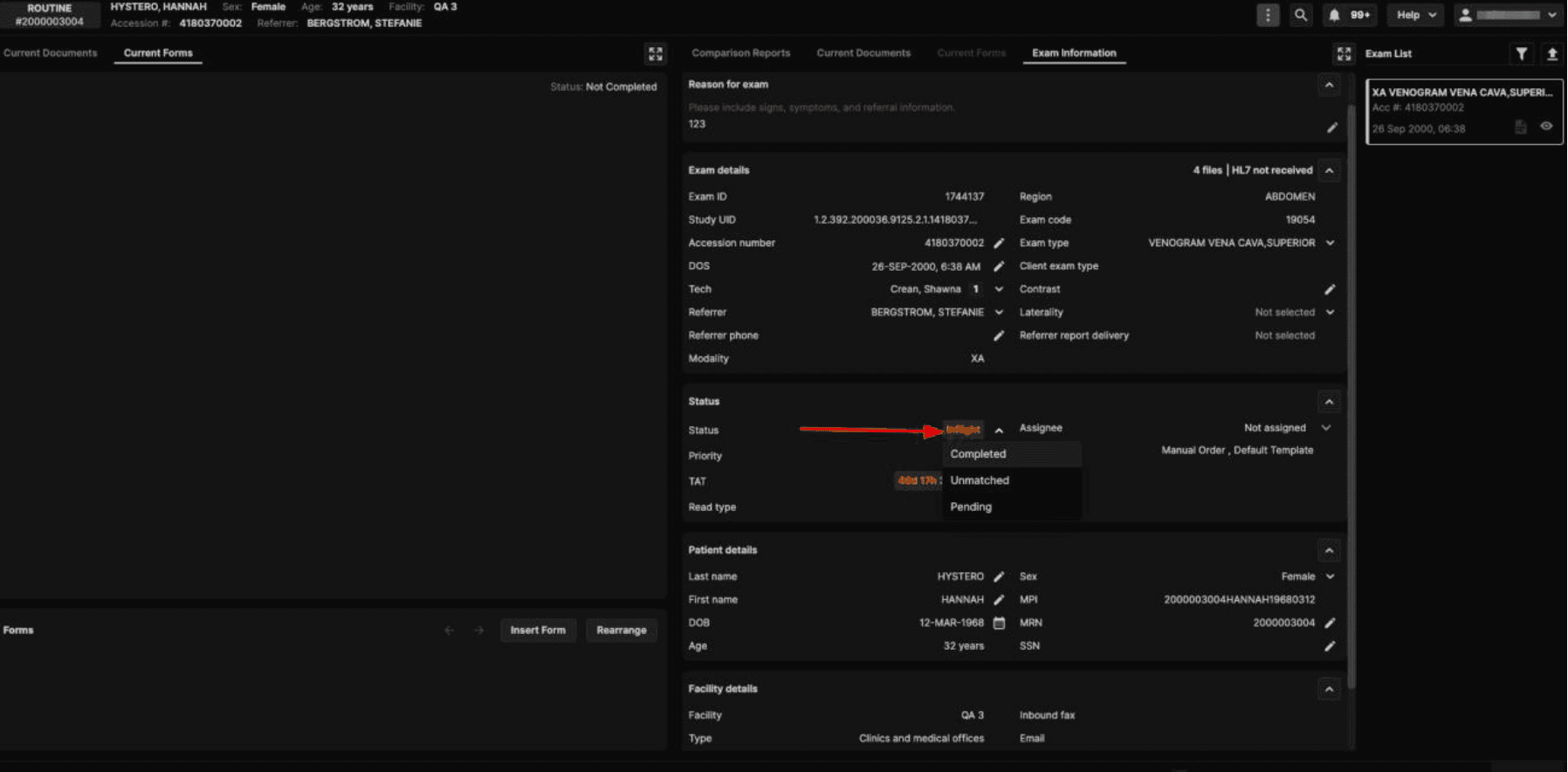 |
The exam status can also be updated from the Reporting Screen. In the Exam Information tab, click the current status in the Status section and select the new status from the dropdown menu. |
Behavior After Status Change |
|---|
When an Exam is Manually Moved FROM Unmatched |
→ To Pending or Inflight
→ To Completed
|
When an Exam is Manually Moved FROM Pending or Inflight |
→ To Completed
→ To Unmatched
|
When an Exam is Manually Moved FROM Completed |
→ Pending or Inflight
→ Unmatched
|
Updating Information in Completed Exams When Manual Status Change is Not Allowed |
|---|
When a Completed exam has a final report (either signed in the platform or received as an external report) and changes are required, the exam may be sent to Support Request or an Addendum may be requested. Support Requests and Addendum Requests are permitted on Completed exams, including those that: |
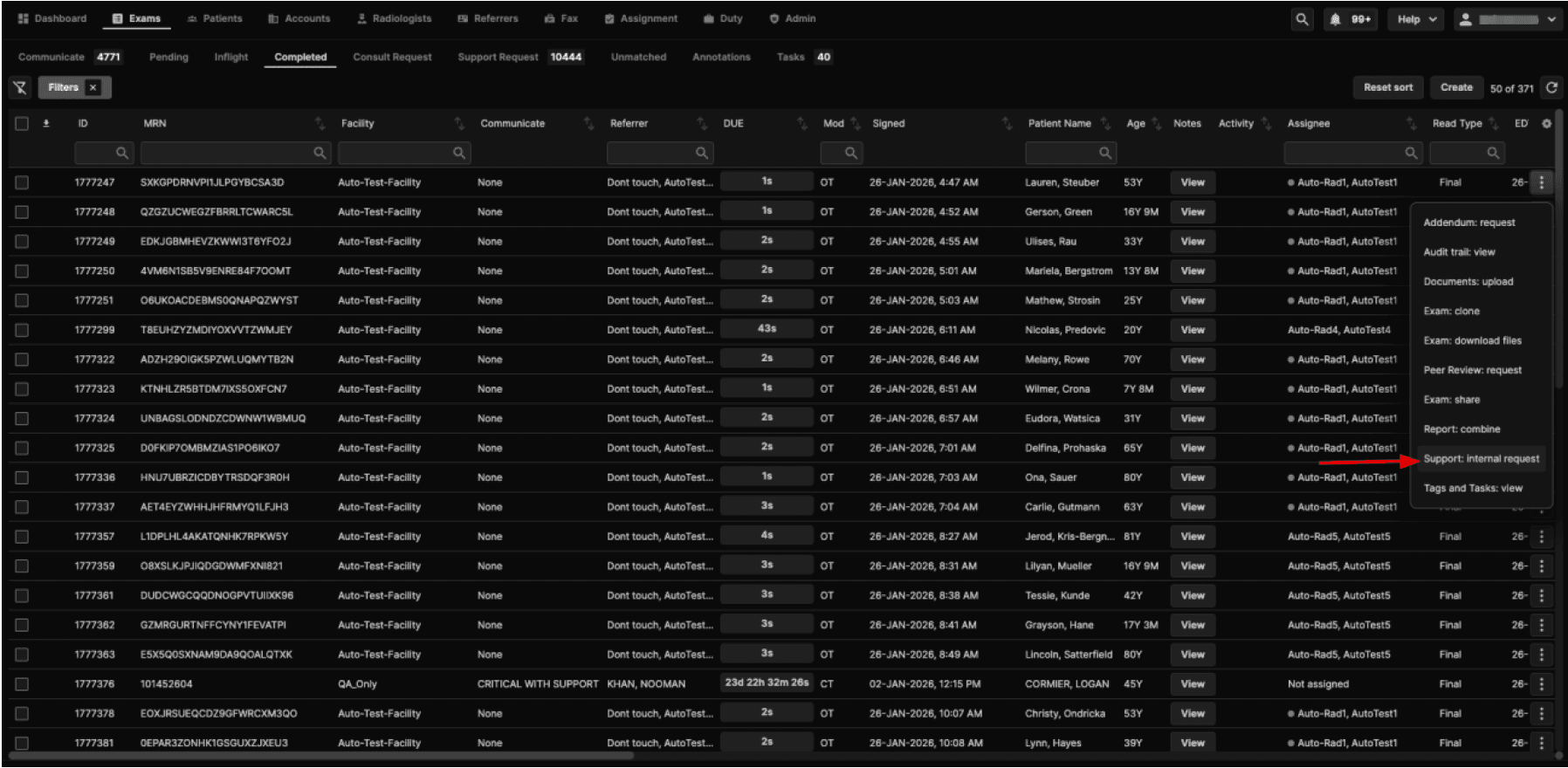 |
There are two ways to send a Completed exam to Support Request: |
1. From the Exam List: |
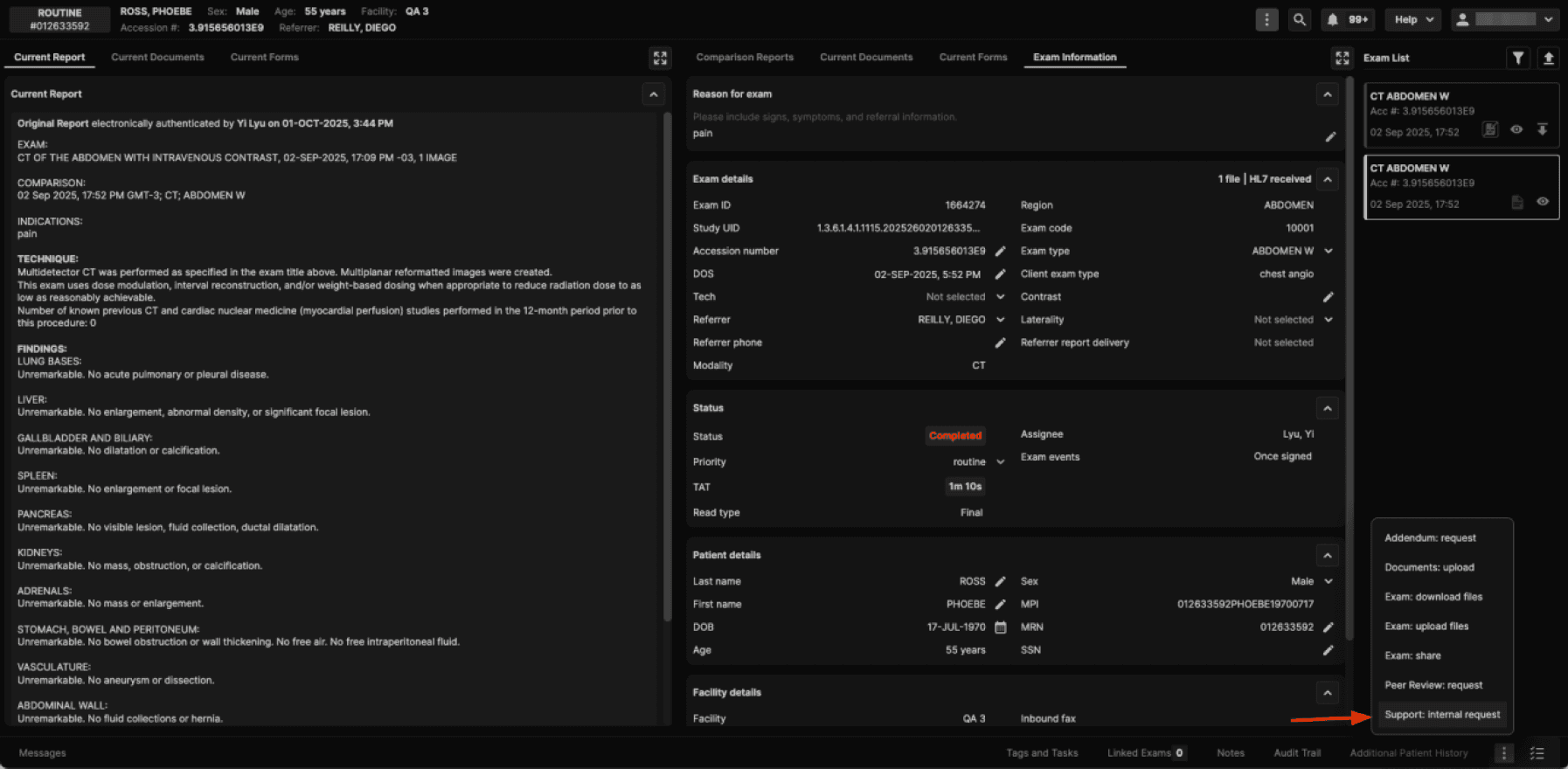 |
2. From the Reporting Screen: |
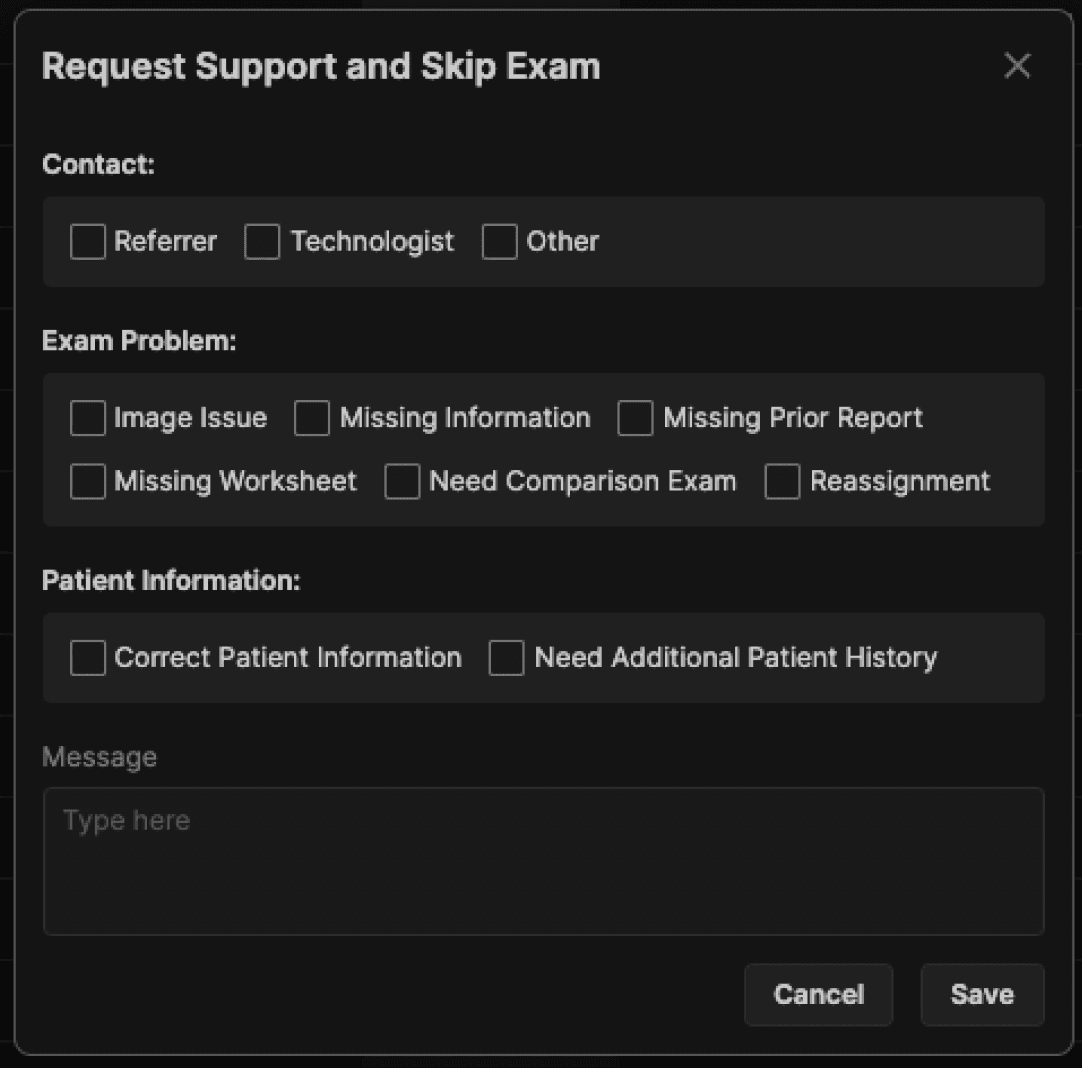 |
In both cases, the dialog box shown above is displayed. |
Select the appropriate option and click Save to send the exam to the Support Request queue. |
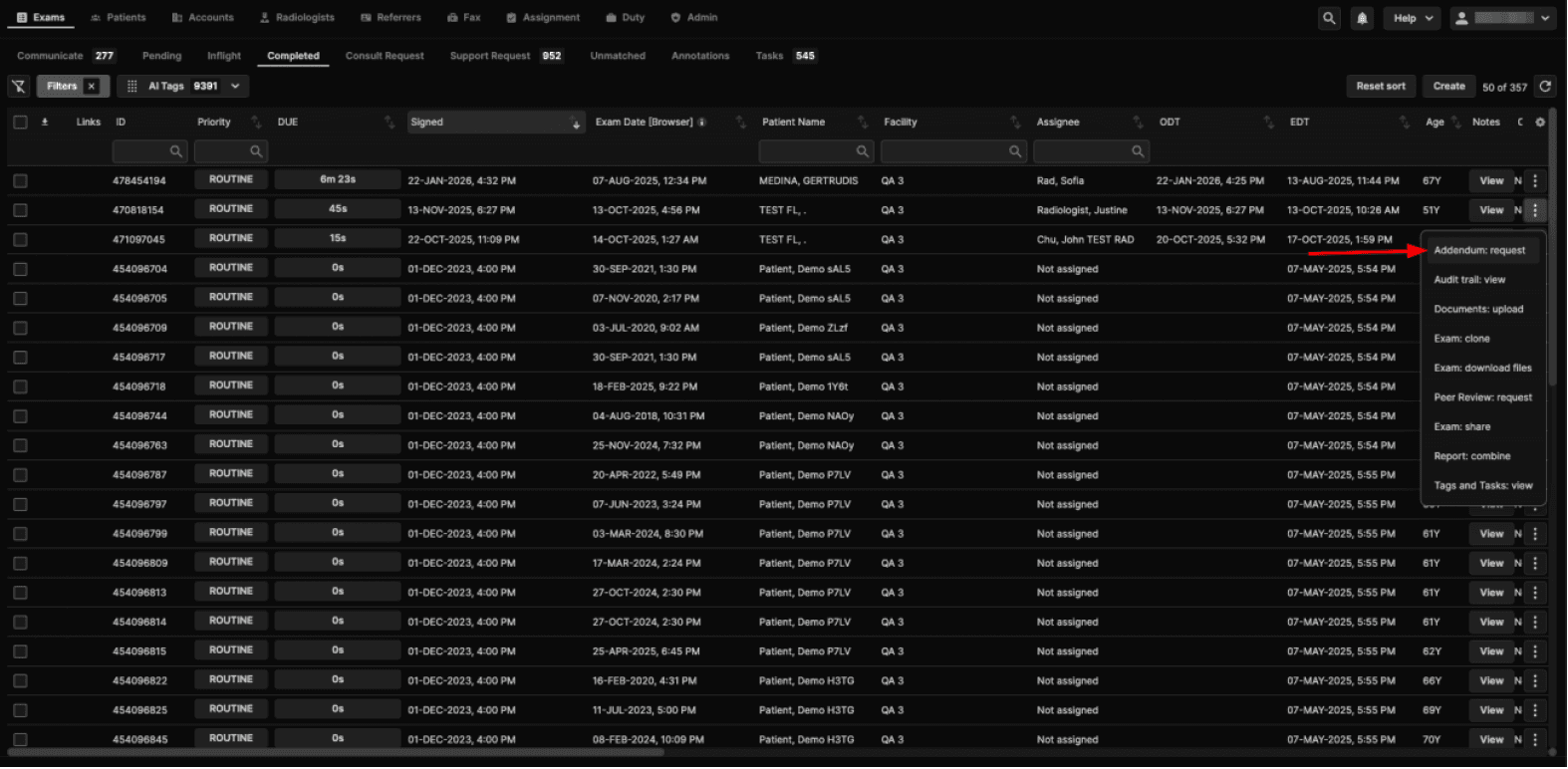 |
There are two ways to send a Completed exam to Inflight via Addendum request: |
1. From the Exam List: |
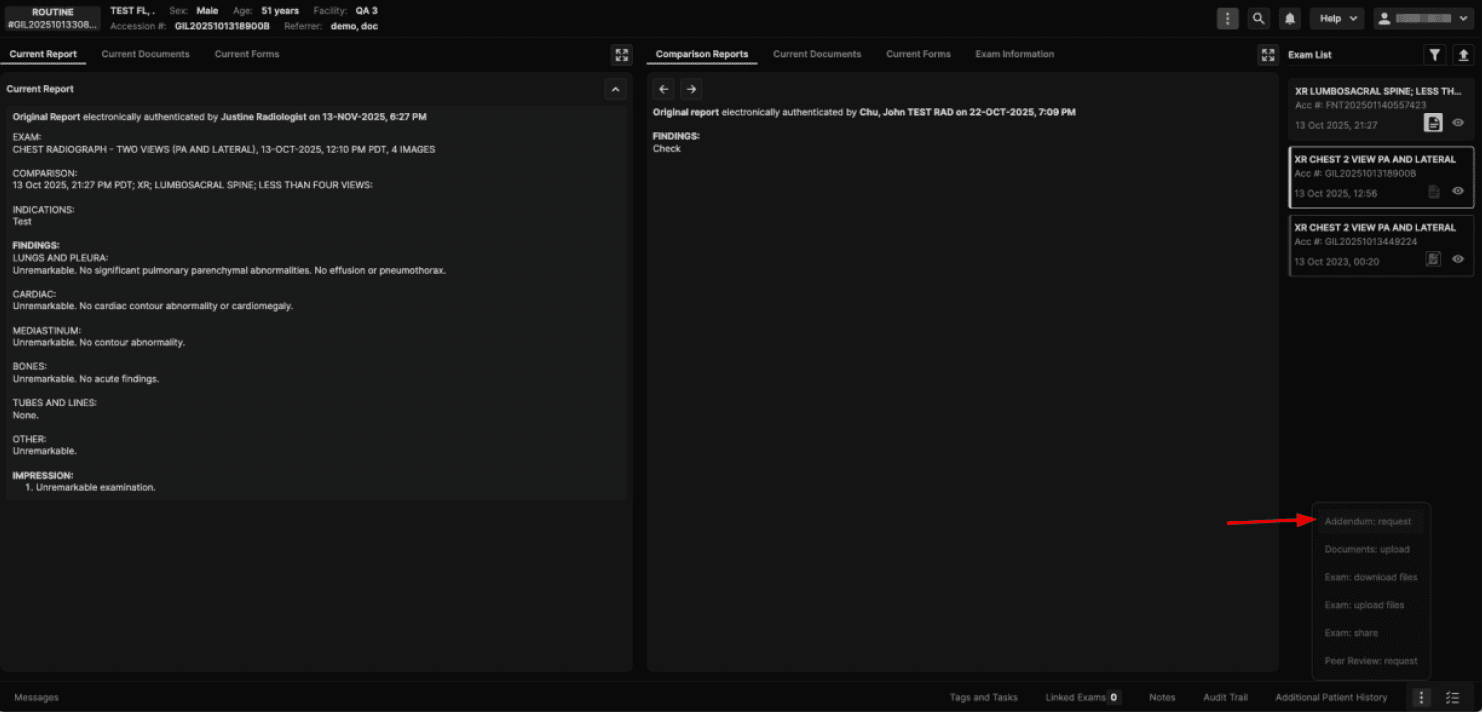 |
2. From the Reporting Screen: |
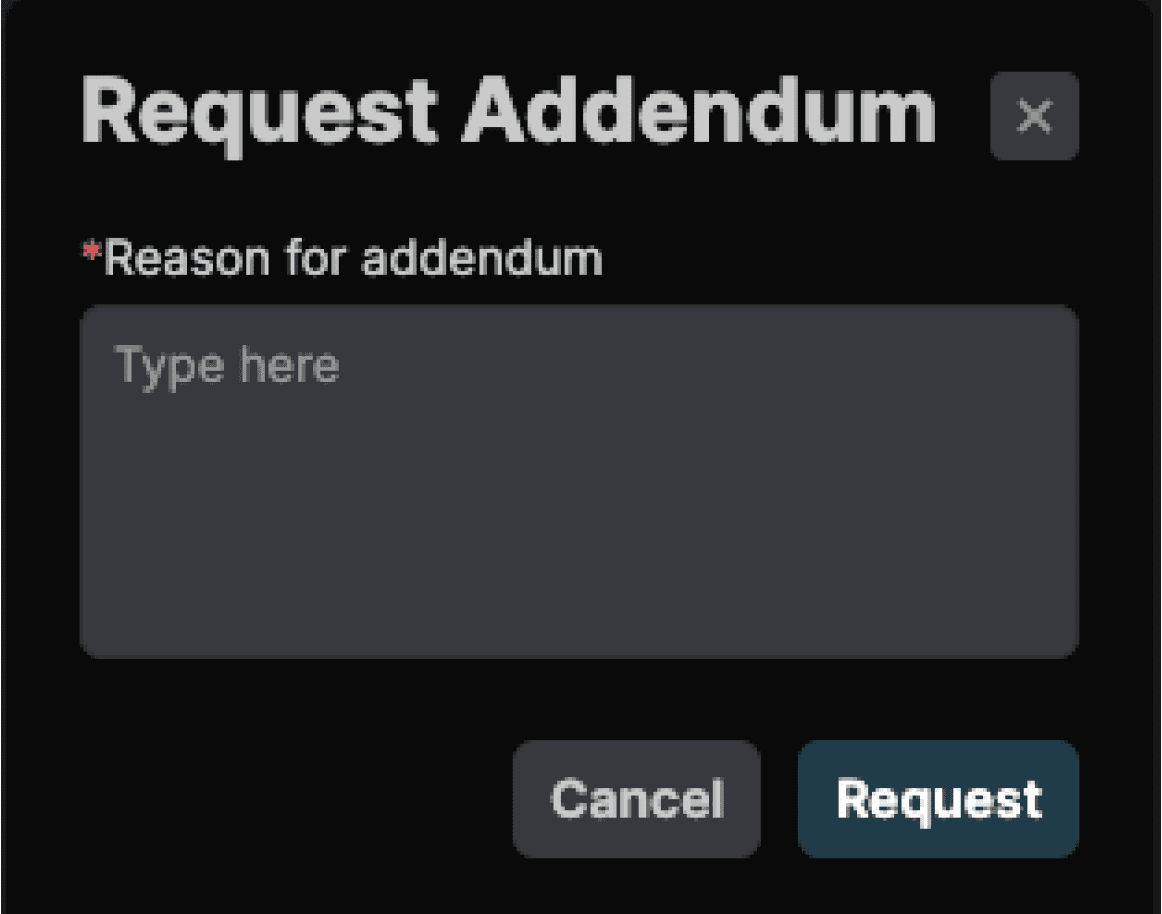 |
In both cases, the dialog box shown above is displayed. |
Enter the reason for the addendum and click Request to send the exam back to the Inflight queue. When a Completed exam (with “once signed” event, a final report signed in the platform, or an external report) is:
The following actions are allowed:
Addendum-Specific Behavior:
|