Click "Current Forms." | |
|---|---|
 |
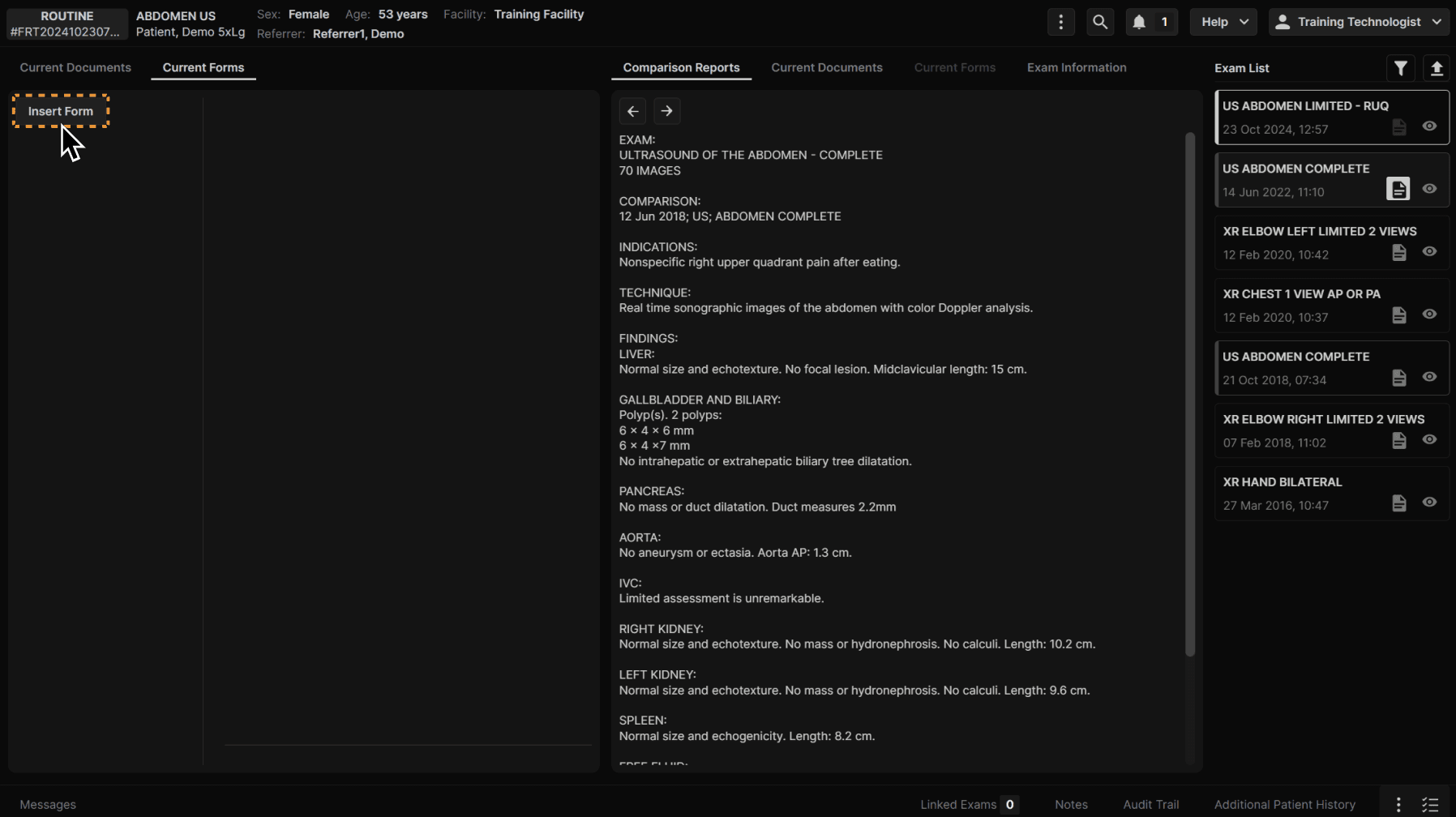
Click "Insert Form." | |
|---|---|
 |
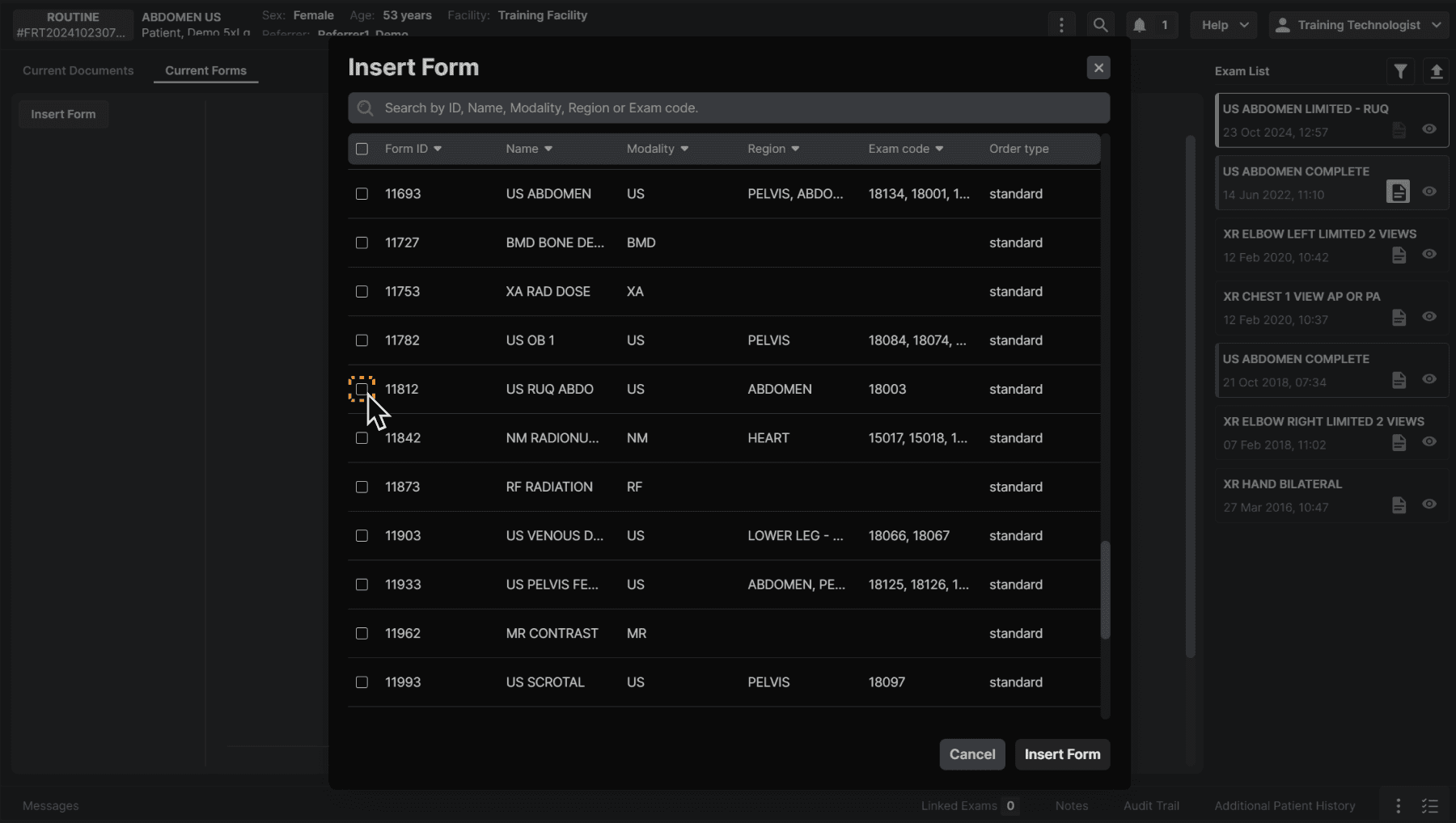
Check the form/forms you would like to add. You may also use the search to find a specific form. Click “Insert Form” when complete. | |
|---|---|
 |
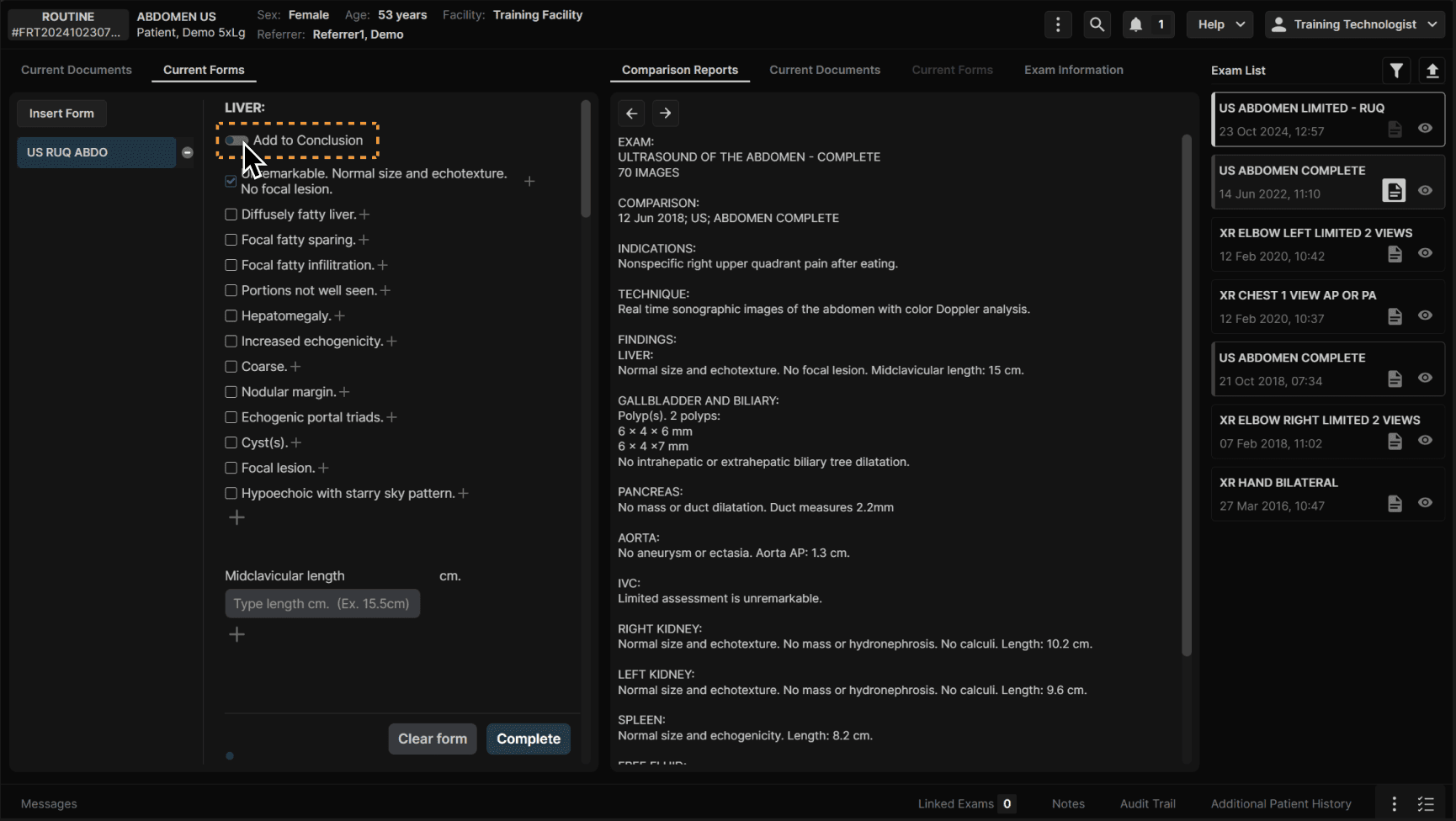
Fill out the form fields. (Note: Any form fields that are not filled out WILL NOT appear in the report, no matter what form settings are selected for that facility. Only fields that have been filled out will populate in the report.) | |
|---|---|
 |
Click this toggle to enable/disable Add to Conclusion function. This automatically adds the form fields to the radiologist's conclusion. (Note: Fields that are not filled out still WILL NOT populate in the report, even if this option is enabled.) Click complete when finished. | |
|---|---|
 |
To delete a form, click the trash can icon. | |
|---|---|
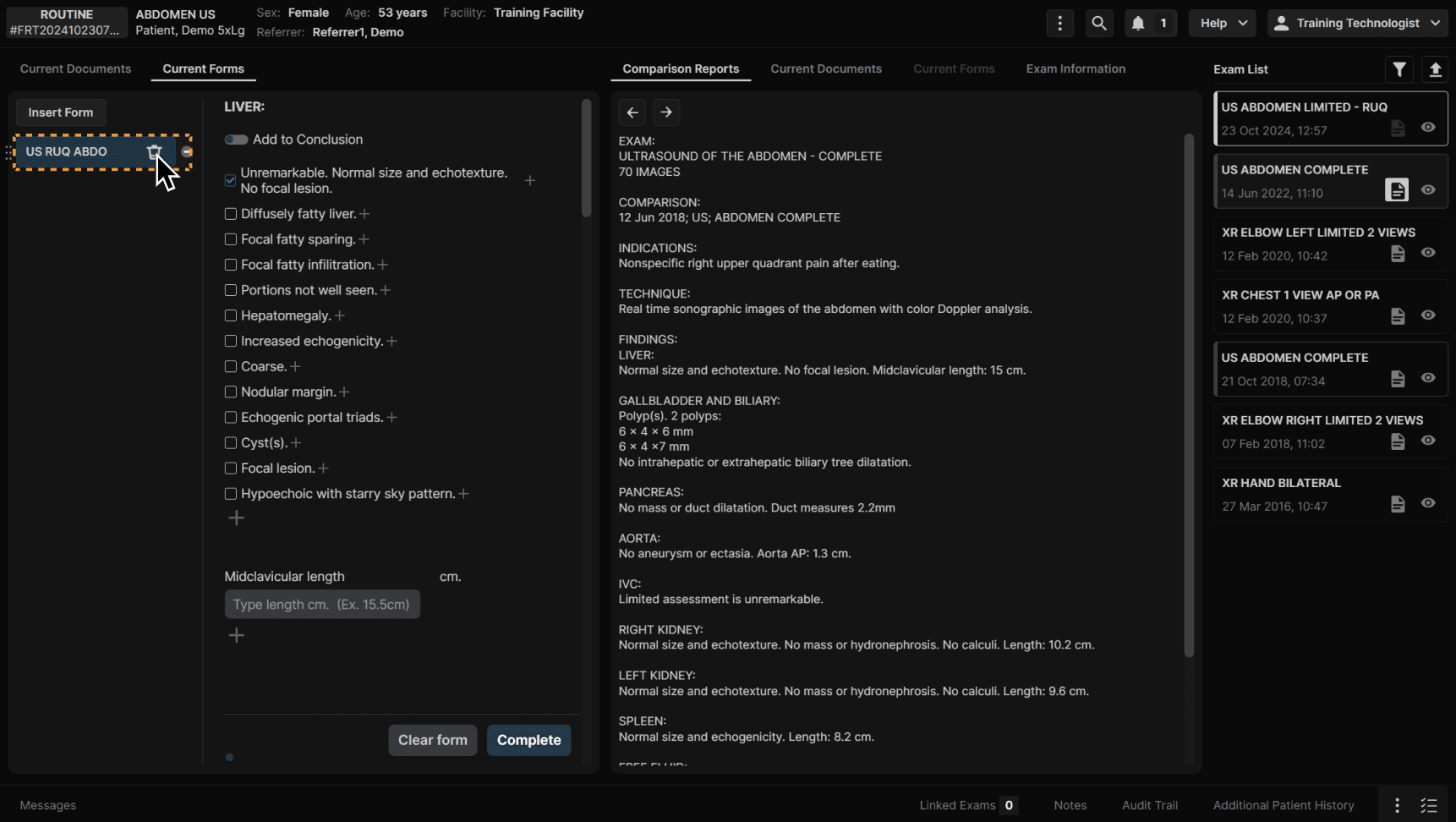 |
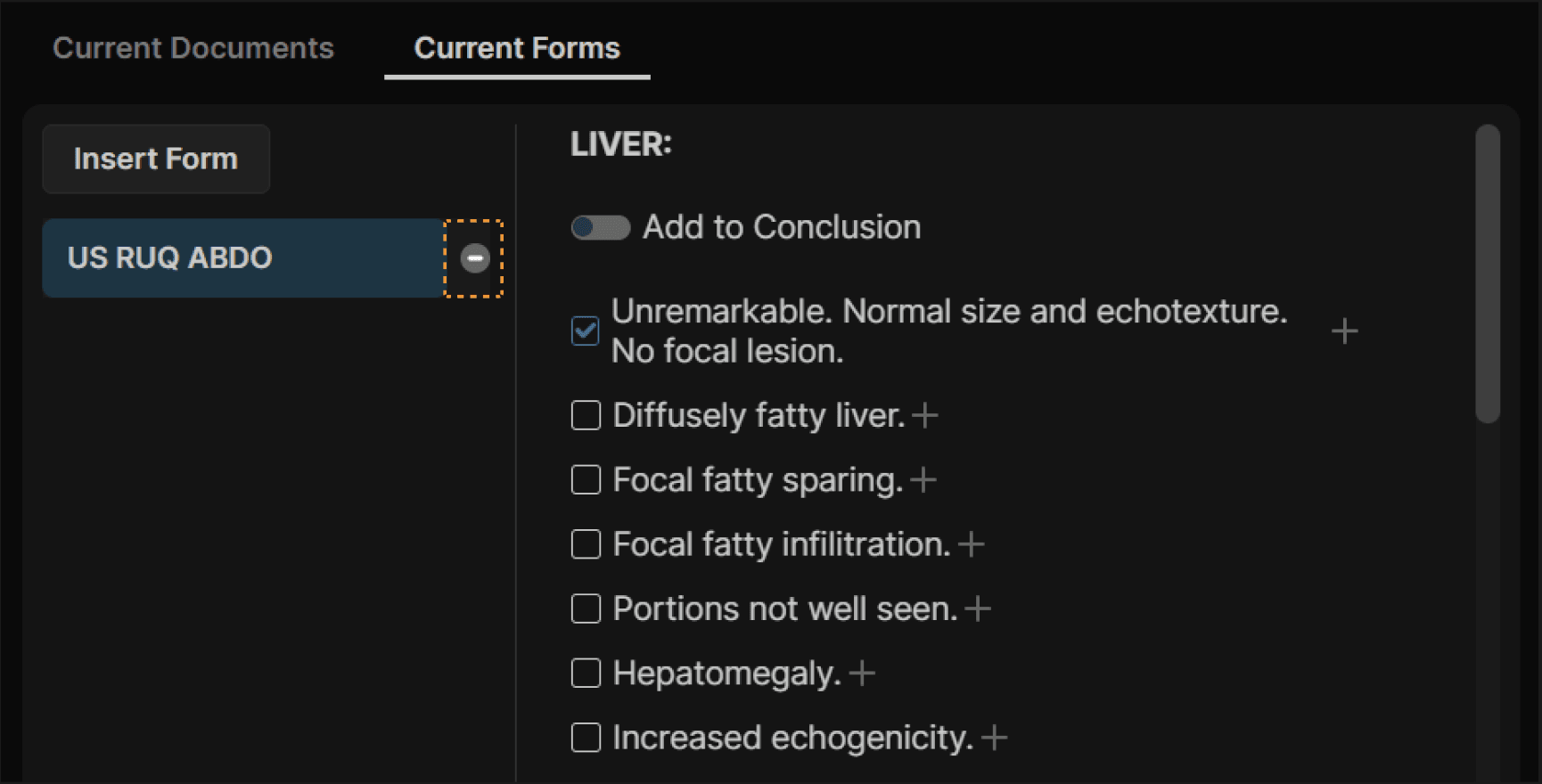
You can check the status of a form using the symbols next to the form's name. A grey dash symbol means it is a new form that has not been edited yet. | |
|---|---|
 |
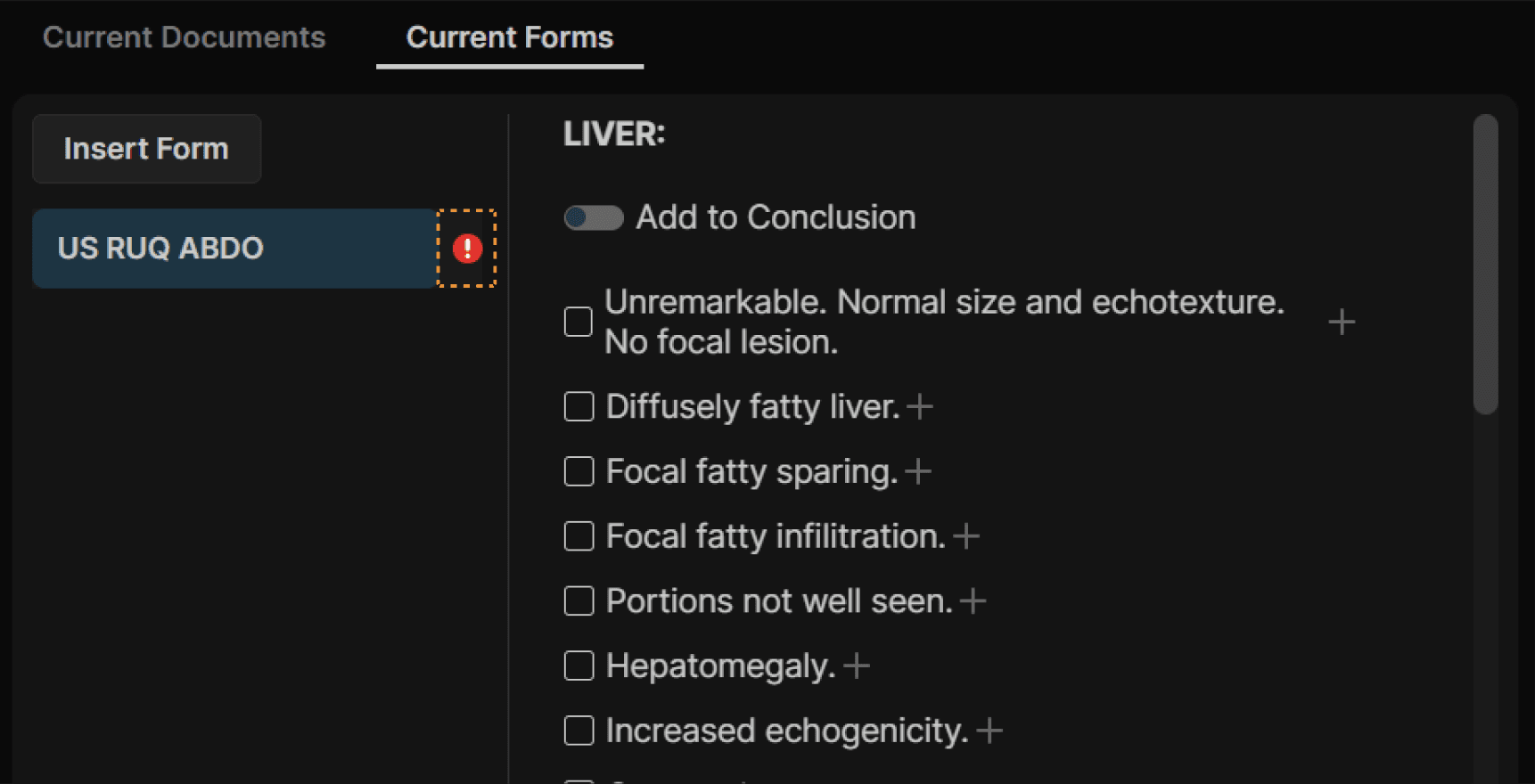
A red exclamation point indicates a form that has been edited but not completed. | |
|---|---|
 |
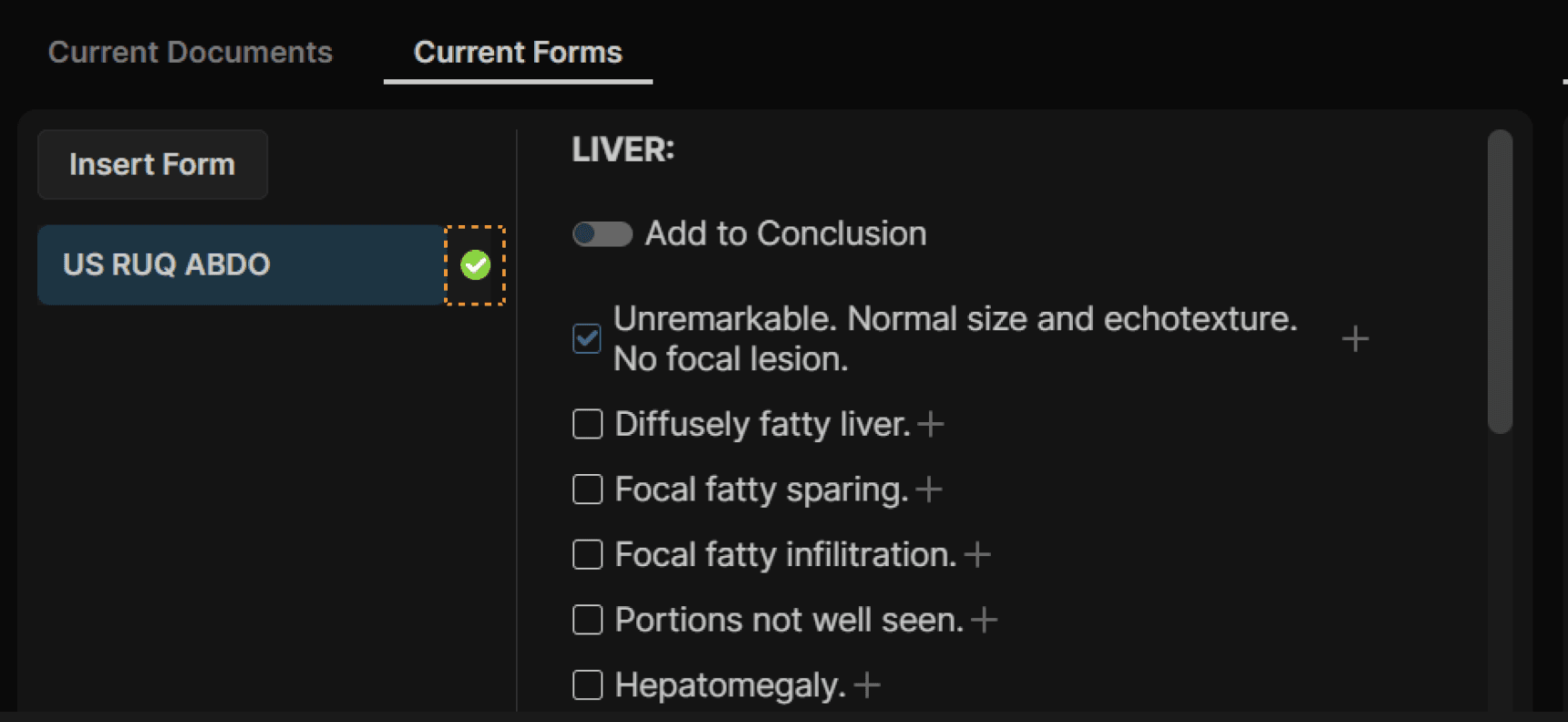
A green check mark shows a form that has been completed. | |
|---|---|
 |