Version 1.0

Effective date:

Feb 5, 2026

Image viewing

Auto window/level tool


What this feature does 

Auto Window Level (Auto W/L) automatically adjusts window and level based on the pixel values in the image. 


The problem it solves 

Auto W/L gives you a quick starting point and allows you to control the ability to change that affects just one image, a subset, or the entire series. 


How to use it 

MR exams 

  1. Open the MR series. 

  2. Access the Window Level tool. 

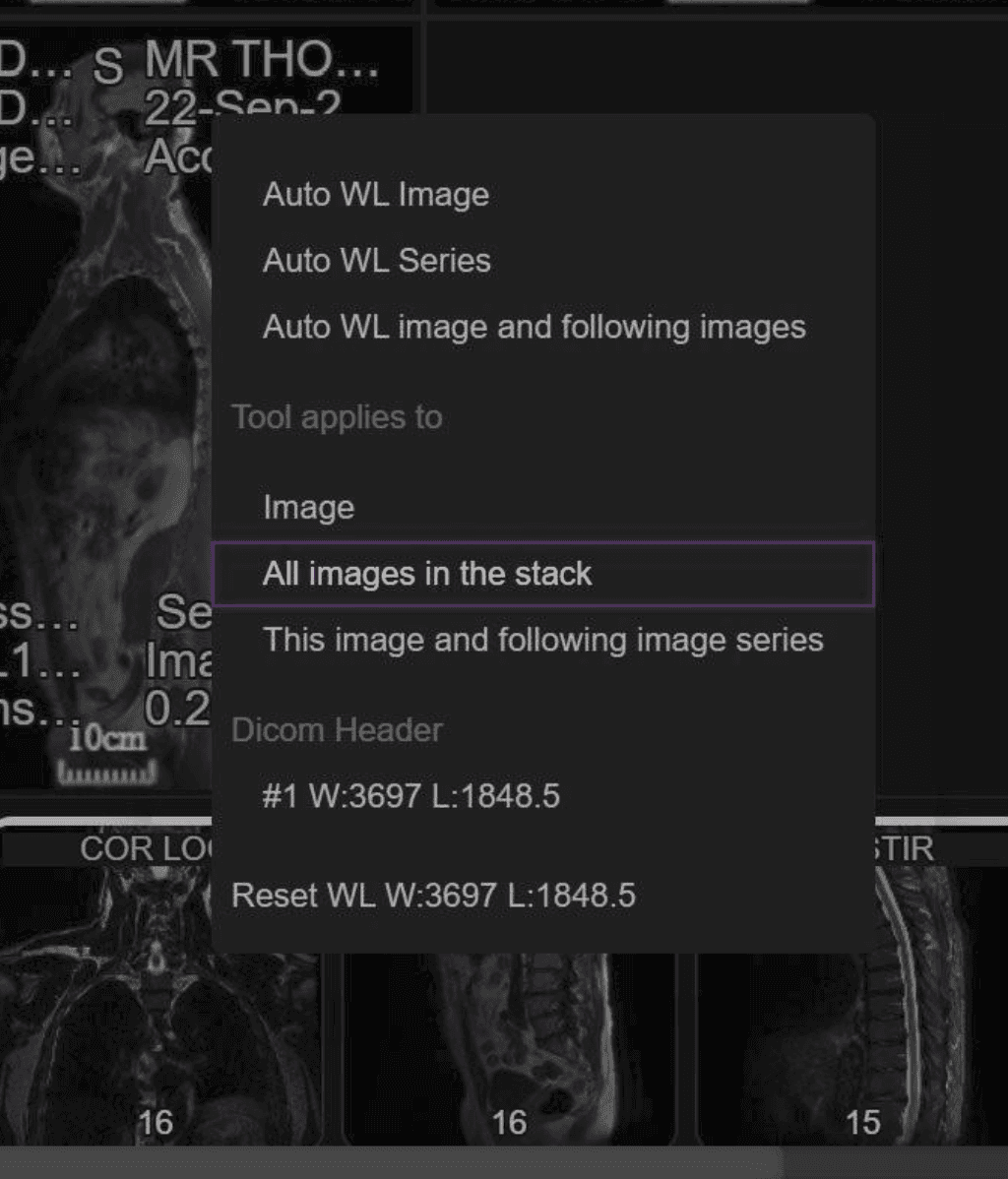
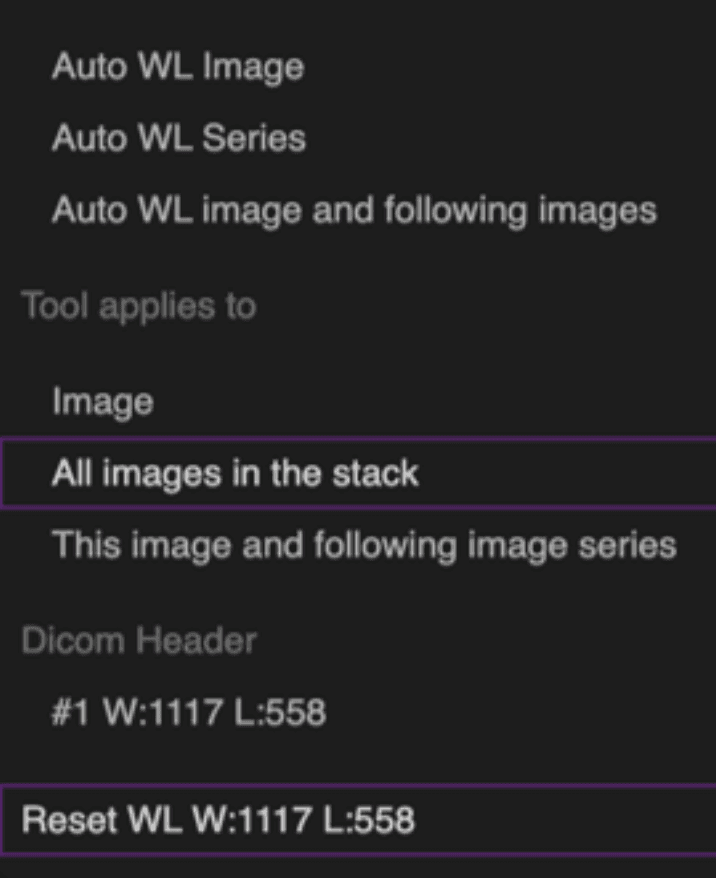
  3. Right‑click on the image and open the Window Level menu. 

  4. Under Auto W/L choose: 

    1. Auto W/L Image: only the current image.

    2. Auto W/L Image and Following: current image and all following images in this series. 

    3. Auto W/L Series: all images in the series. 

  5. To undo, choose Reset from the same menu; it restores default W/L 

Note: You can also use manual W/L (click‑and‑drag the W/L tool) applying to the image, this image and following, or the series. 

XR exams 

  1. Open the XR exam. 

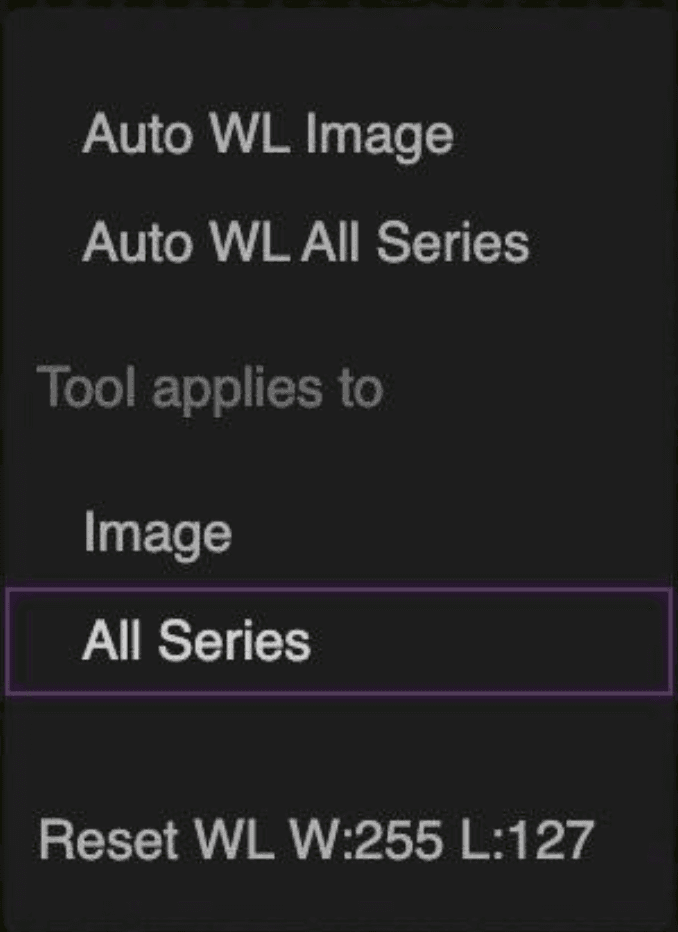
  2. Right‑click on an image and open the Window Level menu. 

  3. Under Auto W/L, choose: 

    1. Auto W/L Image: only this image in this viewport. 

    2. Auto W/L All Series: all XR series. 

  4. To undo, choose Reset from the same menu; it restores default W/L  

Note: You can also use manual W/L (click‑and‑drag the W/L tool) applying to the image or all series. 


Last‑used behavior 
  • The viewer remembers your last propagation choice for MR and for XR (for both Auto and manual W/L). 

  • Next time you open an exam of the same type, that option is used as the default.