Oct 23, 2025

Administrator workflows

Building and managing forms: Form settings


Click the Status toggle to enable/disable a form.

Please note: changes to form status will be reflected in all copies of this form in other facilities.


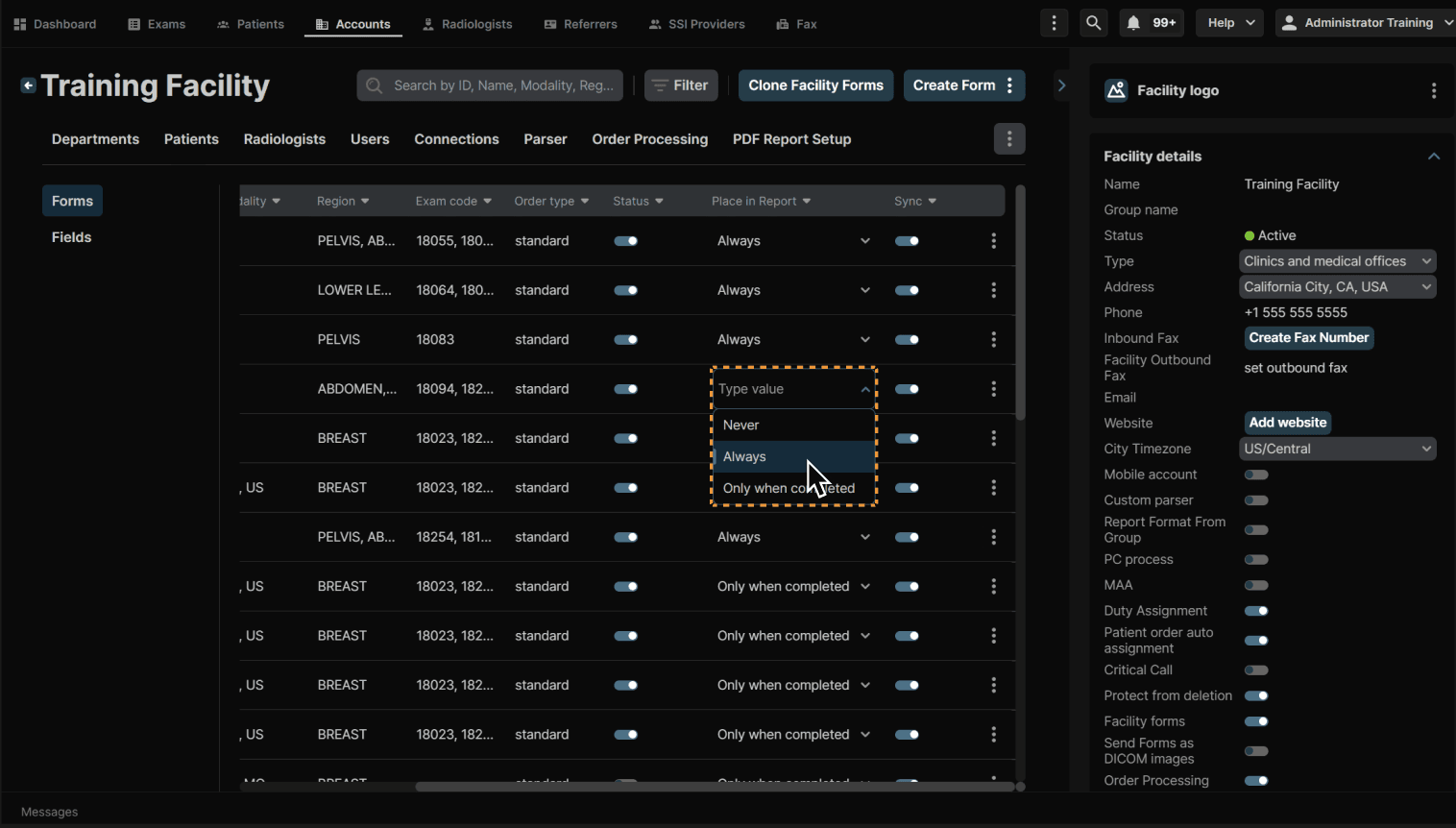
Click the dropdown under Place in Report to change when the form appears in the report. You have the options of Never, Always and Only when completed.

Select Never if you do not want the forms to appear in the radiologist's reports at all (Note: They will still be available to view/edit/add under the Current Forms tab in the exam. They just will not populate in the report itself.)

Select Always in order for the form to always appear in the radiologist's report. (Note: Fields that are left blank in the form WILL NOT appear in the radiologist's report, even if this option is selected. Only fields that have been edited will appear.)

Select Only when completed to have the from only appear in the report if the Complete button under Current Forms has been completed.


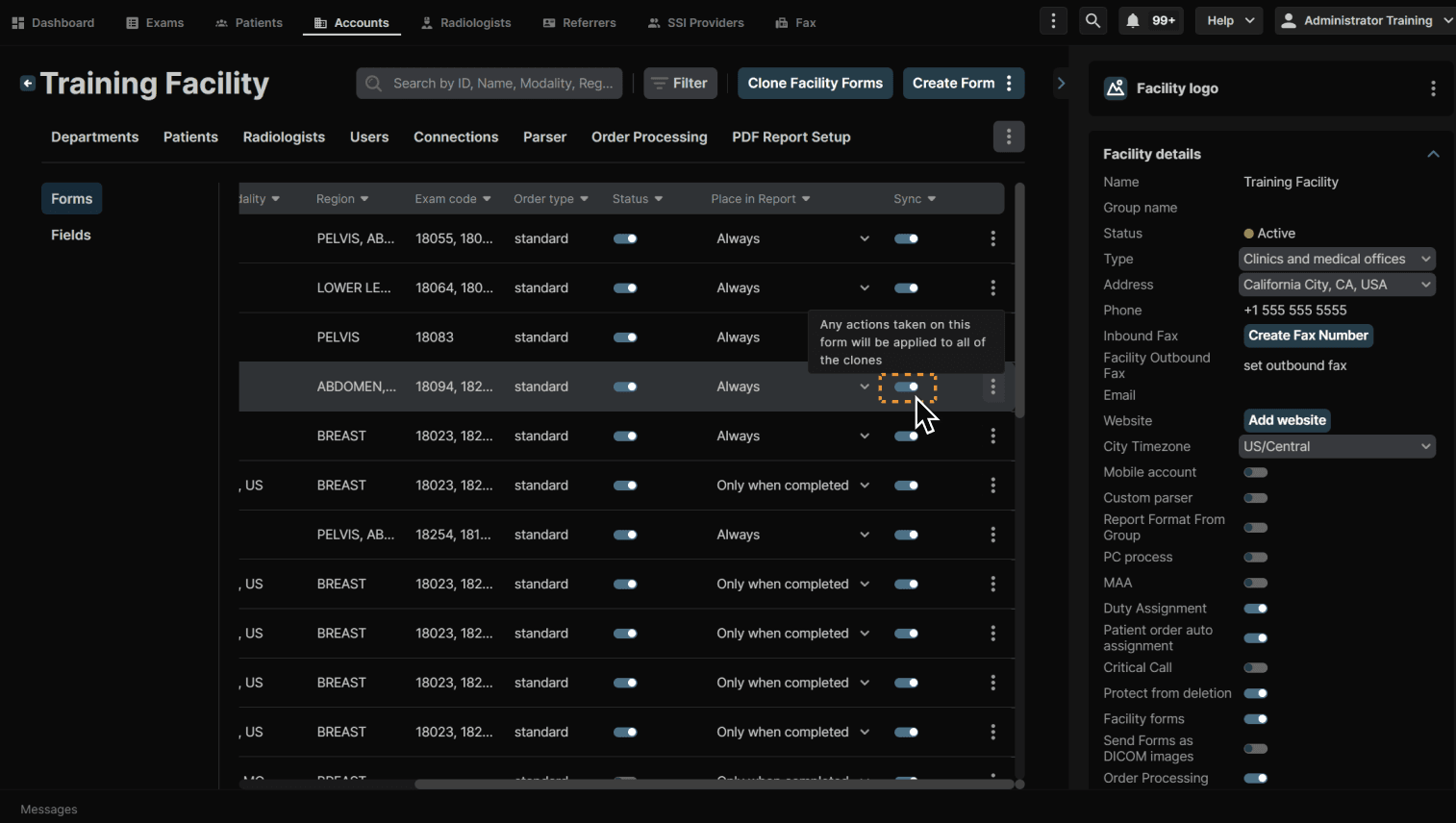
Click the toggle under Sync to sync all clones of the form. This means that any edits made to the form or form settings will be copied across all clones.

Note: Once Sync has been turned off for a form, you will no longer be able to sync the copies again. They will be treated as separate forms. You can enable Sync again for any future copies, however.


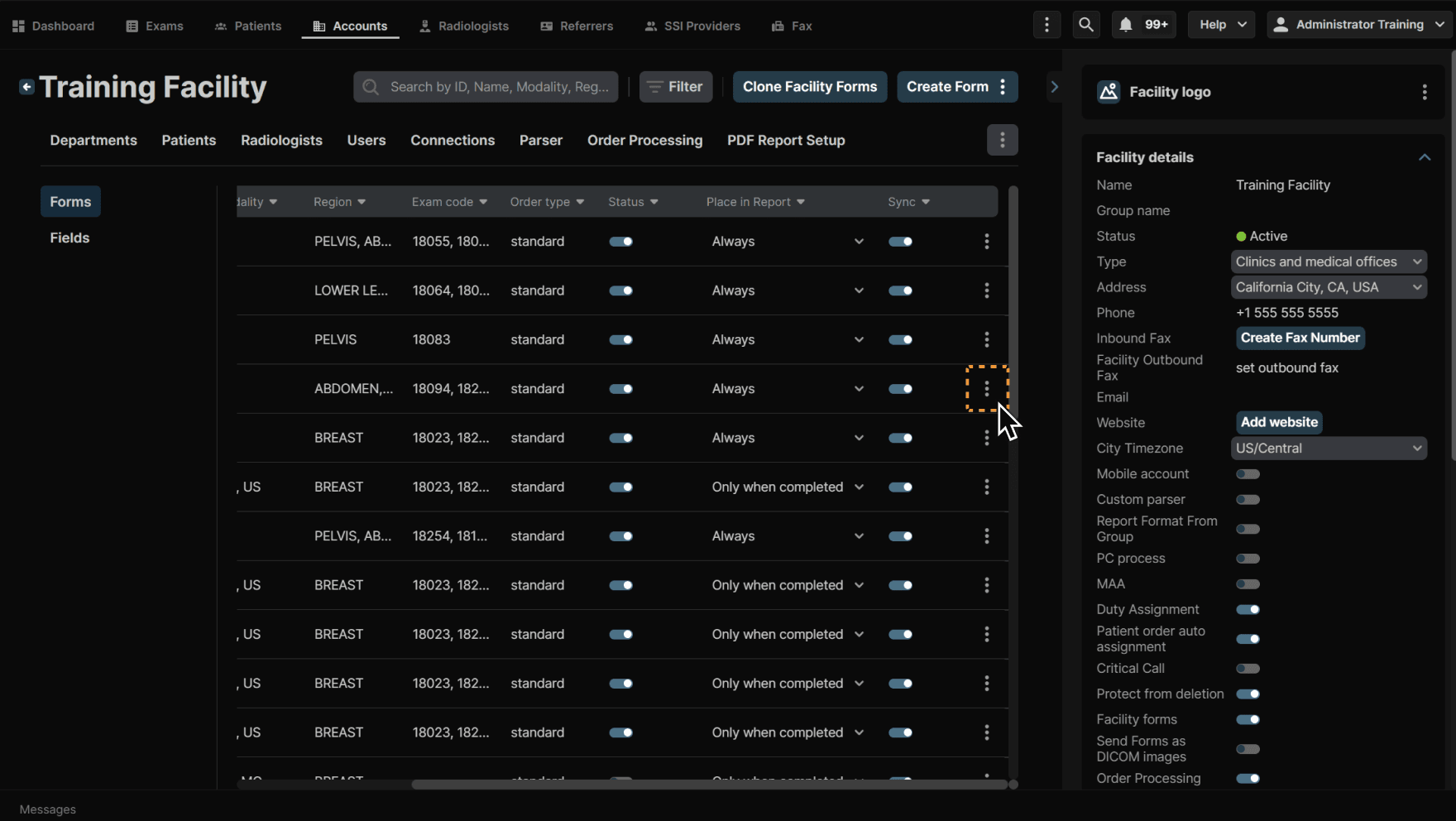
To clone, edit or delete a form, click the three dots at the end of a line item.