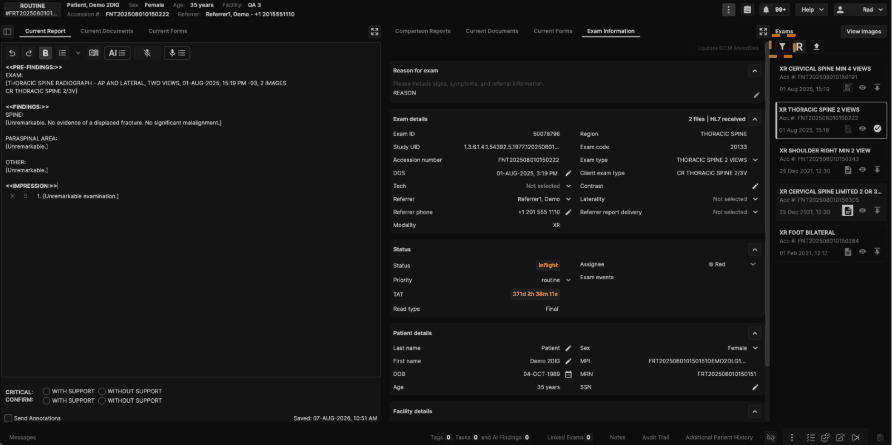
1. Click the filter icon to filter the exam list panel.
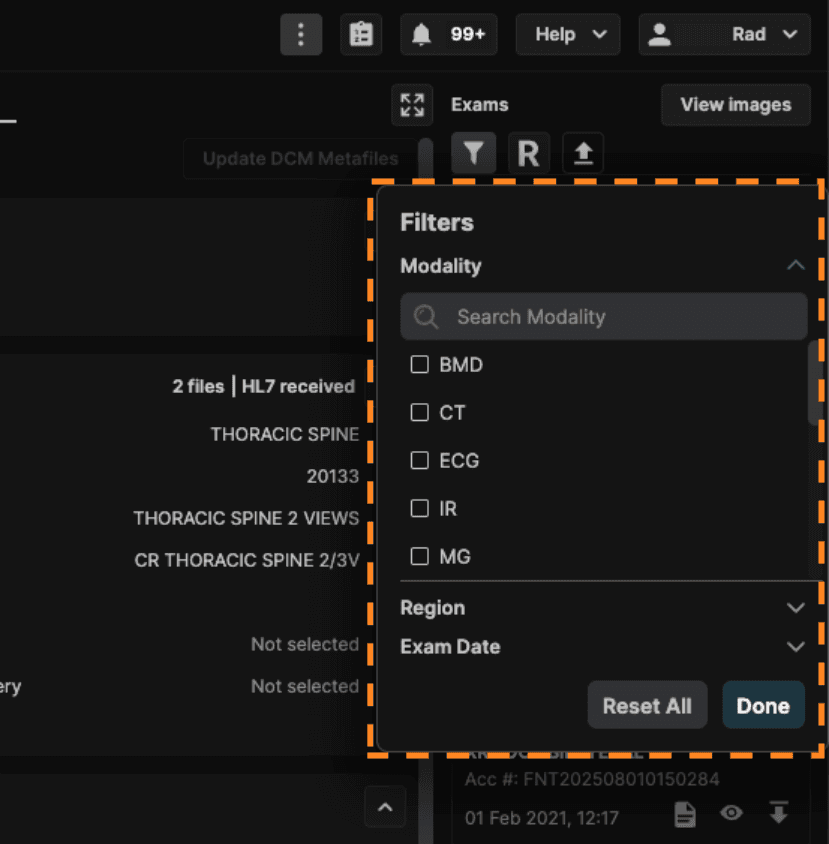
2. Select a filter criteria.
Use Reset All to clear your selections, or Done to apply and close the panel.
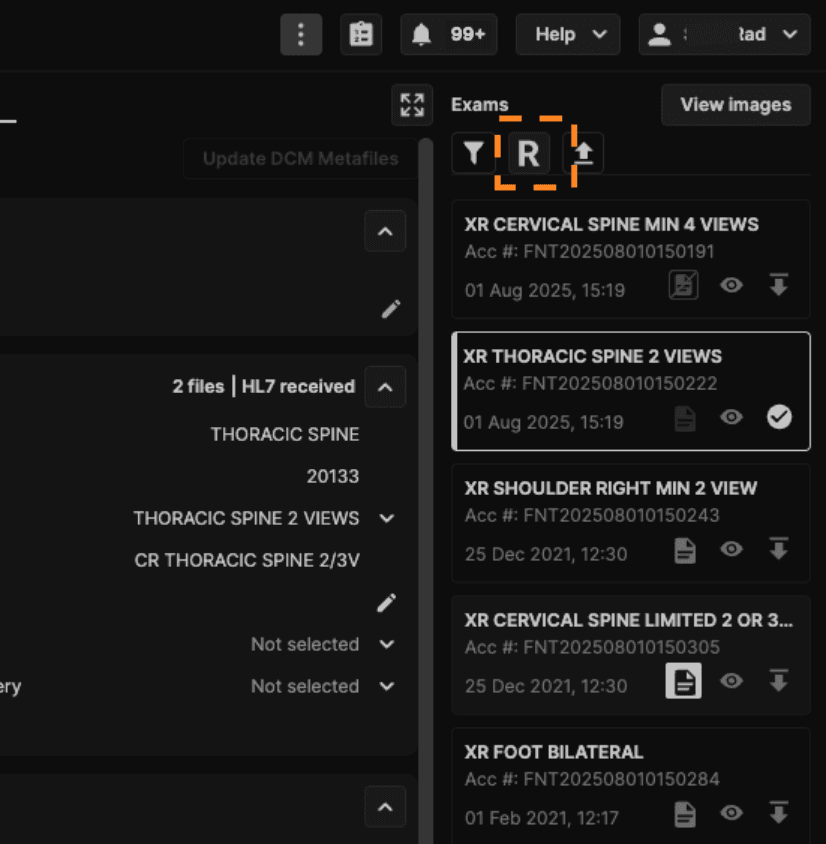
3. Click the Relevancy ("R") button, next to the filter icon, to show only exams that are relevant to the primary exam.
The "R" button is highlighted while relevancy is enabled, so it's clear when it's on. Your relevancy preference is saved to your user account and stays applied across exams until you change it.
Note: If the primary exam has no relevant prior exams, enabling relevancy will also hide the primary exam from the list.