Administrator workflows
How to create a group-level report template
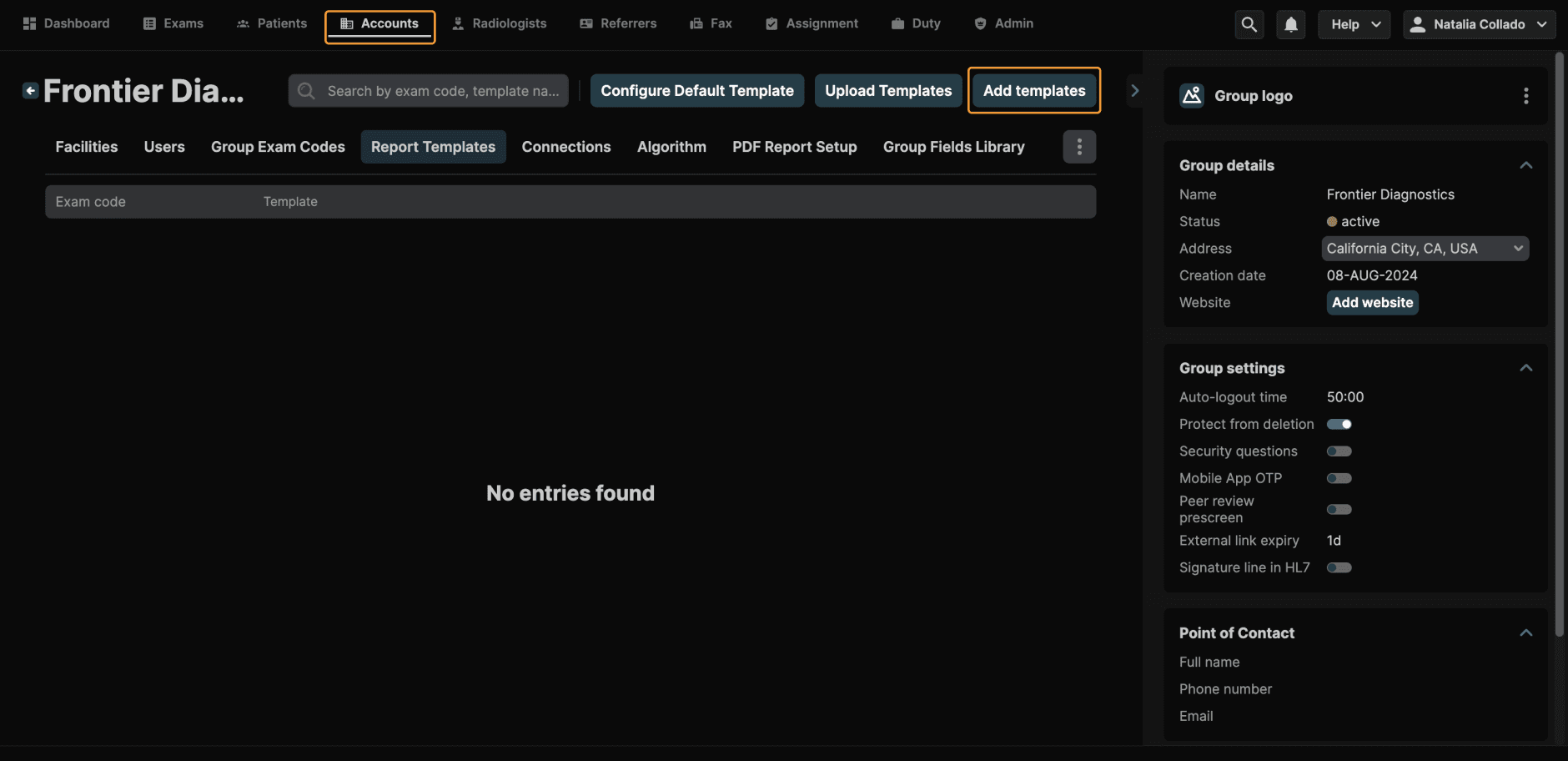
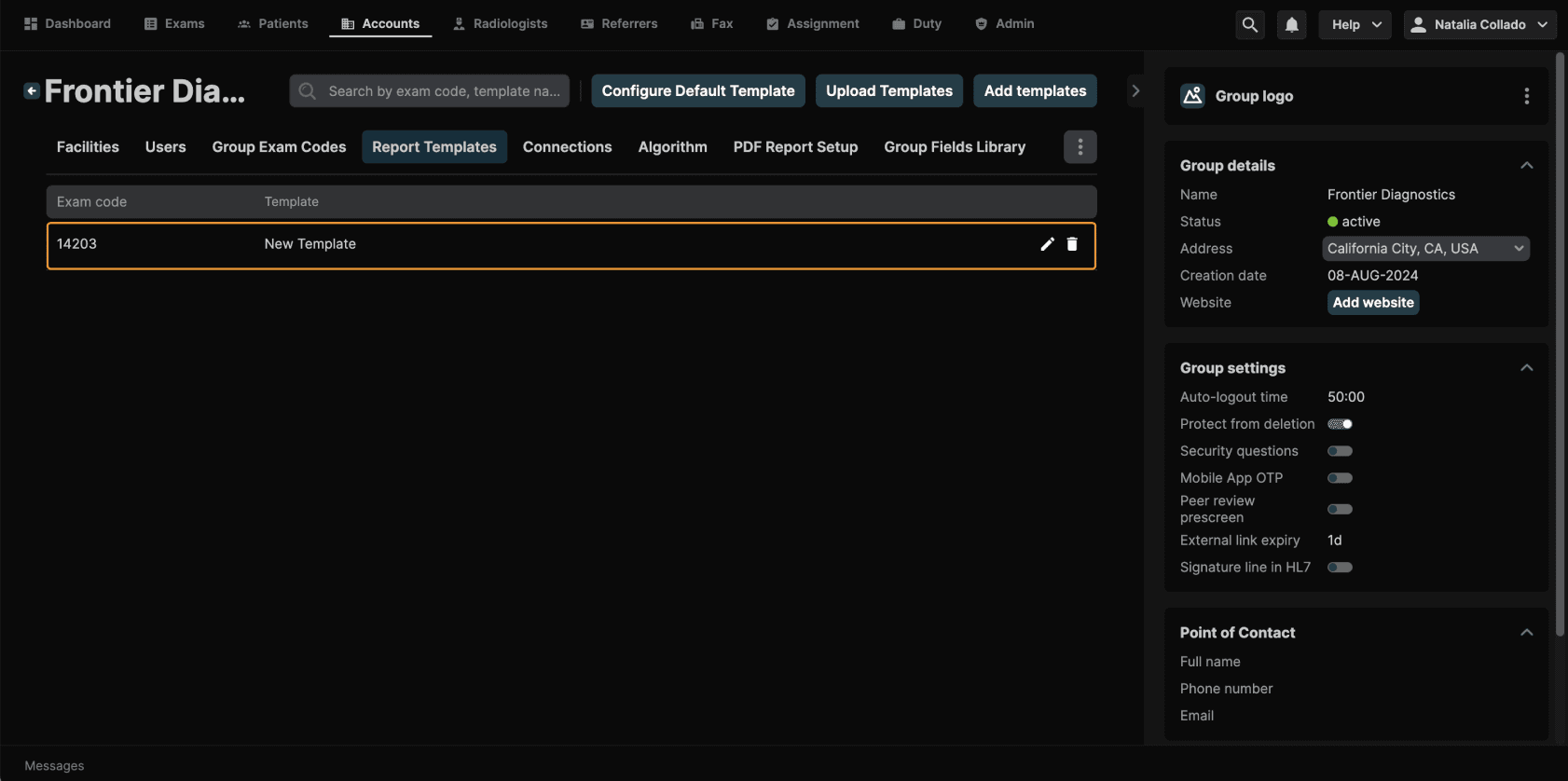
Step 1: Navigate to Group-Level Templates To create a group-level template, navigate to the Accounts page in the platform. Select the facility group you want to configure, then open Report Templates. This area allows you to create and manage templates that apply only to that specific group. | |
|---|---|
 |
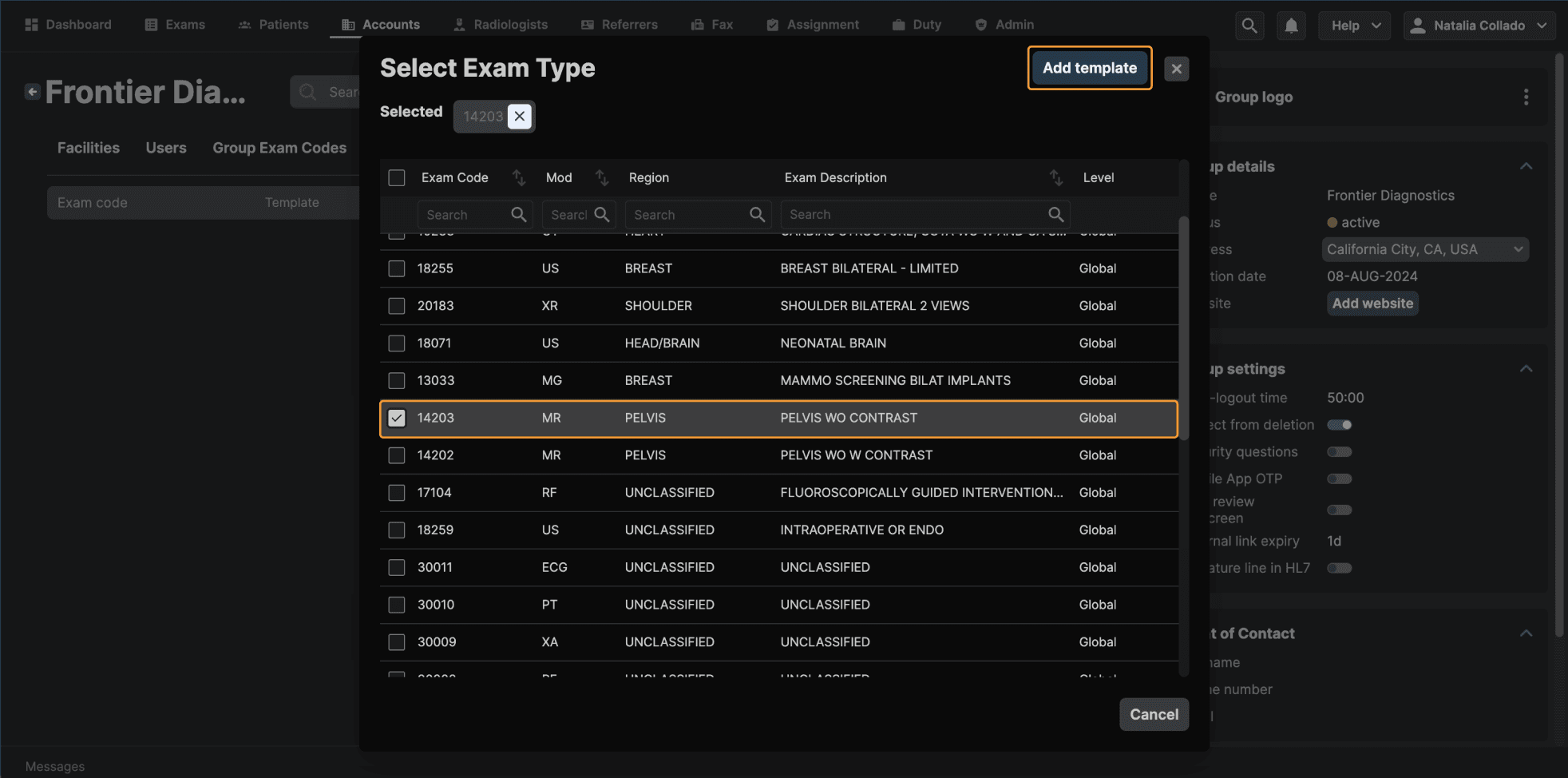
Step 2: Select Exam Types and Name the Template When creating a new template, you can select one or more exam types that the template should apply to. |
|---|
 |
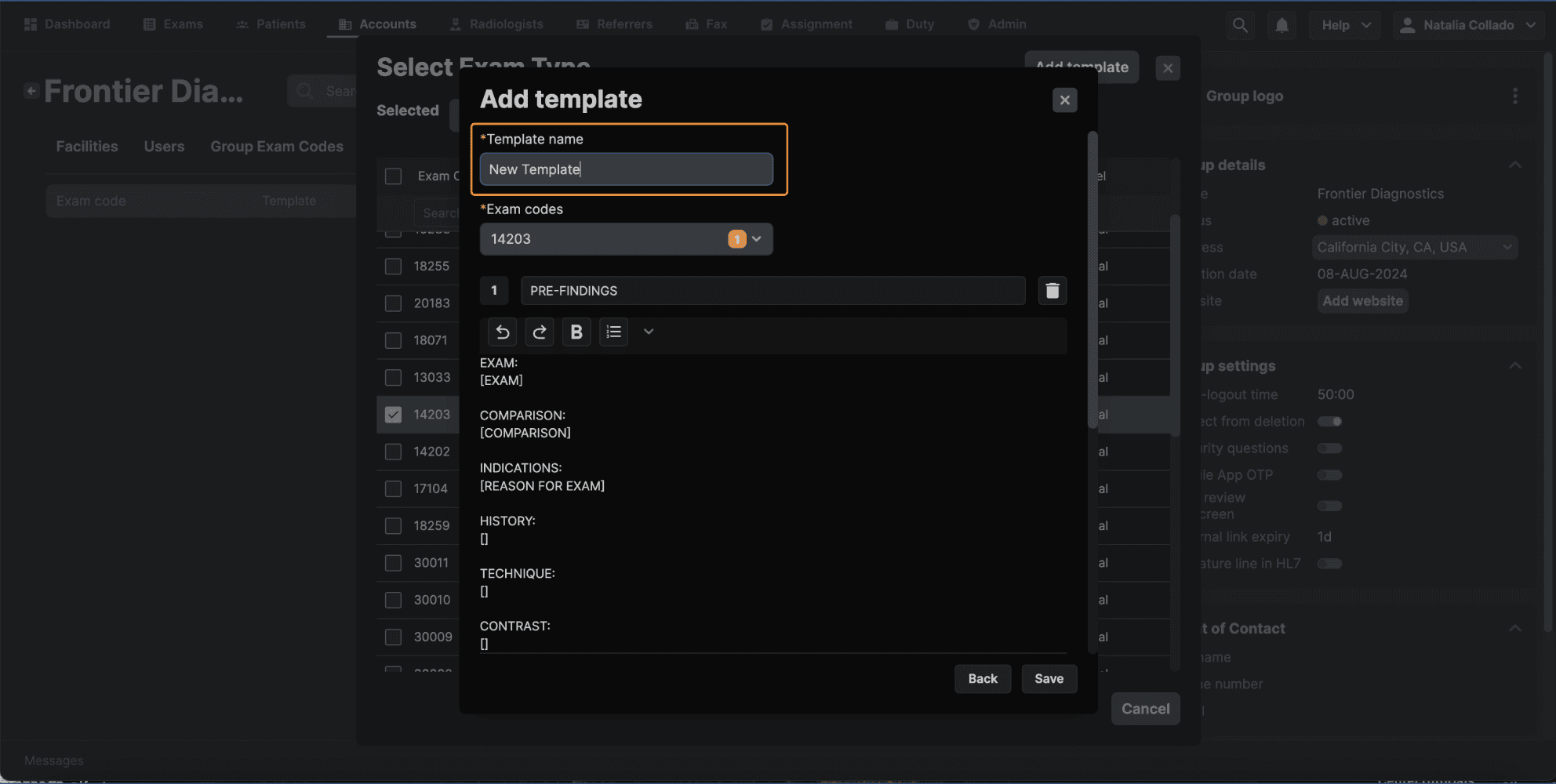
Once the exam types are selected, enter a name for the template and begin configuring its structure. |
 |
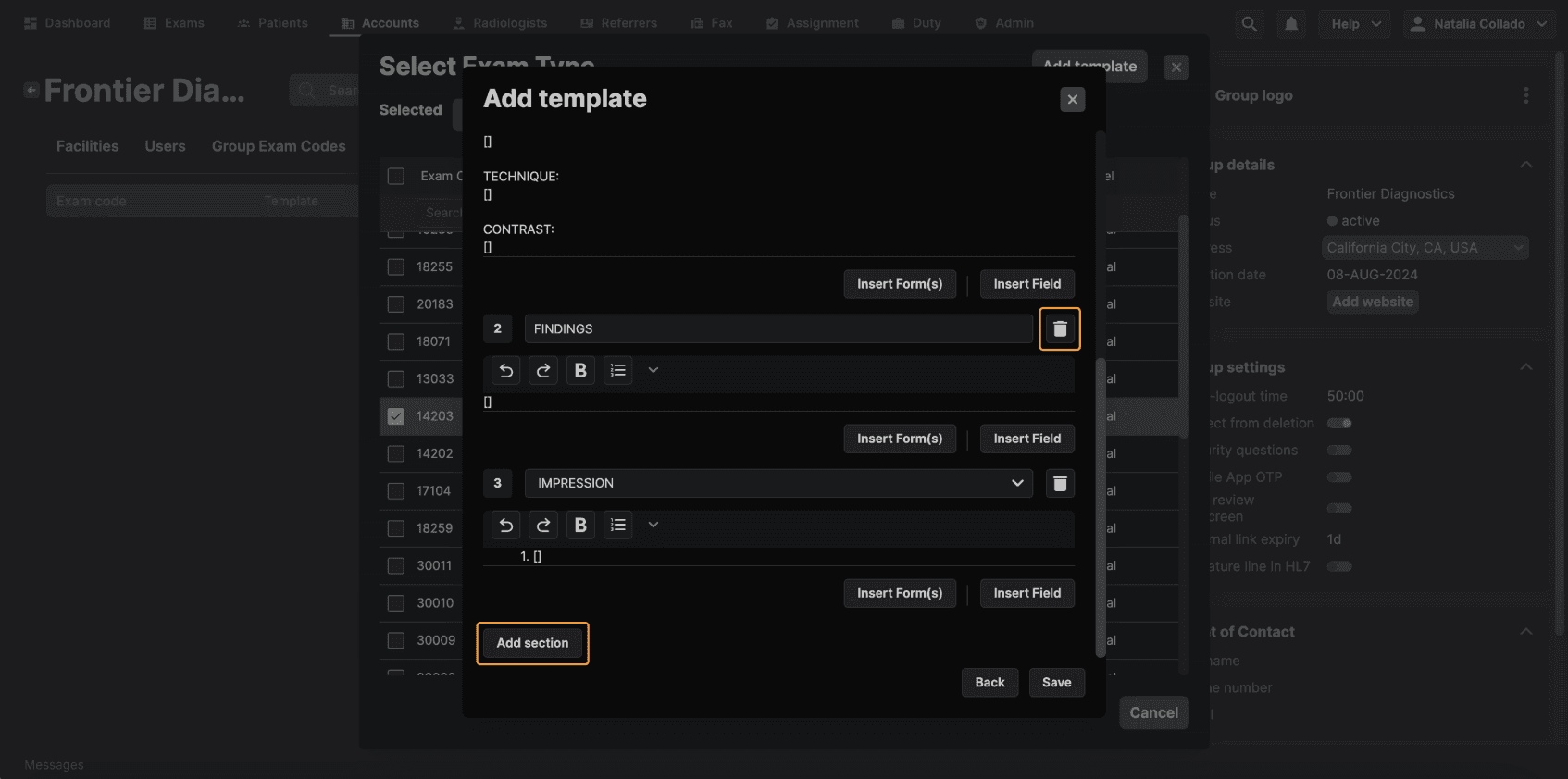
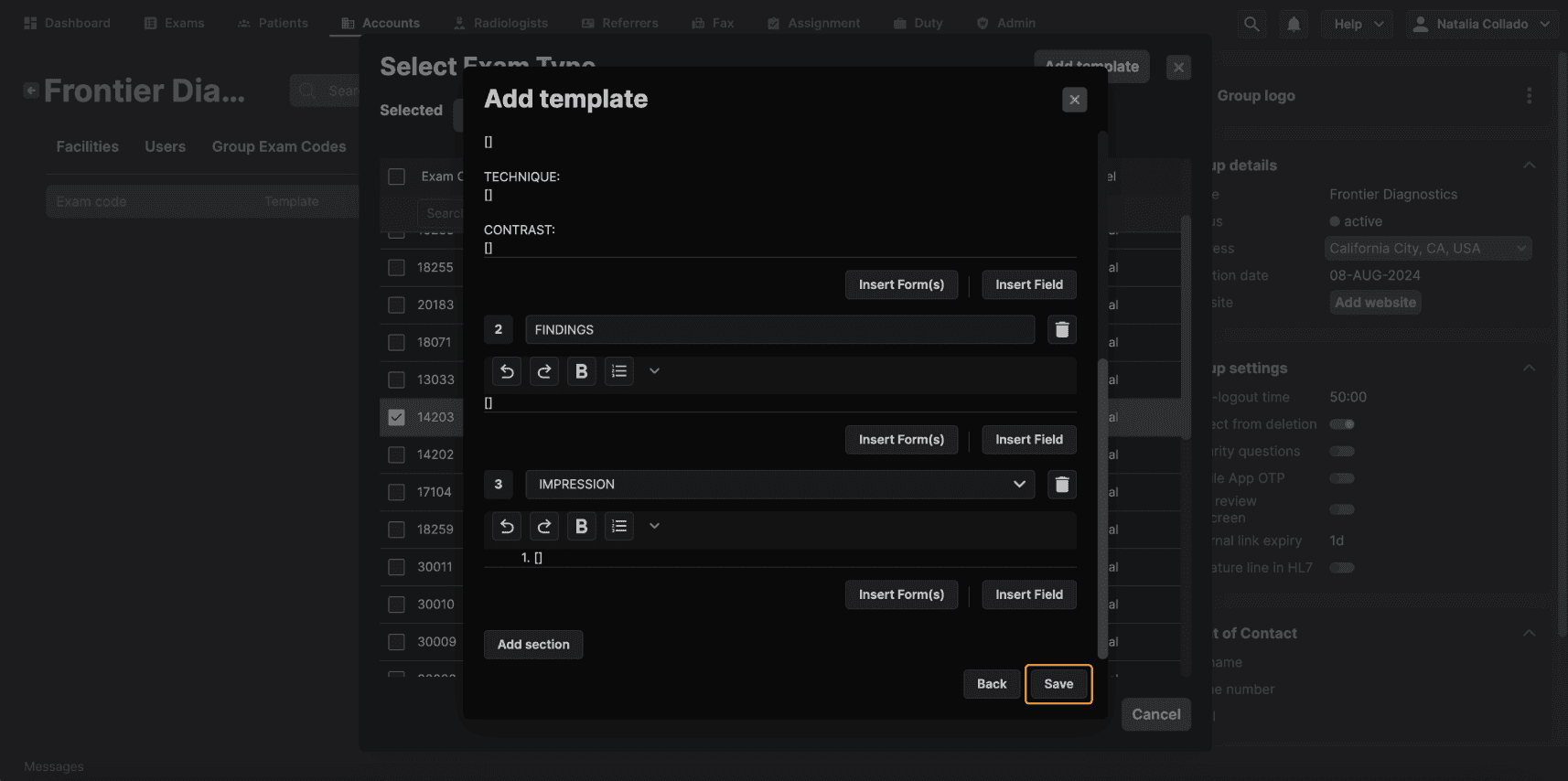
Step 3: Configure Template Sections By default, each template includes three standard sections:
You can remove any section that is not needed, add new sections using the Add Section option. You can also reorder sections to match your preferred reporting structure. |
|---|
 |
Step 4: Add Content, Forms, and Exam Fields Within each section, you can enter custom text or insert structured content. You also have the option to insert forms:
|
|---|
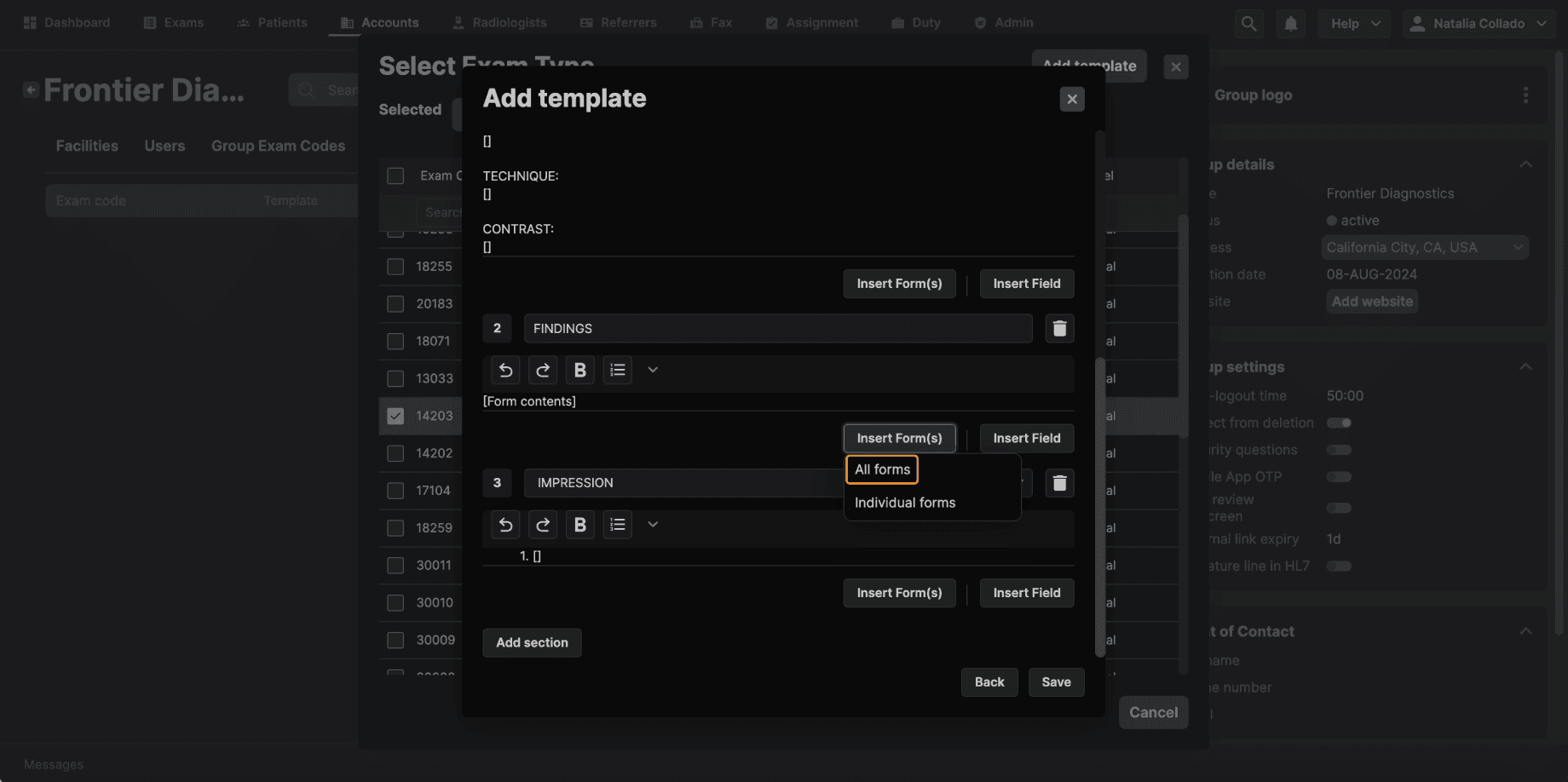 |
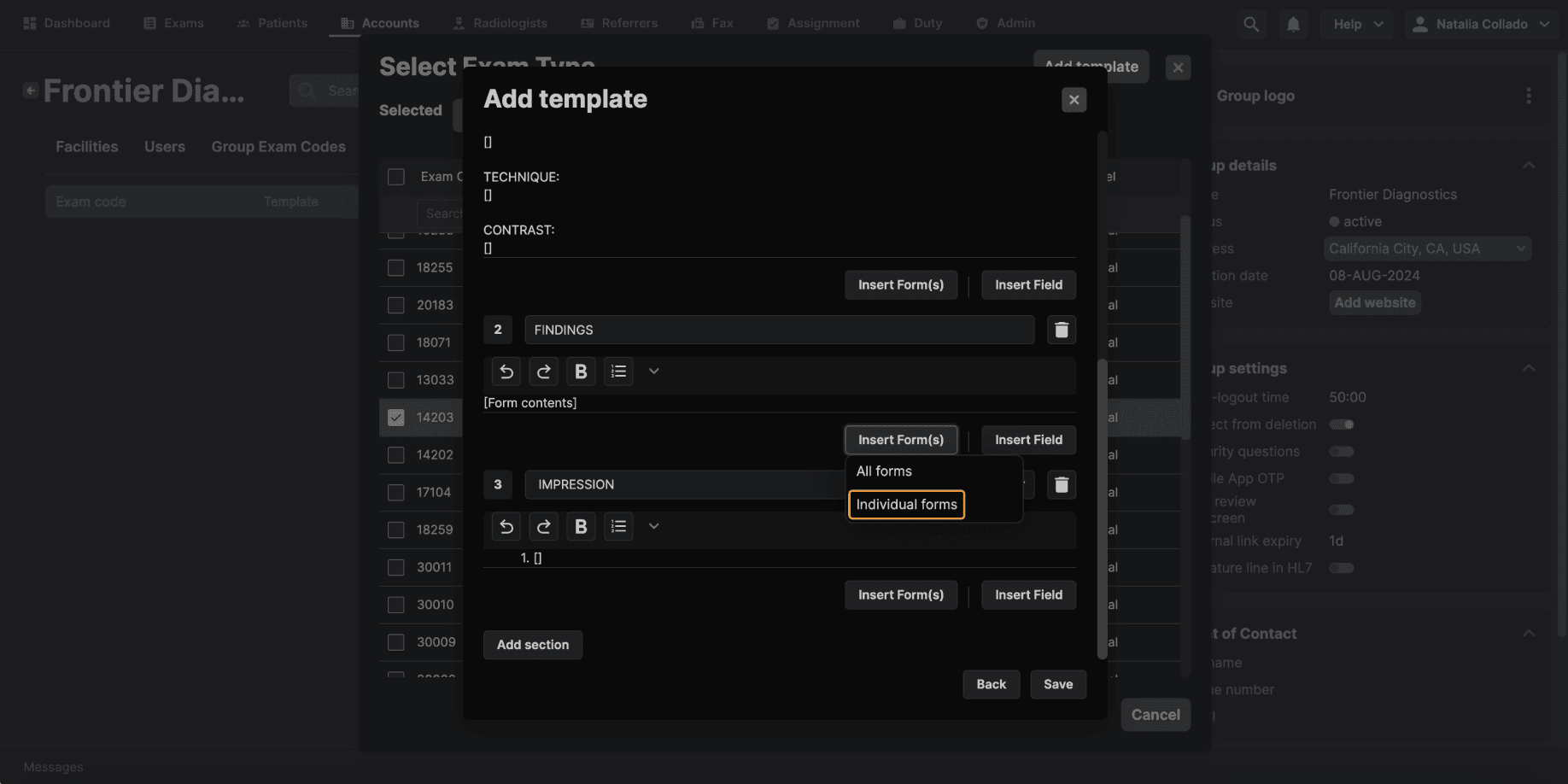
Alternatively, you can insert individual forms by choosing them from the list of available global forms. When an exam contains a selected form, that form will automatically populate within the template. |
 |
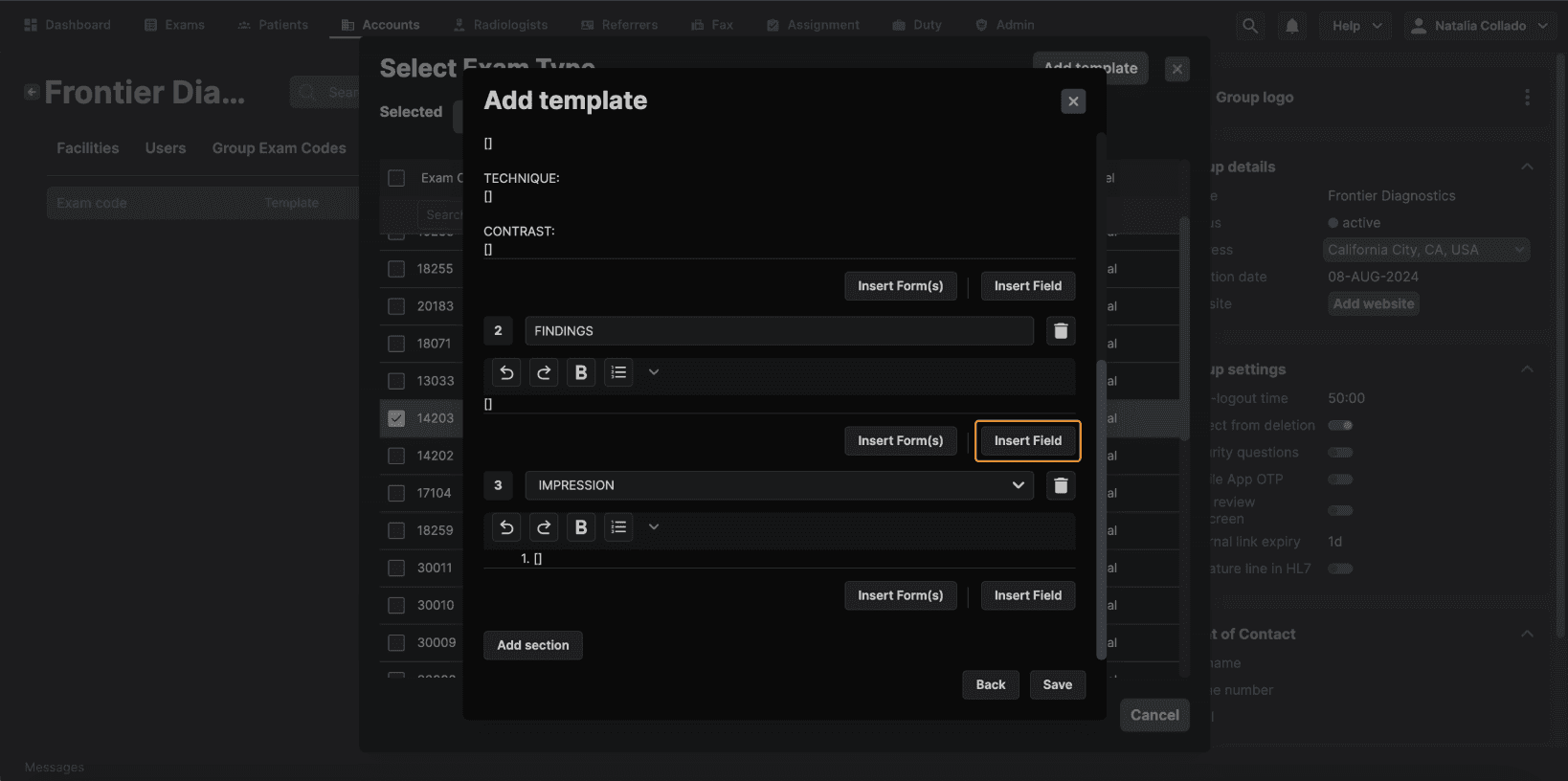
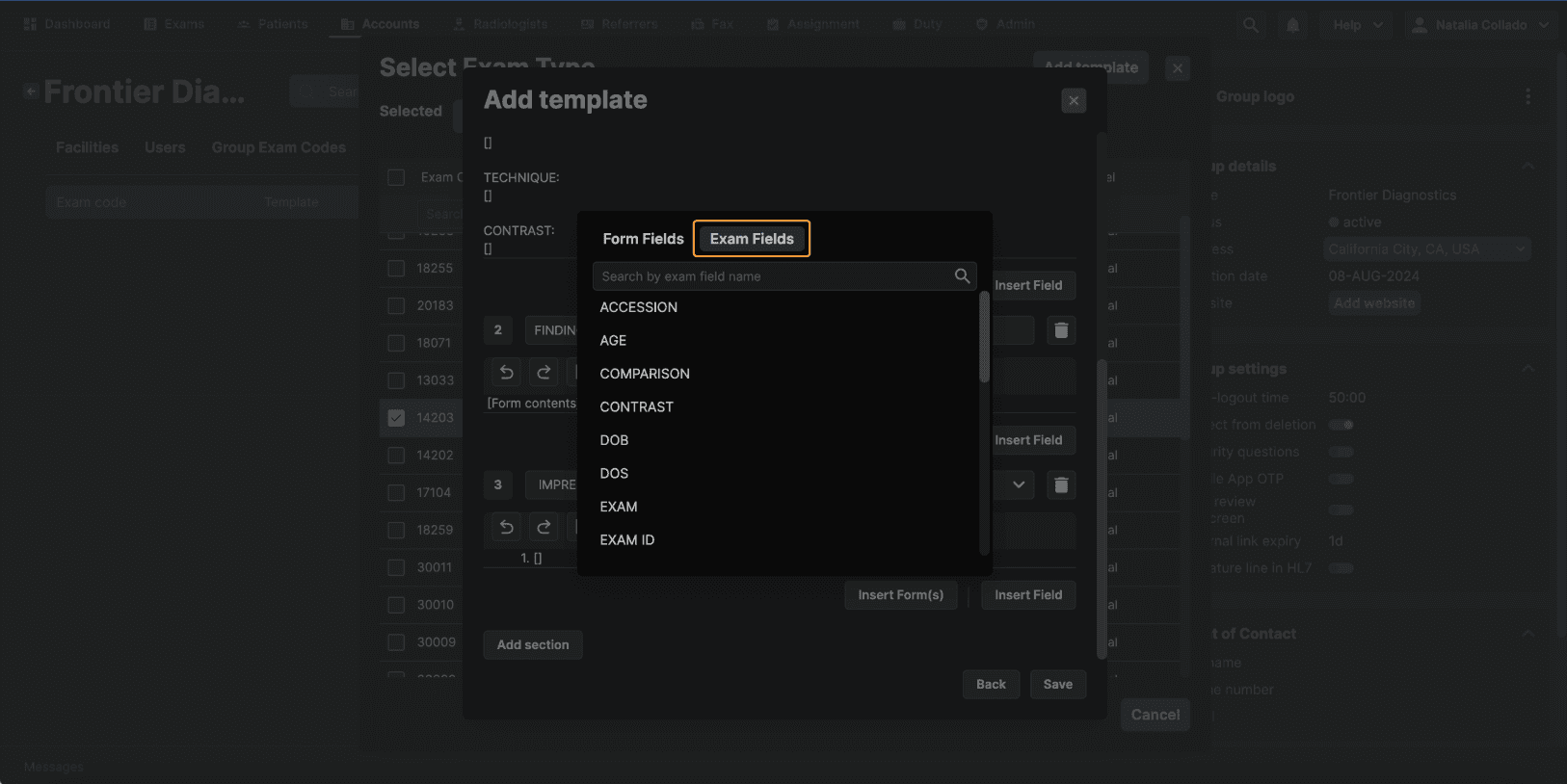
In addition to forms, you can insert exam fields directly into the template. These fields pull real exam data — such as the date of service — and automatically populate when the template is applied. This helps ensure consistency and reduces the need for manual data entry. |
  |
Step 5: Save and Use the Template Once your template is complete, click Save. The template will appear in the list of group-level templates and will be available for use with the selected exam types within that facility group. | |
|---|---|
  |