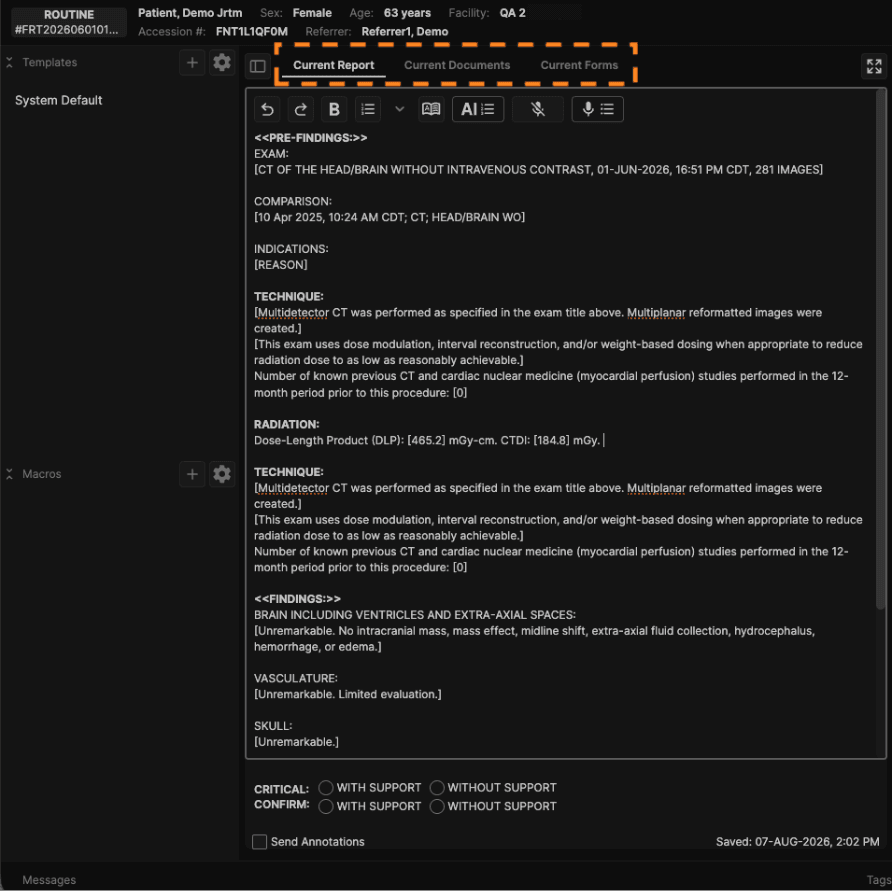
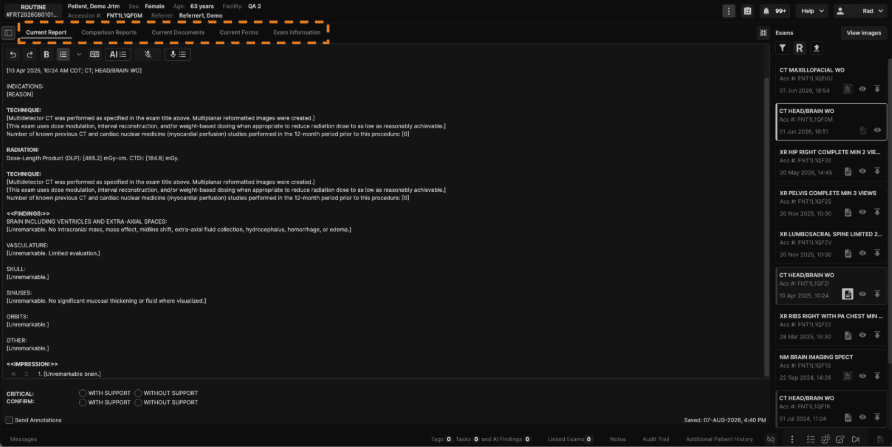
The "Current Report" is displayed on the left panel.

Documents and forms can also be displayed on the left panel.
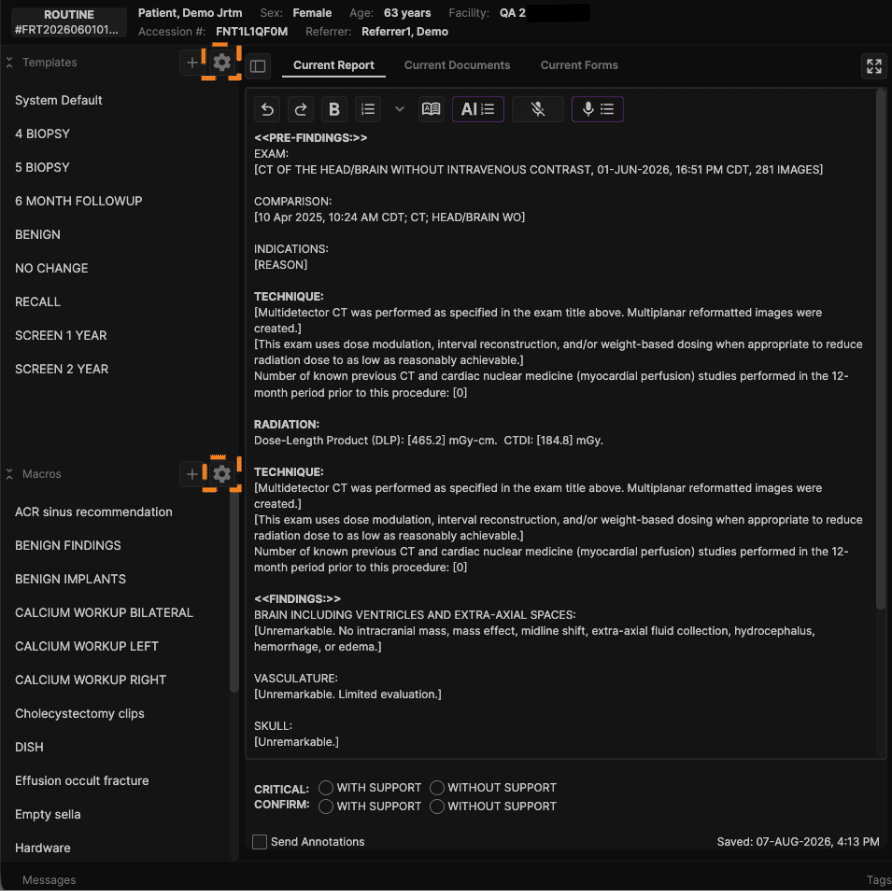
Click the "+" icon next to Templates in the sidebar to create a custom template.
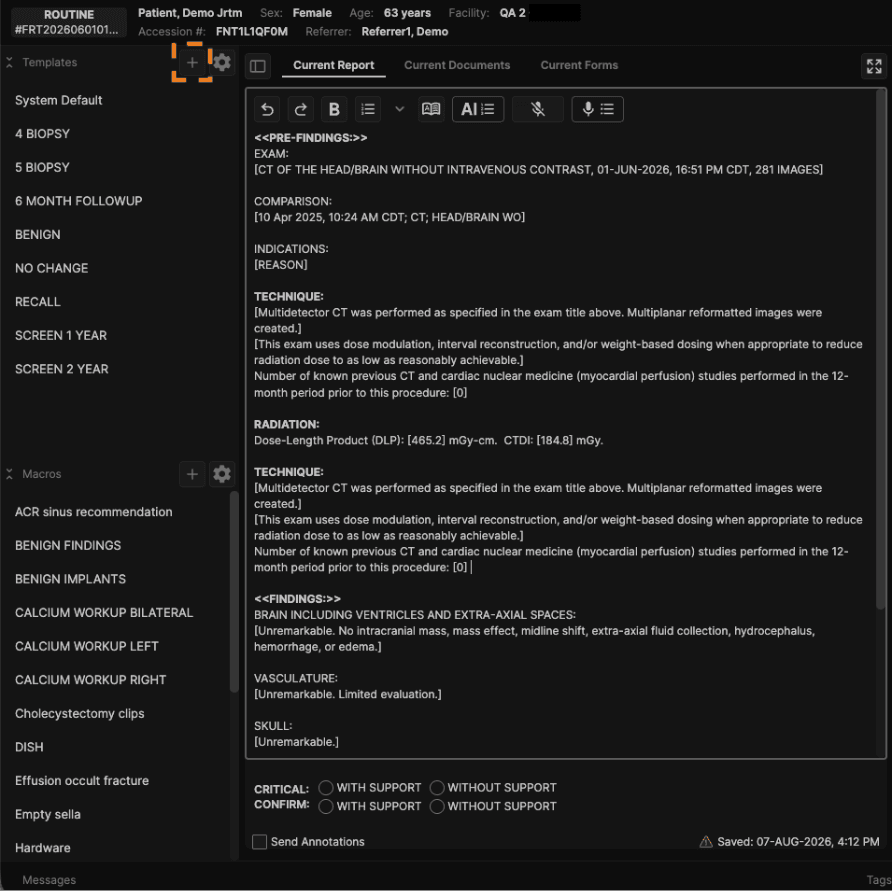
Click on any existing template in the sidebar to apply it to the report.
Click the "+" icon next to Macros in the sidebar to create a new custom macro.
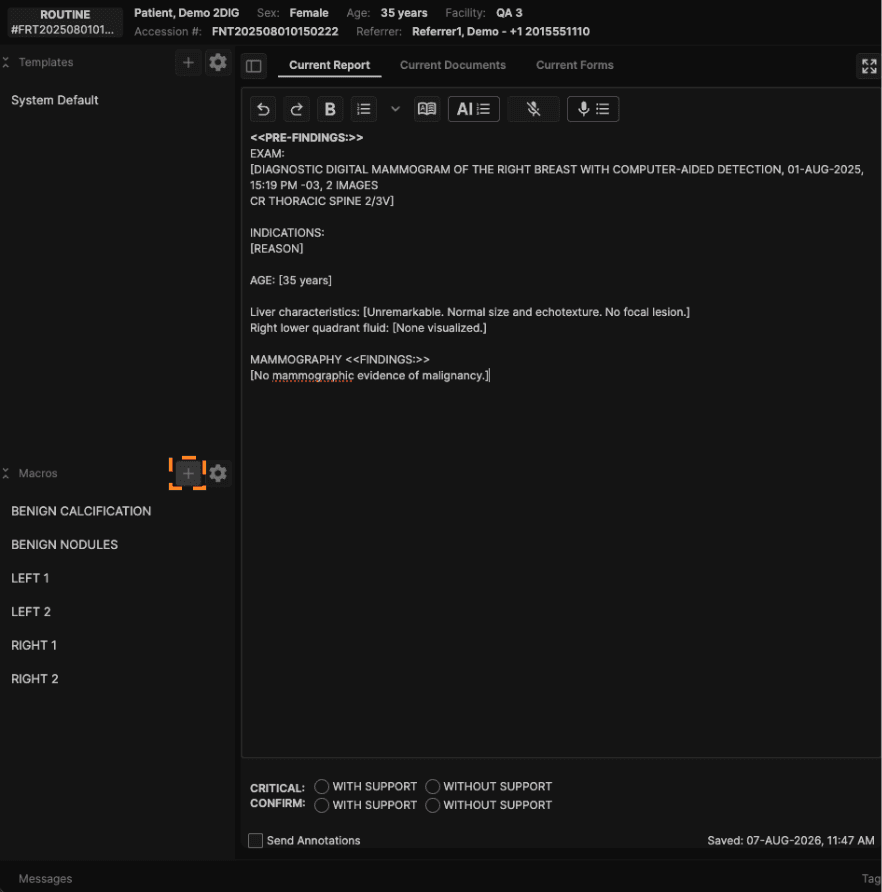
Click on an existing macro in the sidebar to add it to the report.
Click the gear icon in the sidebar to configure templates and macros.
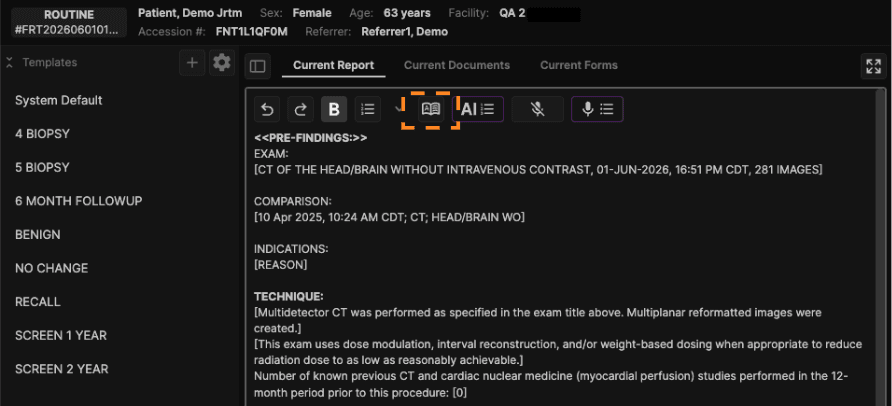
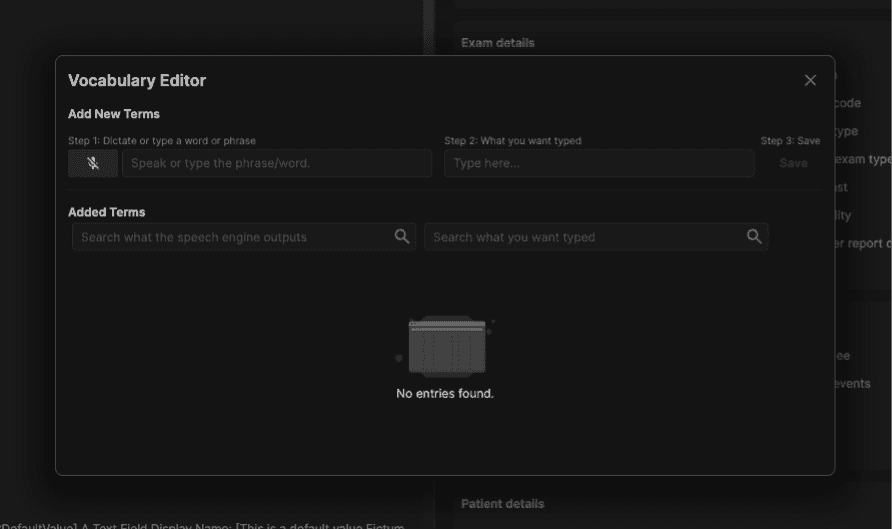
The "Vocabulary Editor" icon opens a window to let you teach the system how to recognize and format medical terms and phrases accurately, ensuring consistent outputs like "5.6 cm" instead of "five point six centimeters." By adding custom terms and pronunciations, the speech-to-text engine learns your specific vocabulary, improving accuracy over time.
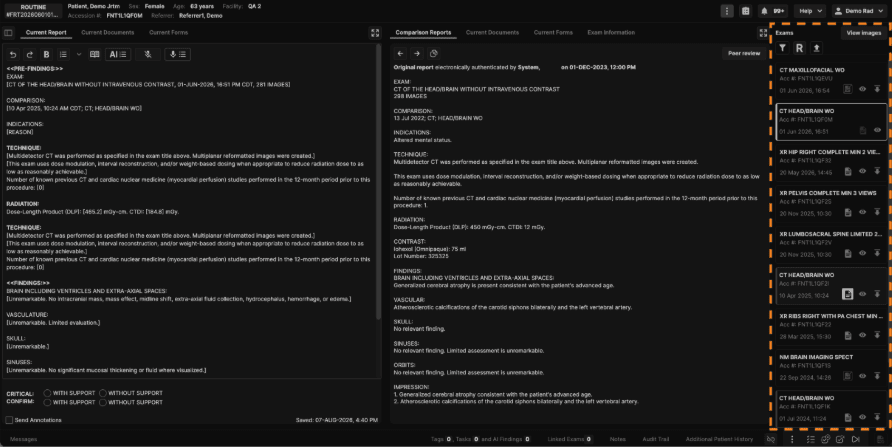
The Comparison Report is available in the right panel, as well as Current Documents/Forms, and Exam Details.
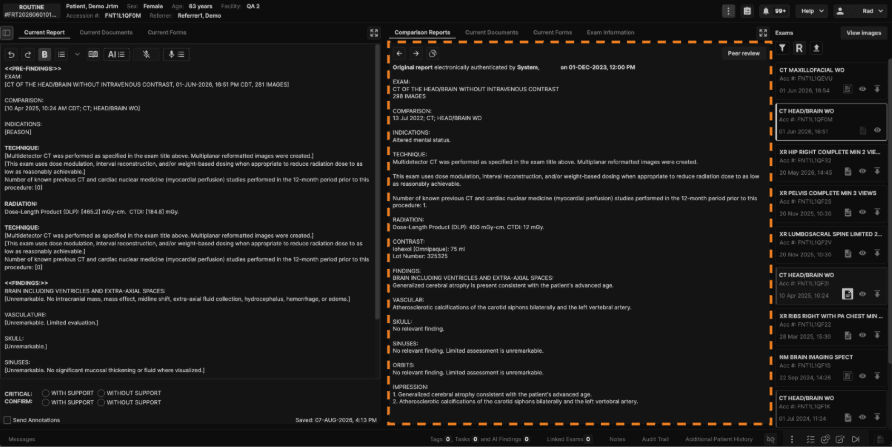
Both the left and right panels contain a button to toggle to one panel view.

In the one panel view, all tabs will be present in a single panel.
The Exam List panel is located on the right hand side of the reporting screen. The Exam List panel displays all prior exams for the current patient.
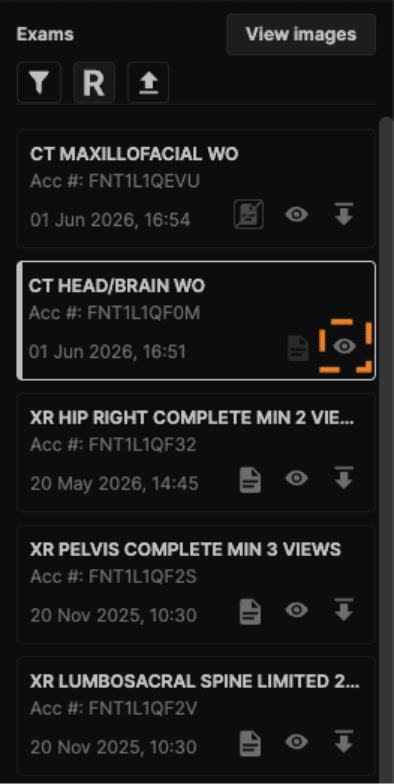
Click the eye button to load images from an exam.
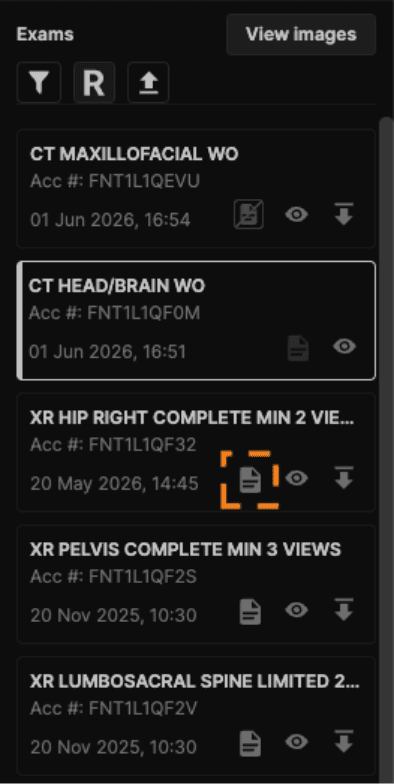
Click the report button to view the report from an exam.
Click the microphone button to turn your microphone On/Off.
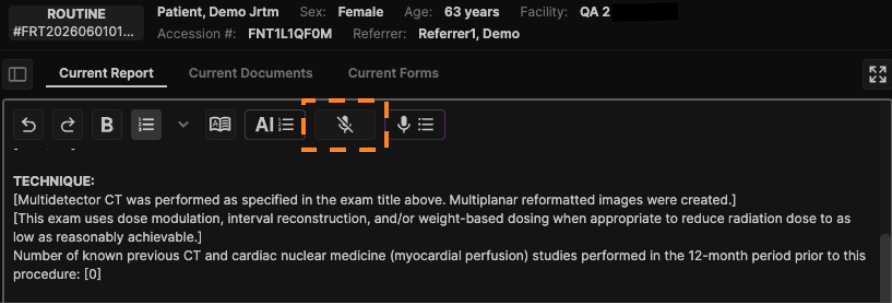
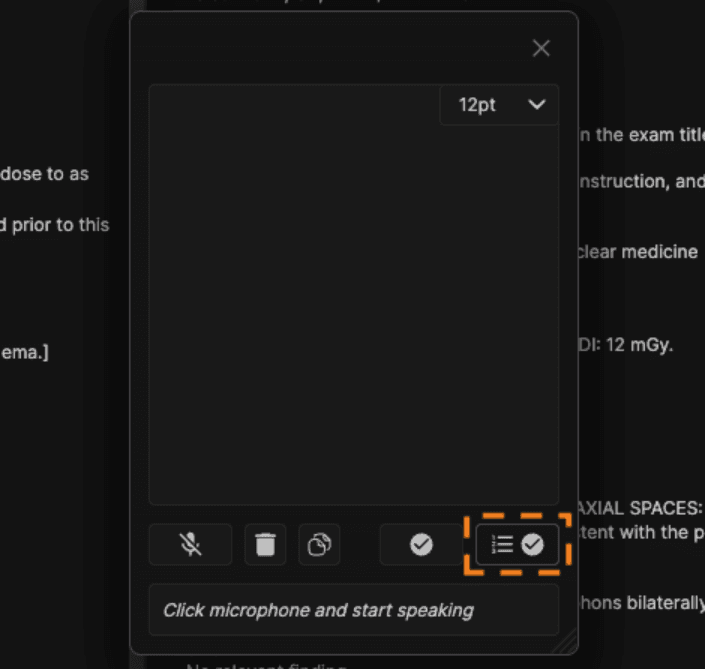
Click the speech organization button (or apply keyboard shortcut: Ctrl + shift + O) to open the speech organization window.
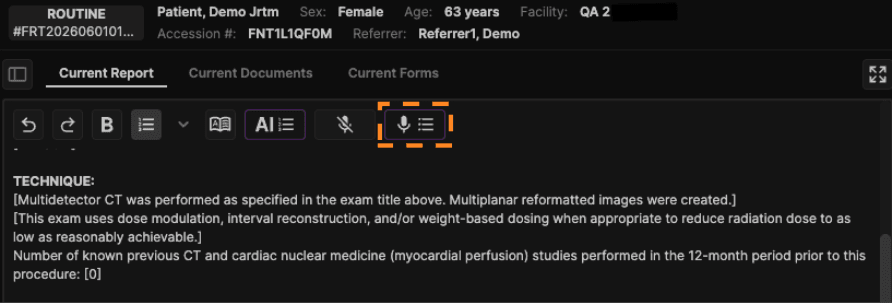
The speech organization window will launch with the microphone active, allowing you to begin dictating immediately.
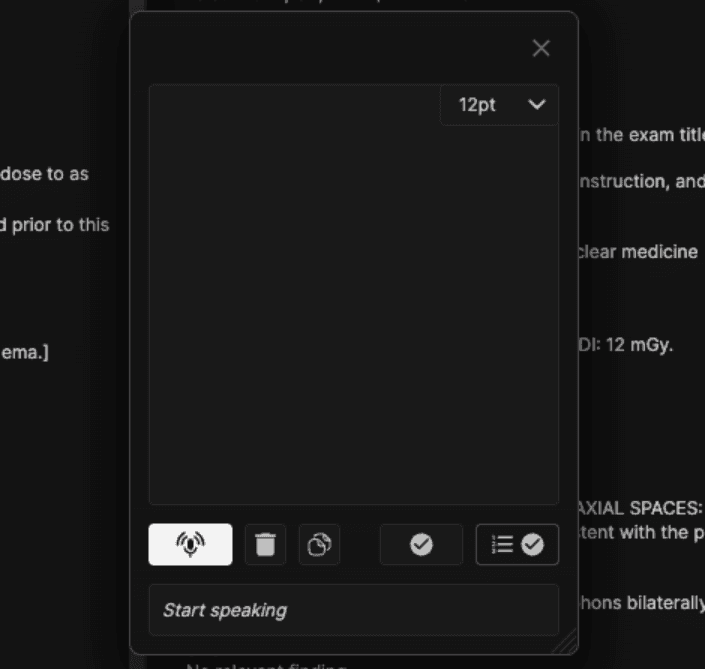
The window can be moved anywhere on the screen. Resize it by dragging the bottom-right corner.
Click here to change the font size.
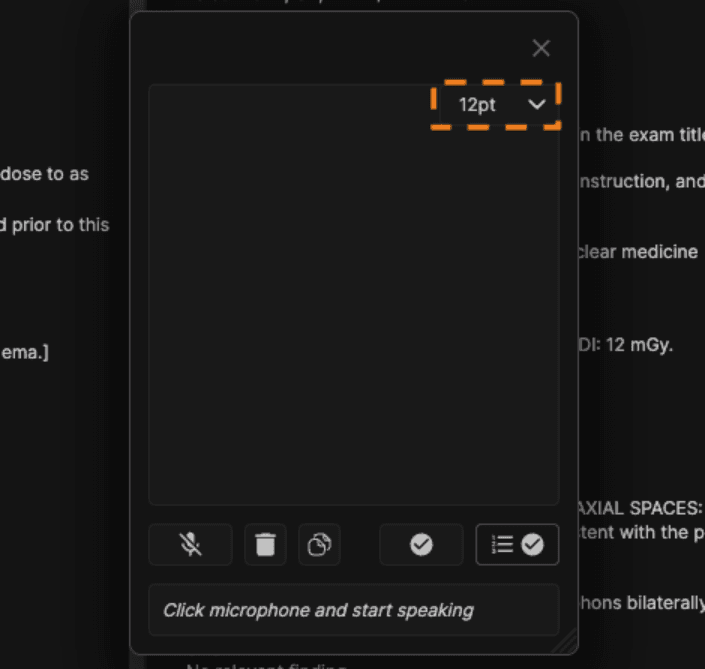
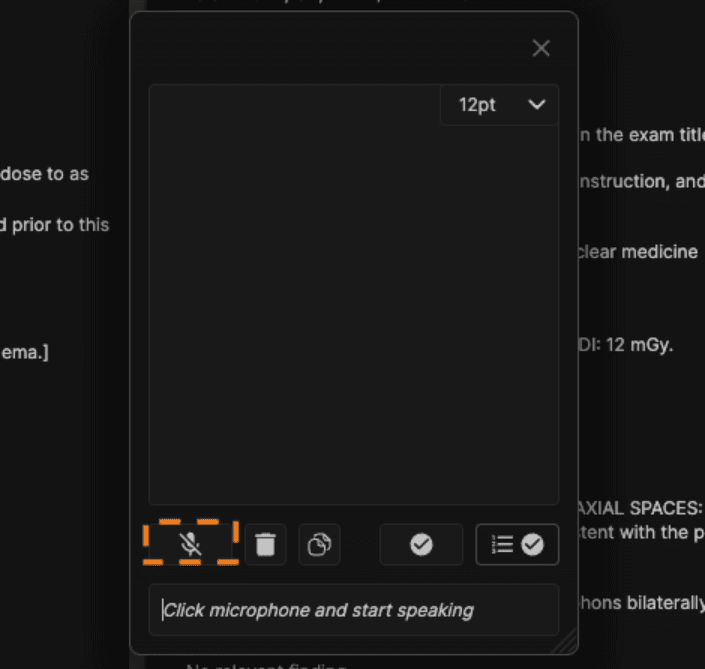
Click the microphone button (or apply keyboard shortcut: Ctrl + shift + S) to turn dictation on or off.
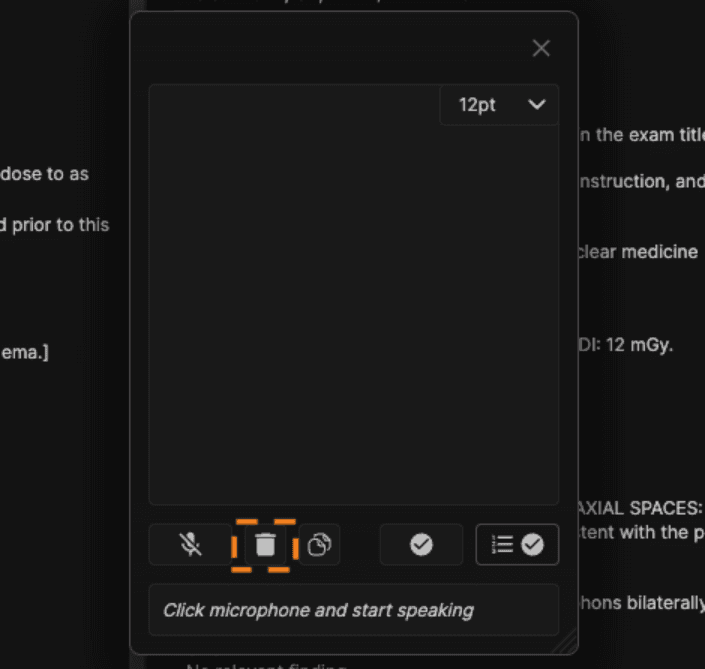
Click the delete button to clear all dictated content.
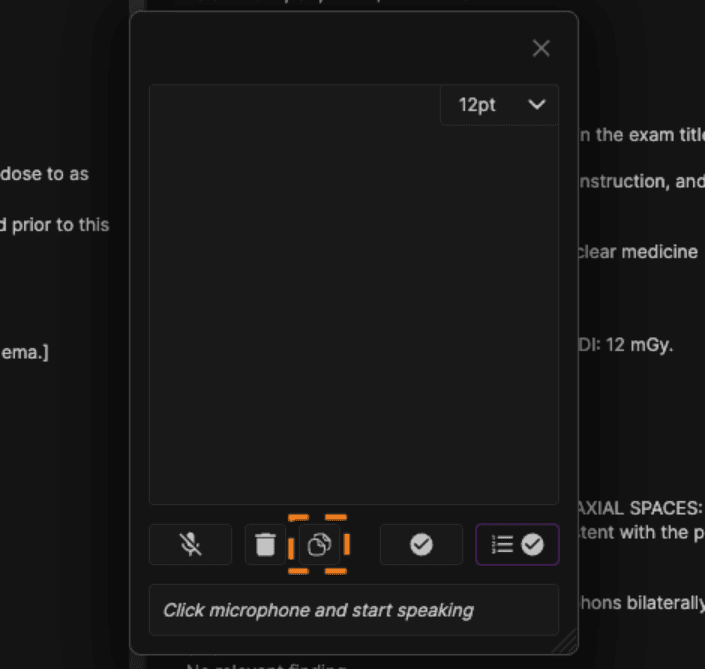
Click here (or apply keyboard shortcut: Ctrl + shift + Q) to paste and organize findings from the comparison report in the speech organization window.
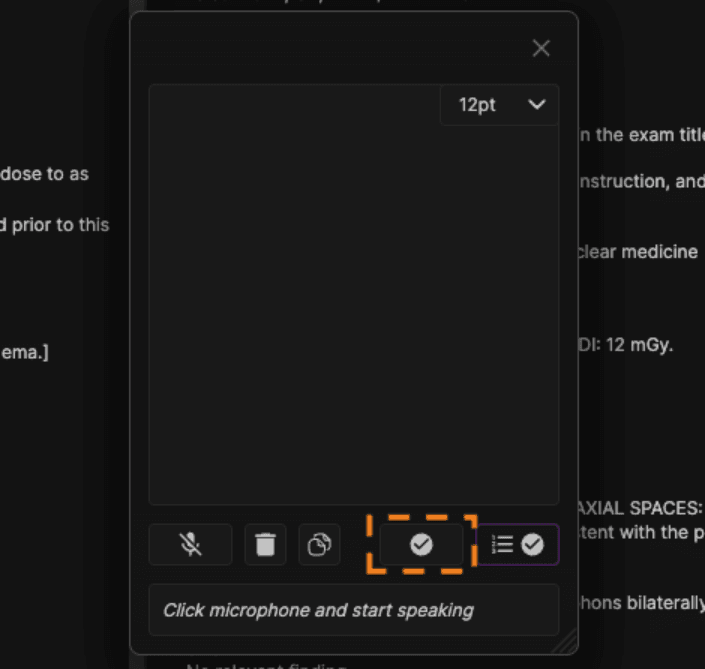
Click here (or apply keyboard shortcut: Ctrl + shift + H) to save once you are done.
Click here (or apply keyboard shortcut: Ctrl + shift + U) to save and automatically create the impression.
Click on the "Notes" option at the bottom ribbon to view technologist and operational notes.

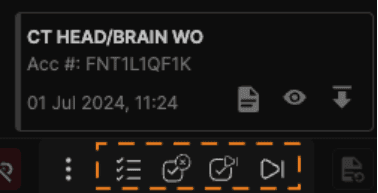
Use the navigation buttons at the bottom right of the screen to: return to the exam list, sign and close, sign and next, or skip.
Return to the exam list - Keyboard shortcut: Ctrl + shift + ,
Sign and close - Keyboard shortcut: Ctrl + shift + enter
Sign and next - Keyboard shortcut: Ctrl + shift + .
Skip - Keyboard shortcut: Ctrl + shift + space
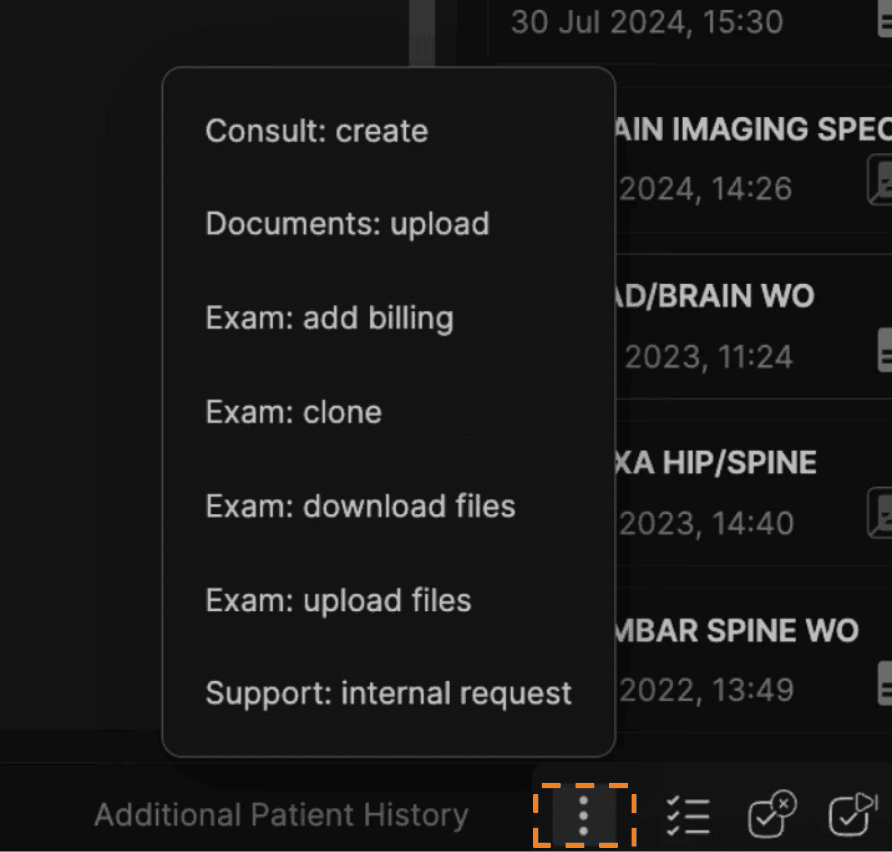
Click the menu to view more actions:
Consult: create
Documents: upload
Exam: add billing
Exam: clone
Exam: download files
Exam: upload files
Support: internal request
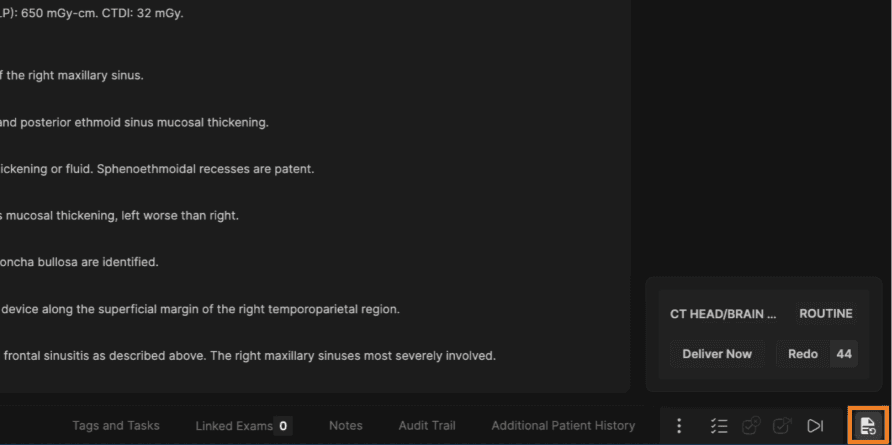
To redo a report, click on the button shown (Redo).