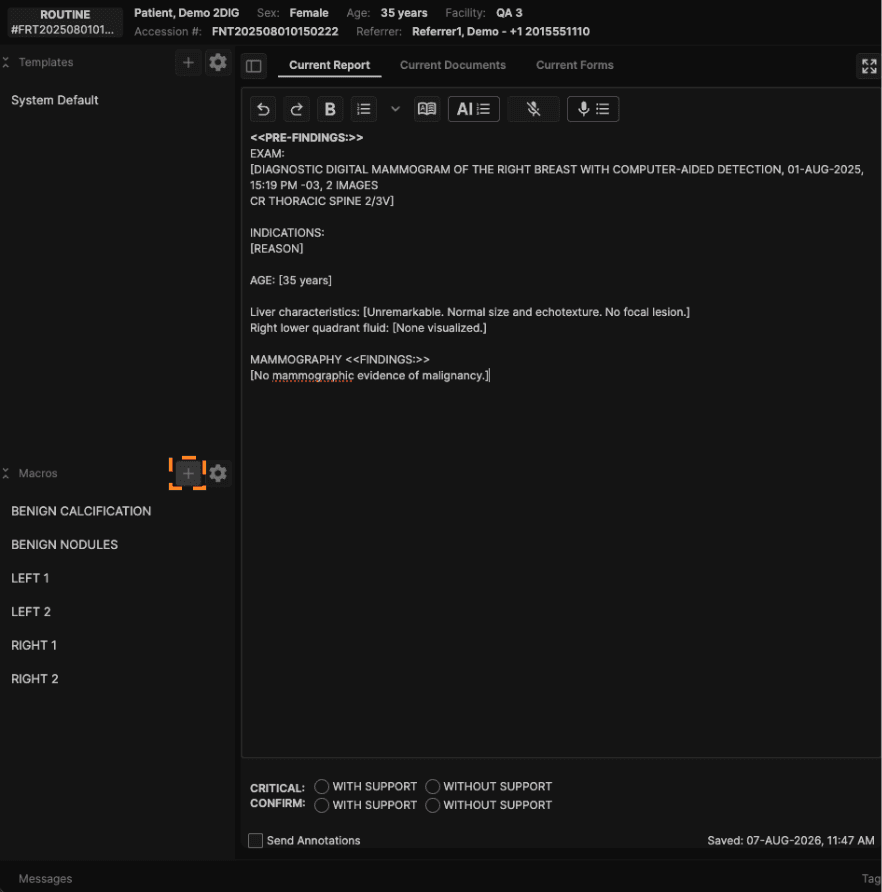
1. Click the "+" icon next to Macros in the sidebar to create a new custom macro.
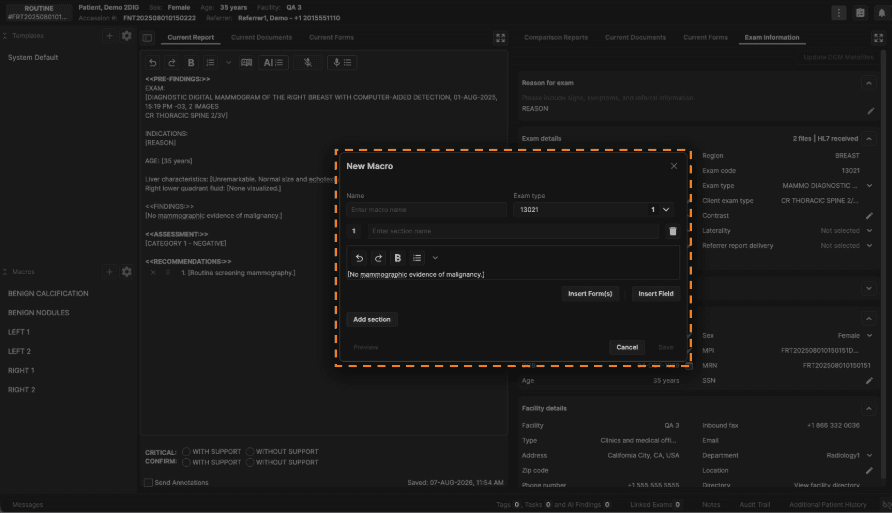
2. If you have highlighted text in your report before clicking "+", that text will automatically populate the new macro. You may use the following dialogue box to edit accordingly.
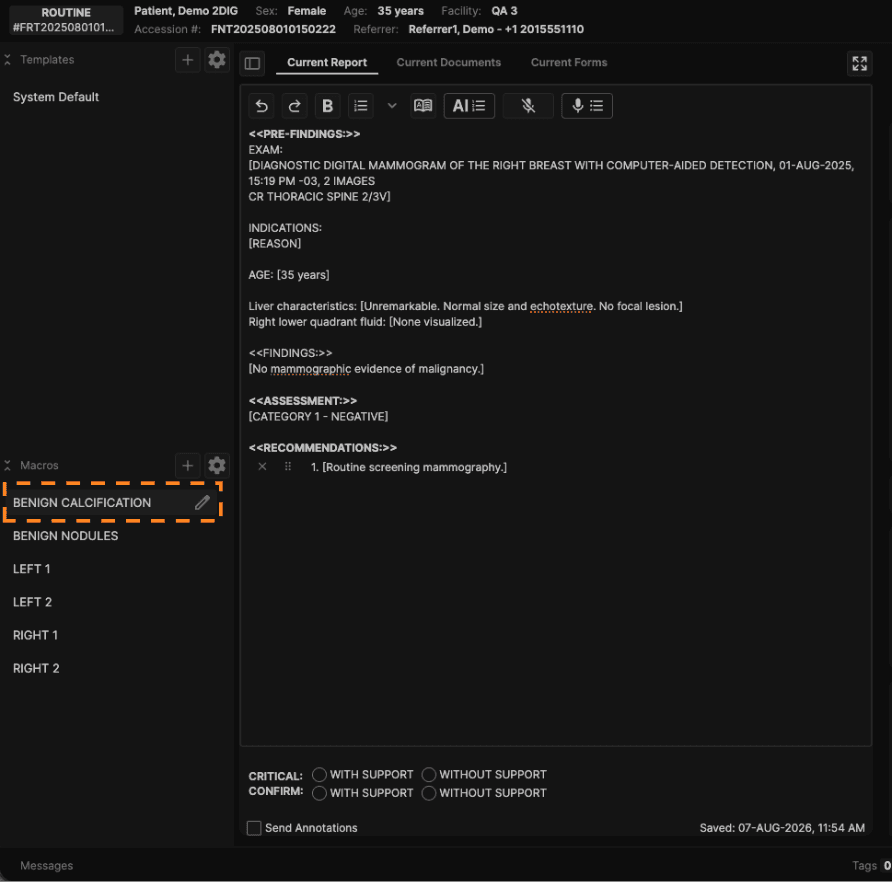
3. To apply a macro, simply click on the macro name in the sidebar, or use the speech command "Macro [macro name]". Hover over the macro name and click the pencil icon to edit it.
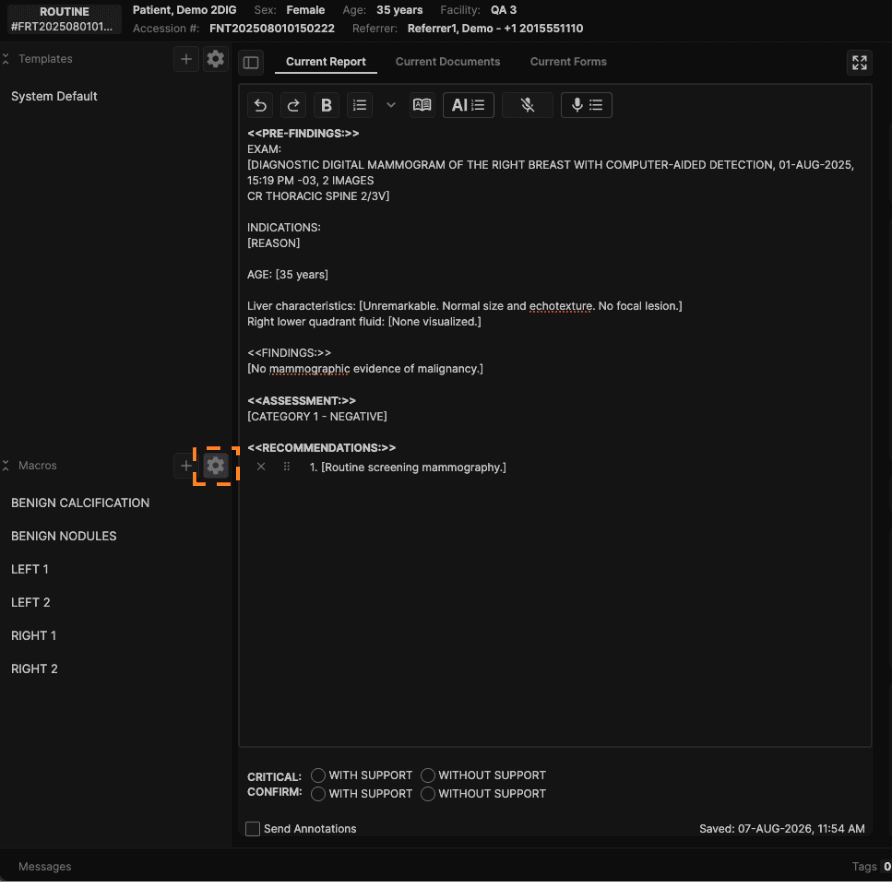
4. Click the gear icon in the sidebar to manage/delete custom templates and macros.