External Peer Review Requests:
Internal Peer Reviews and Adjudication.
Prescreening Reviews.
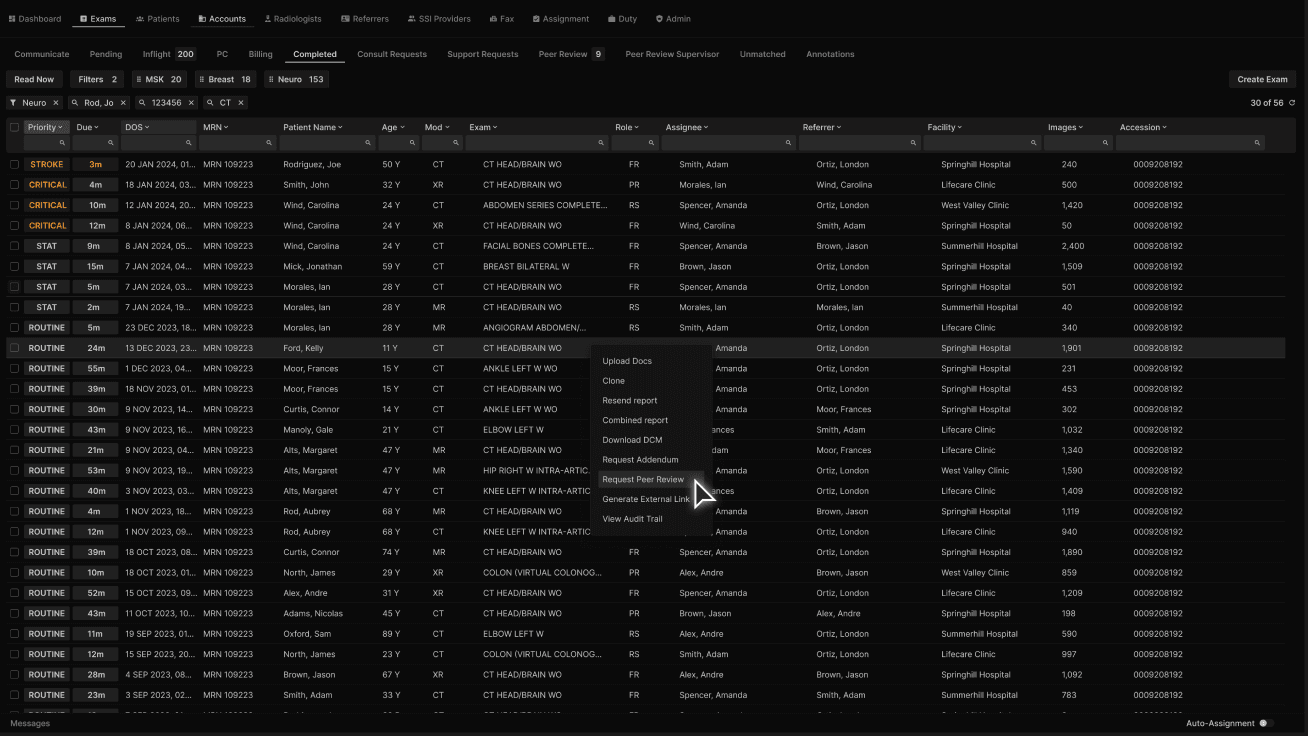
Any administrative or clinical user that has access to the “Completed” tab may receive and process a request for a Peer Review. Right click on the exam to access the menu and select "Request Peer Review." | |
|---|---|
 |
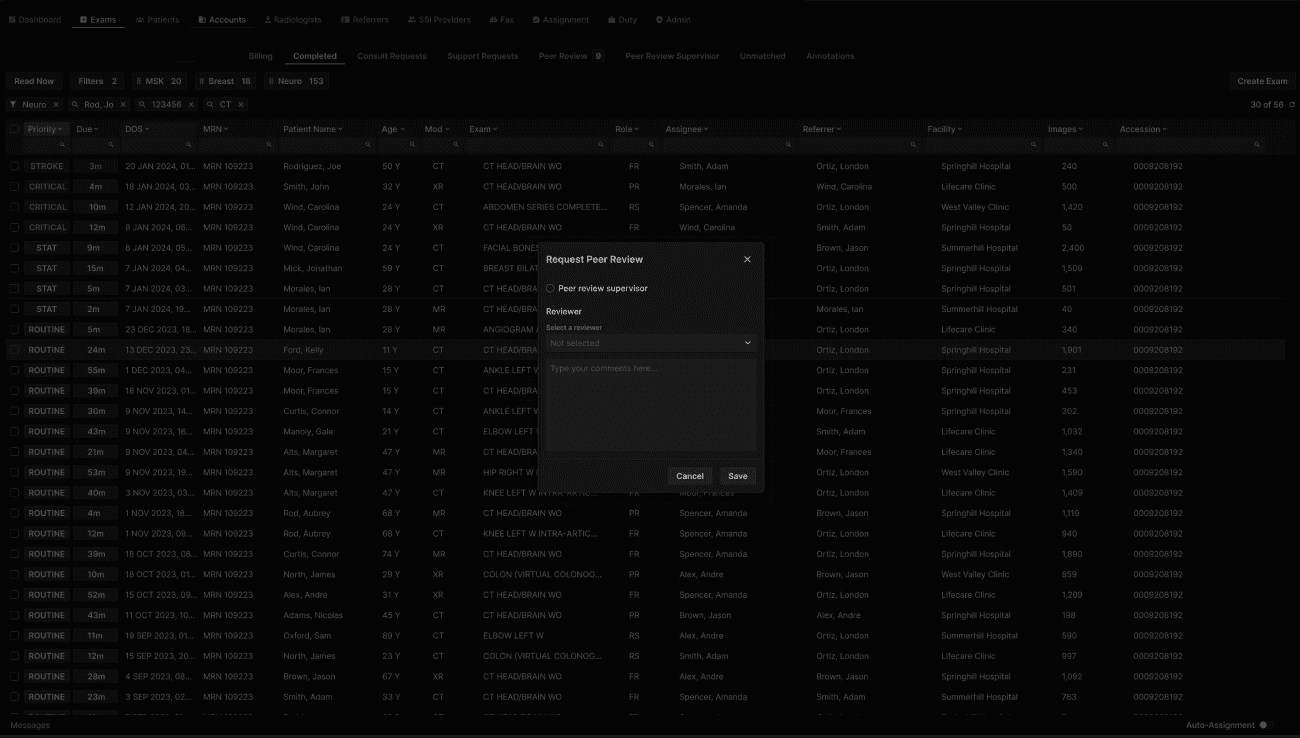
The “Request Peer Review” window appears. | |
|---|---|
 |
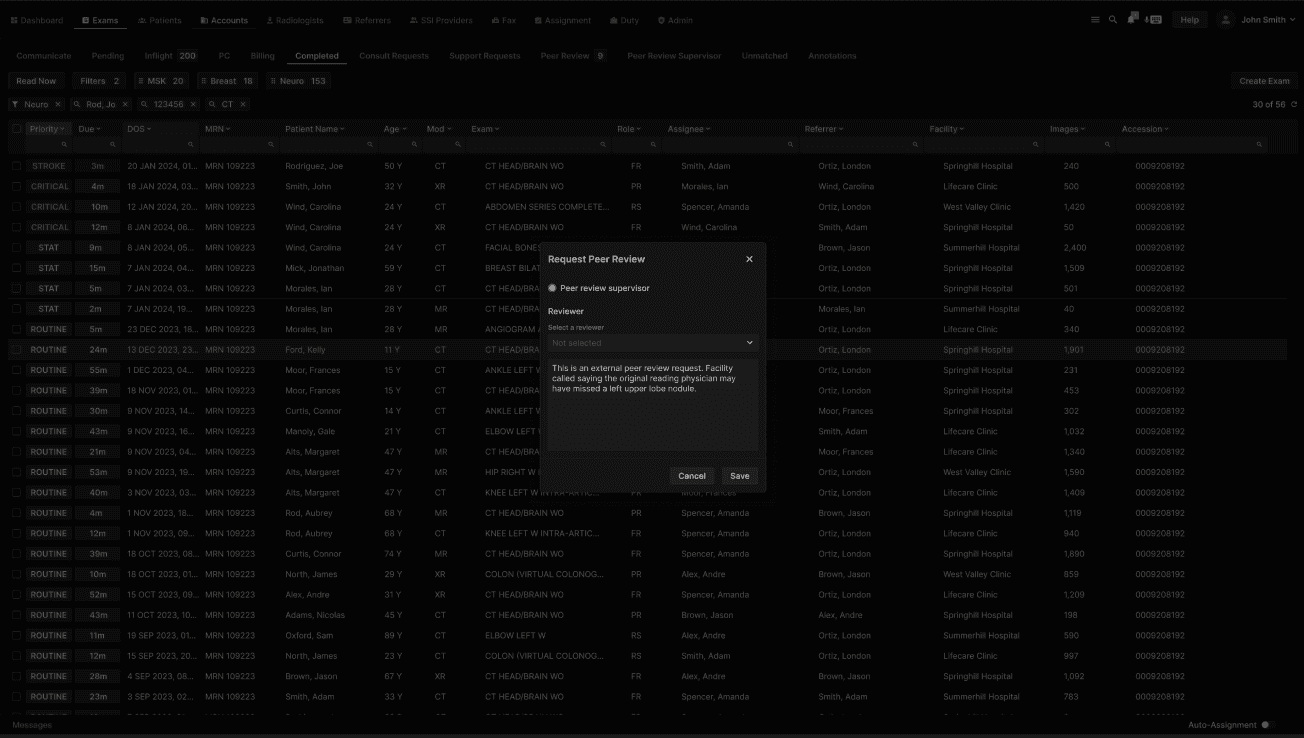
Select on the “Peer review supervisor” radio button and enter a comment if necessary. | |
|---|---|
 |
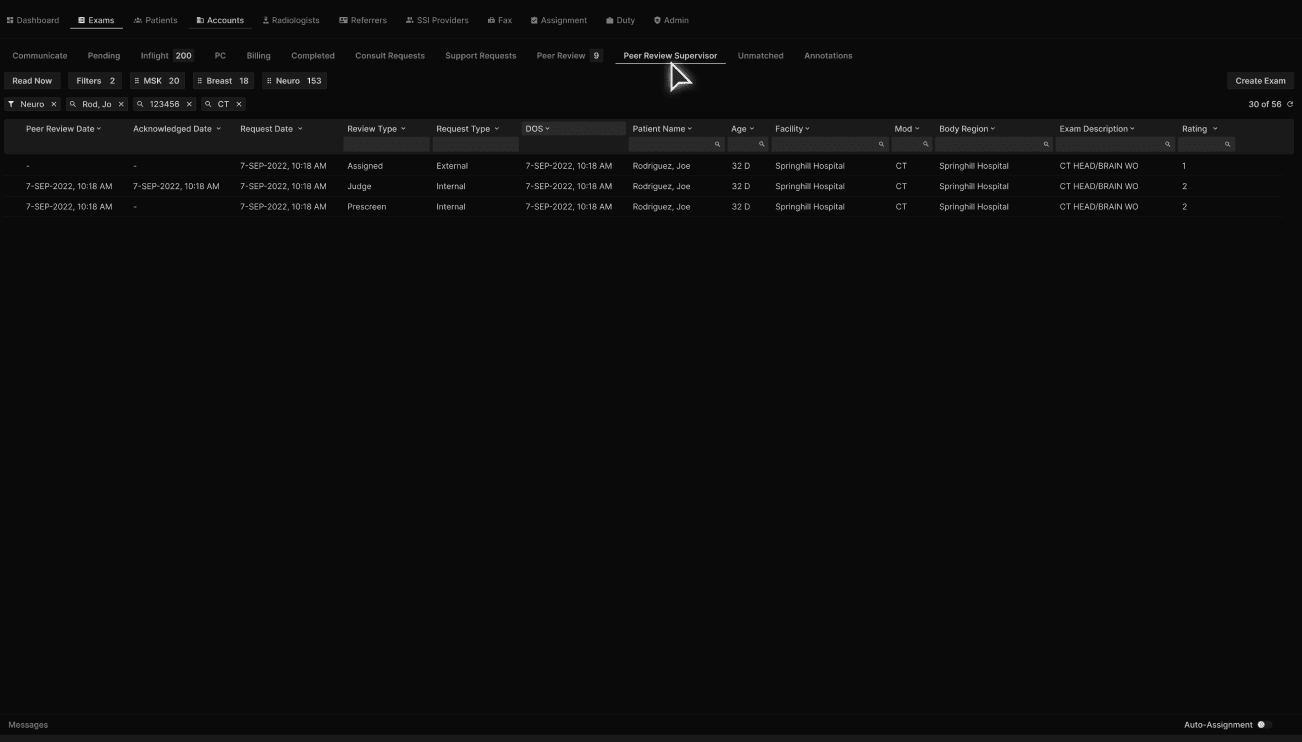
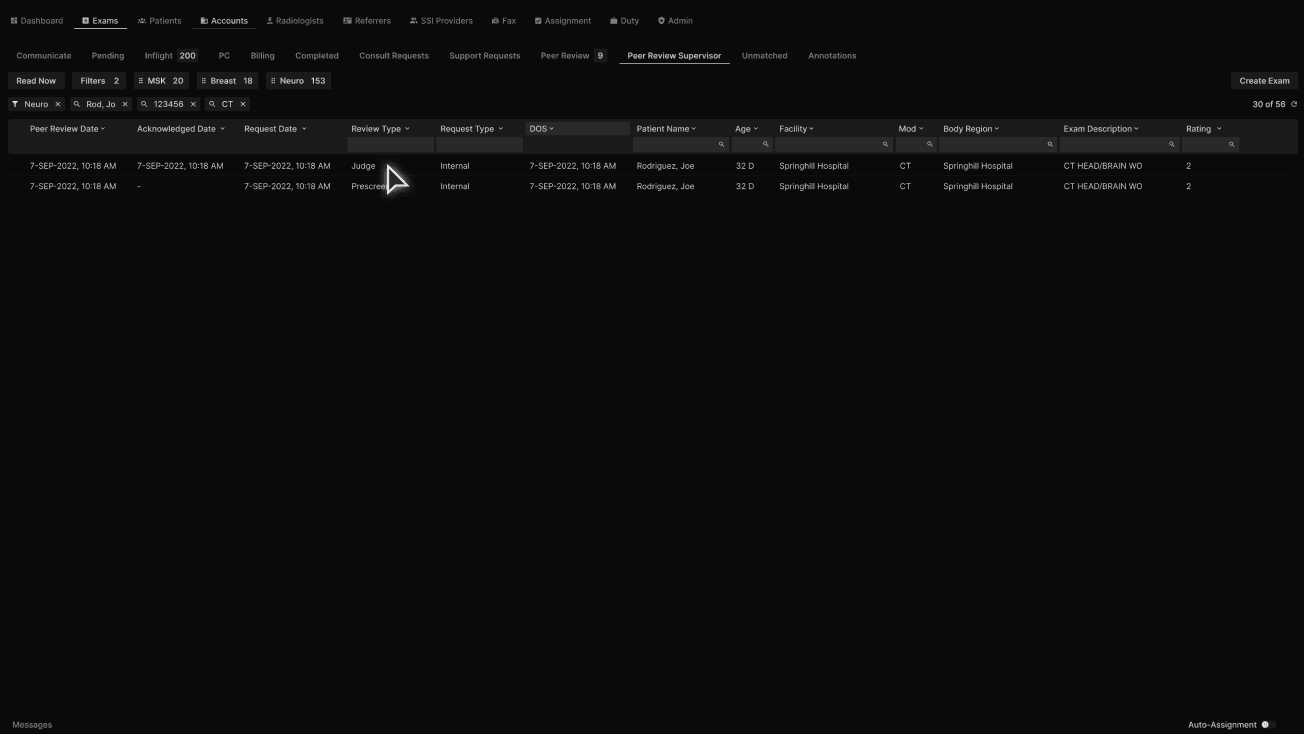
The “Peer Review Supervisor” tab can be accessed by any reading physician that has proper privileges. | |
|---|---|
 |
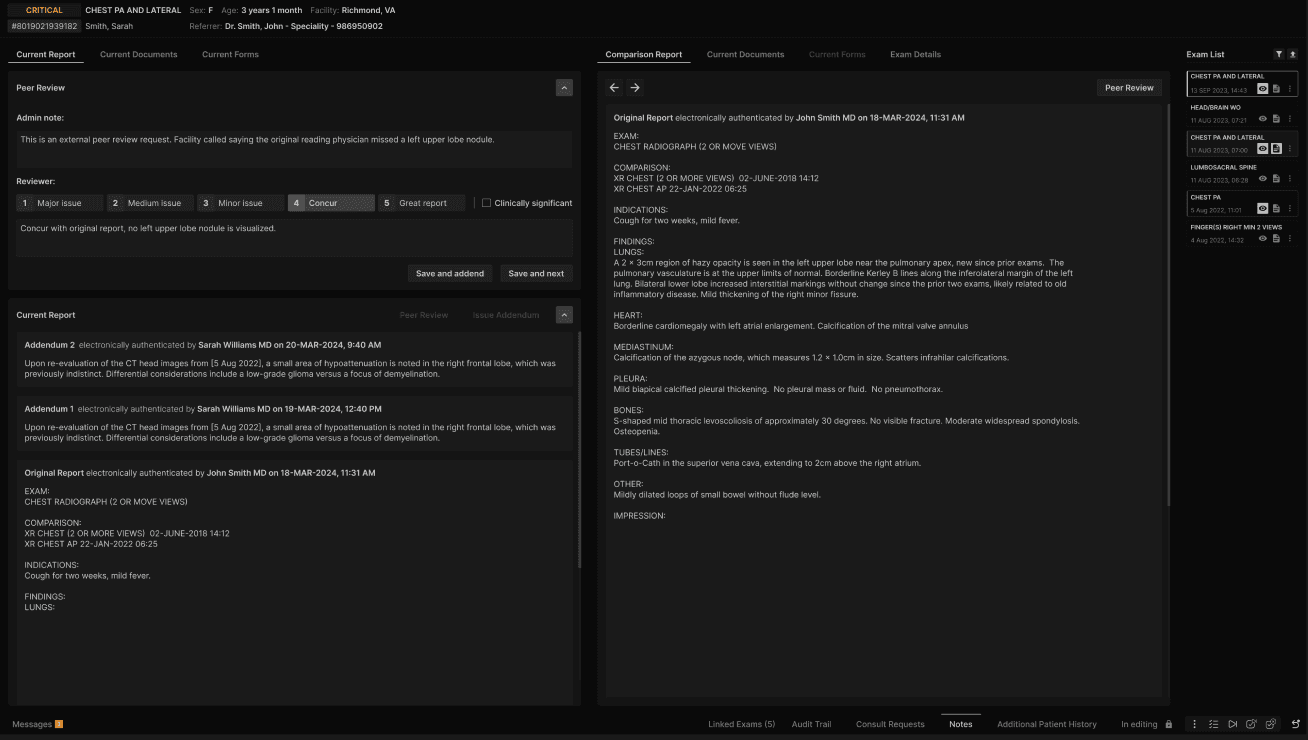
When opening an exam from the “Peer Review Supervisor” tab, the supervisor will be able to see the “Admin note” if provided. | |
|---|---|
 |
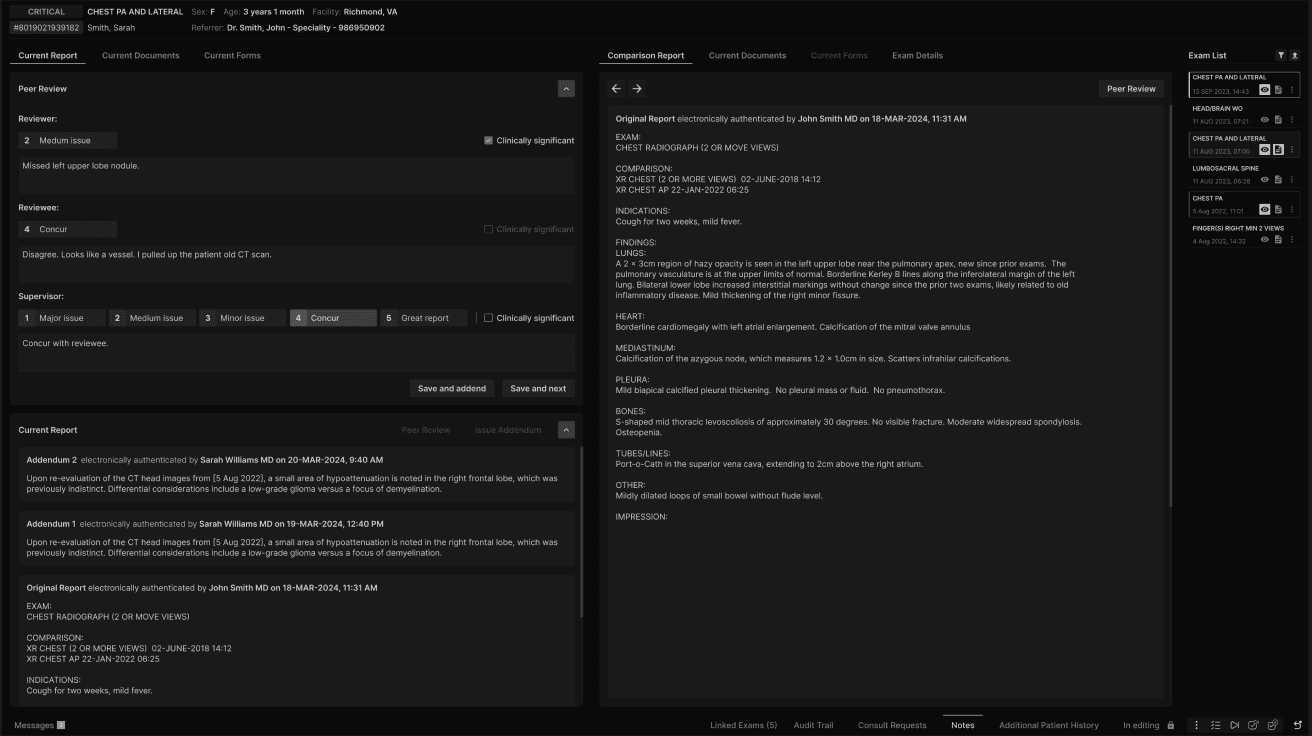
Supervisors can adjudicate when a disagreement exists between the reviewer and reviewee. | |
|---|---|
 |
The supervisor will provide their rating and any subsequent comments. They can also issue an addendum. | |
|---|---|
 |
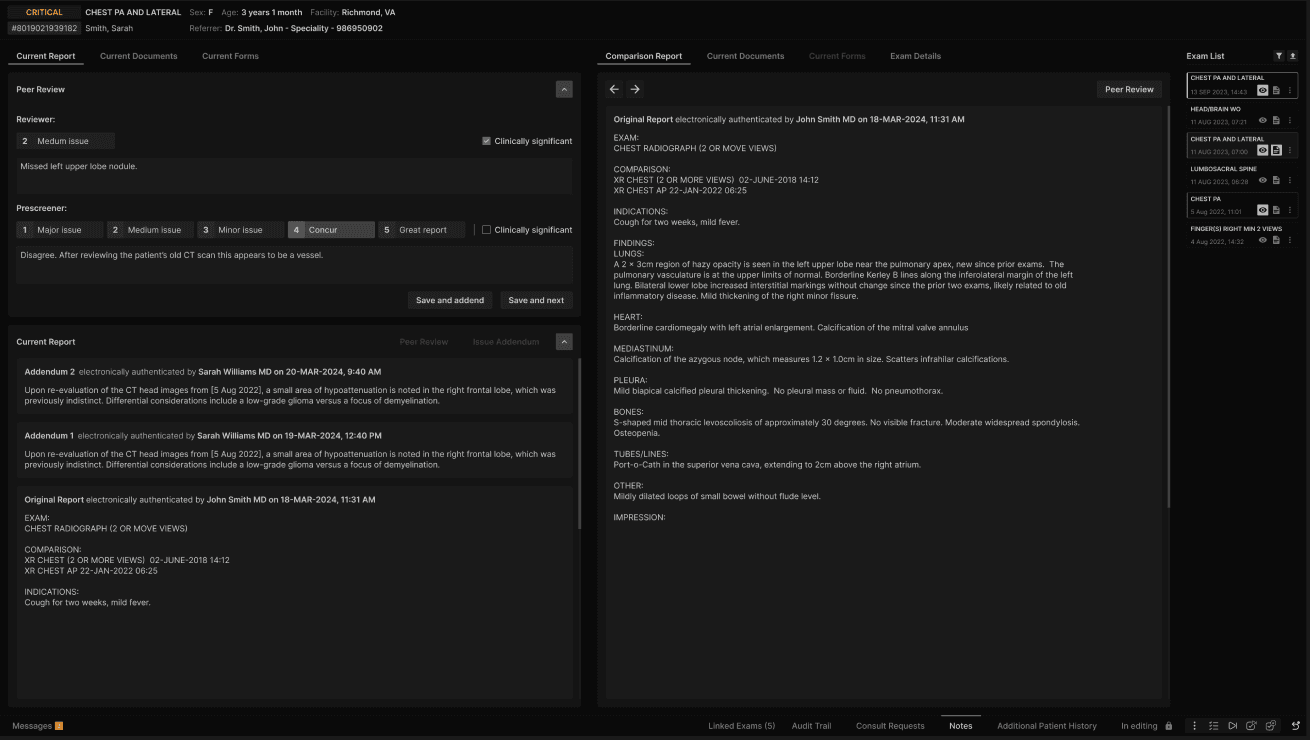
When the facility setting for prescreen peer review process is active for a facility and a reviewer has given a rating of 1 or 2, the peer review is routed to the peer review supervisor for prescreening. | |
|---|---|
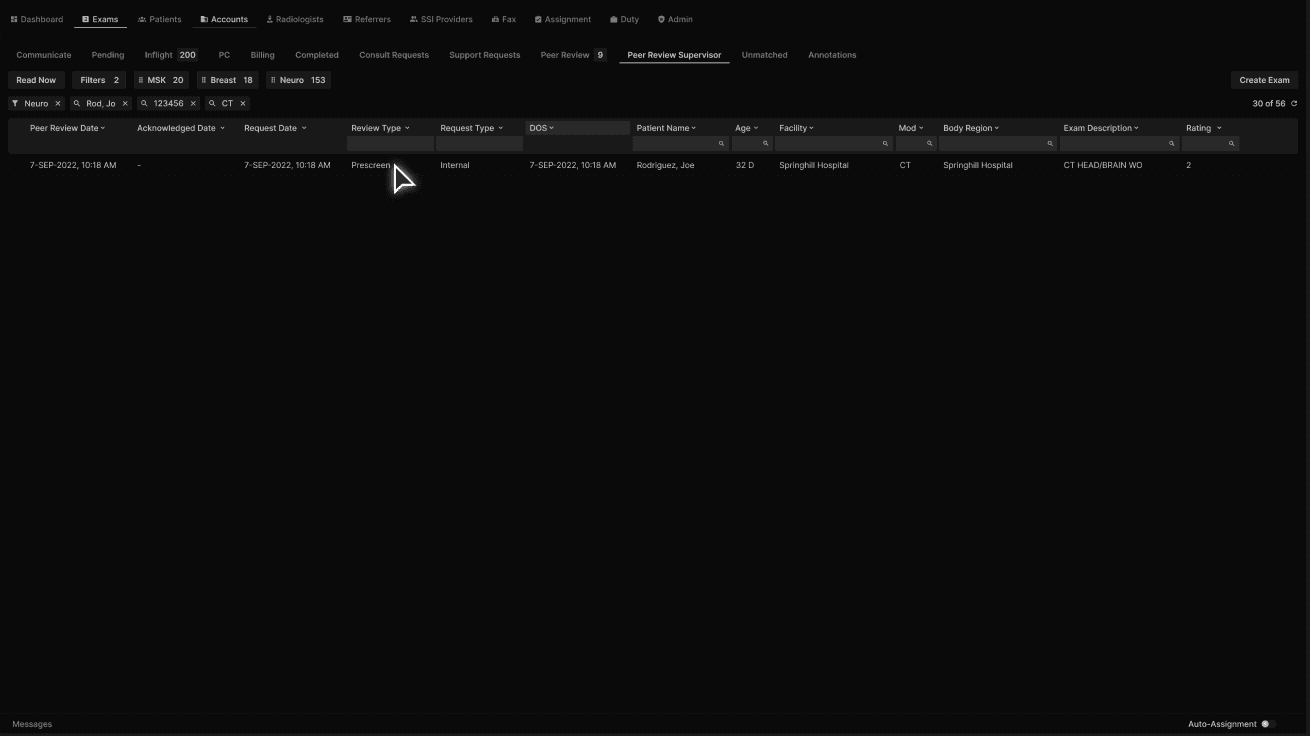 |
In these scenarios, the supervisor will provide their review within the “Prescreener” section. | |
|---|---|
 |