User Guide for New Capabilities
Report Corrector 2.0 |
|---|
Report Assistant 3.4 introduces Report Corrector 2.0, delivering improved correction quality and a cleaner review experience across reports. |
What’s Improved:
|
The system has been enhanced to better detect multiple corrections within the same sentence, reducing missed errors, and improving overall consistency. |
All detected corrections are consistently highlighted in purple during review to provide a clear and standardized review experience. |
Upon sign-off, all highlights and visual indicators are automatically removed, ensuring the final signed report remains clean and unmarked. |
Report Impression 2.0 – Knee |
|---|
Report Assistant 3.4 introduces body region specific Impression generation, starting with Report Impression 2.0 – Knee. For eligible Knee exams, Report Assistant now automatically selects a dedicated Knee specific agent to generate concise, clinically focused Impressions aligned with knee anatomy and clinical context. All other body regions continue to use the existing default Impression agent, with no change in behavior. This release establishes the foundation for expanding to additional body region specific Impression agents for future releases. |
Body region focused impressions |
Applies knee-focused reporting logic to keep the Impression relevant to the Knee anatomy and the clinical context of the exam. |
More professional and consistent output |
Improves clarity, consistency, and professionalism of Impression content, including common and complex knee cases. |
Draft reports faster |
Automatically generates knee-specific Impression sections, reducing manual drafting and saving reporting time. |
Behavior summary |
|
How to use it? |
Report Assistant is used the same way as in previous releases. 1. Complete a Knee report (eligible exam codes). 2. Click [AI] button. For eligible Knee exams, Report Assistant automatically identifies the exam as Knee using available exam metadata and applies the Knee-specific Impression agent to generate the Impression section. For all other body regions, the default Impression agent is used. |
What triggers report impression 2.0 – Knee agent? |
Only certain exams will trigger Report Impression 2.0 – Knee. If the exam code is not eligible, Report Assistant will use the standard Report Impression agent. |
Eligible exam codes (MR, XR, CT)
|
How does it work? |
Input Required The reporting system sends the report plus metadata, including:
|
Set up |
Report Impression 2.0 – Knee is enabled as part of Report Assistant 3.4. No additional configuration is required for eligible knee exams. |
Use |
When you create a knee report, Report Assistant analyzes the report content and applies knee-specific impression logic based on the exam code to generate a concise, clinically focused Impression section in a structured and consistent format. |
Thyroid Reporting 1.0 | ||||||||||
|---|---|---|---|---|---|---|---|---|---|---|
Report Assistant 3.4 introduces Thyroid Reporting 1.0, enabling structured thyroid reporting with TI-RADs score calculation and management follow-up, all from within Report Assistant. The system uses data entered in the US Thyroid form to automatically generate the Assessment and Recommendations and Impression sections. | ||||||||||
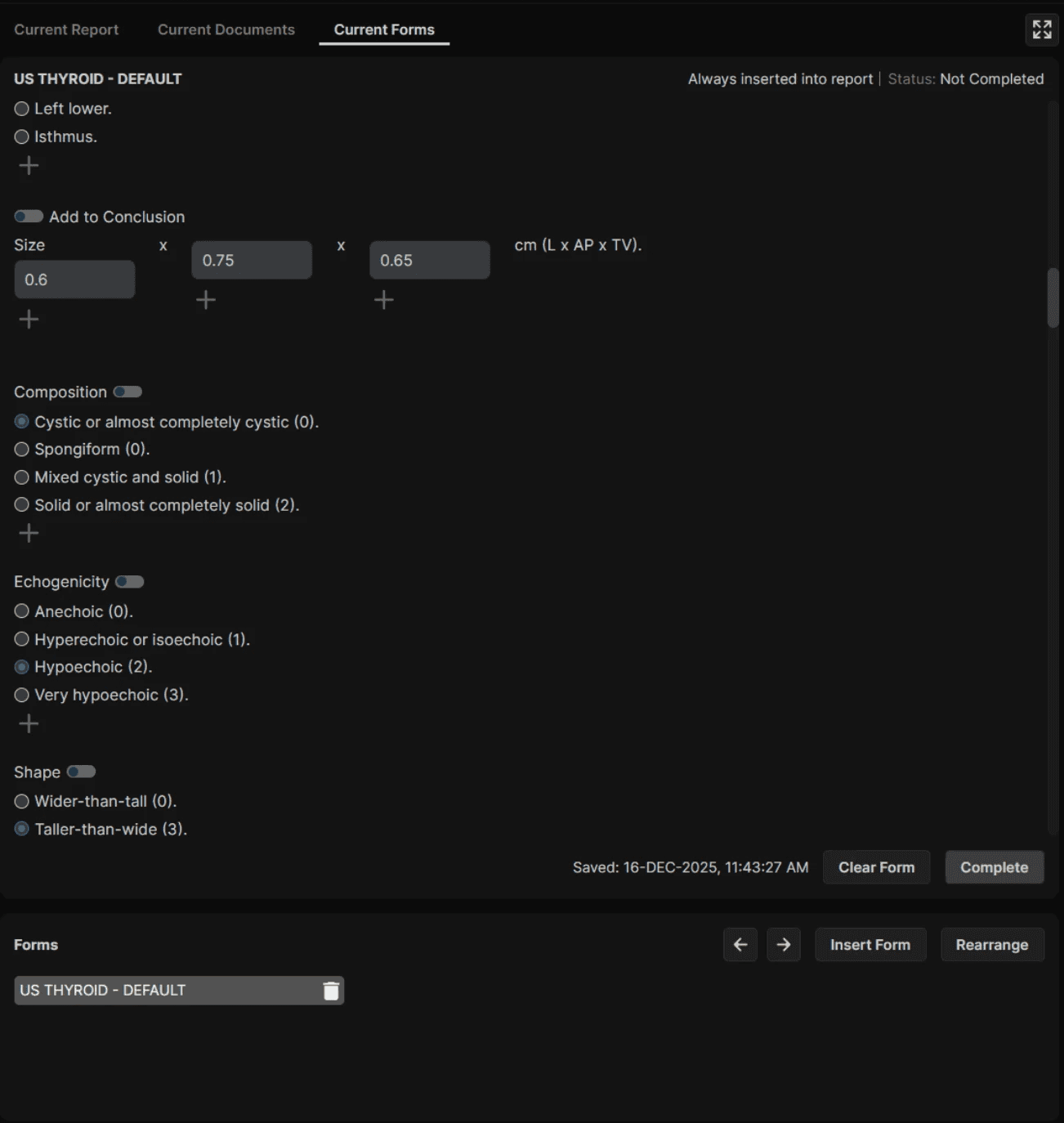
Technologists complete the US Thyroid (global level) form and enter structured nodule information. Report Assistant then applies thyroid reporting logic to compute the TI-RADS score, risk level, standardized nodule description, assessment, and recommendations, and produces consistent output for review. | ||||||||||
Draft Reports Faster | ||||||||||
Automatically derives TI-RADS scoring and generates risk level, description, assessment and recommendations reducing manual reporting time. | ||||||||||
More professional and consistent output | ||||||||||
Enhanced reporting logic improves consistency and accuracy across common and complex thyroid findings. | ||||||||||
What triggers Thyroid Reporting 1.0 Agent? | ||||||||||
Thyroid Reporting 1.0 runs only for eligible exams. Exam code: 18104 | ||||||||||
Assessment categories | ||||||||||
| ||||||||||
How to use it? | ||||||||||
Step 1: Technologists fill the form – US THYROID Global level form and click [Complete] button. | ||||||||||
Fill the Form and click the "Complete" button: | ||||||||||
 | ||||||||||
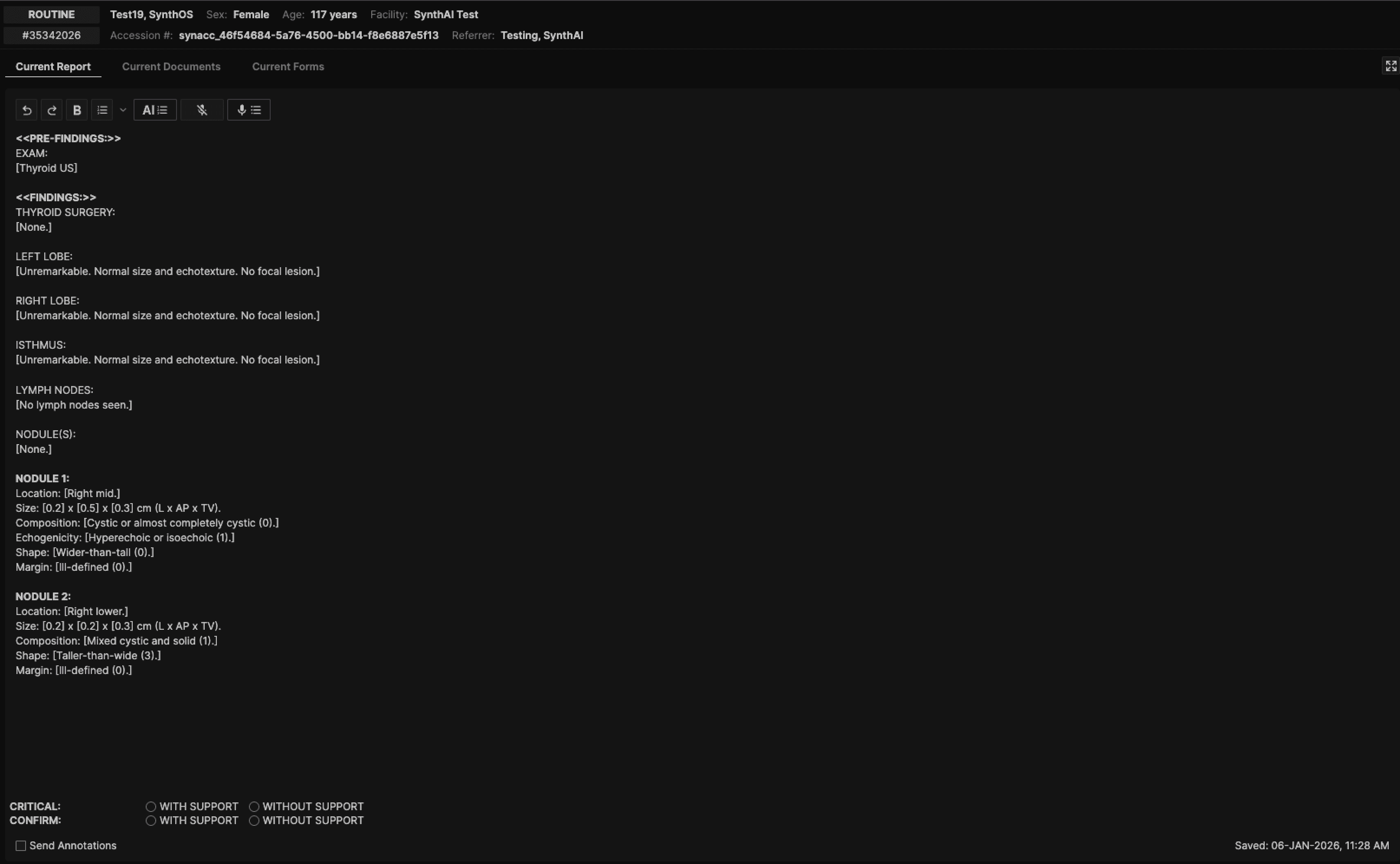
Step 2: Reading Physician complete the report and click [AI] button. | ||||||||||
Input | ||||||||||
 | ||||||||||
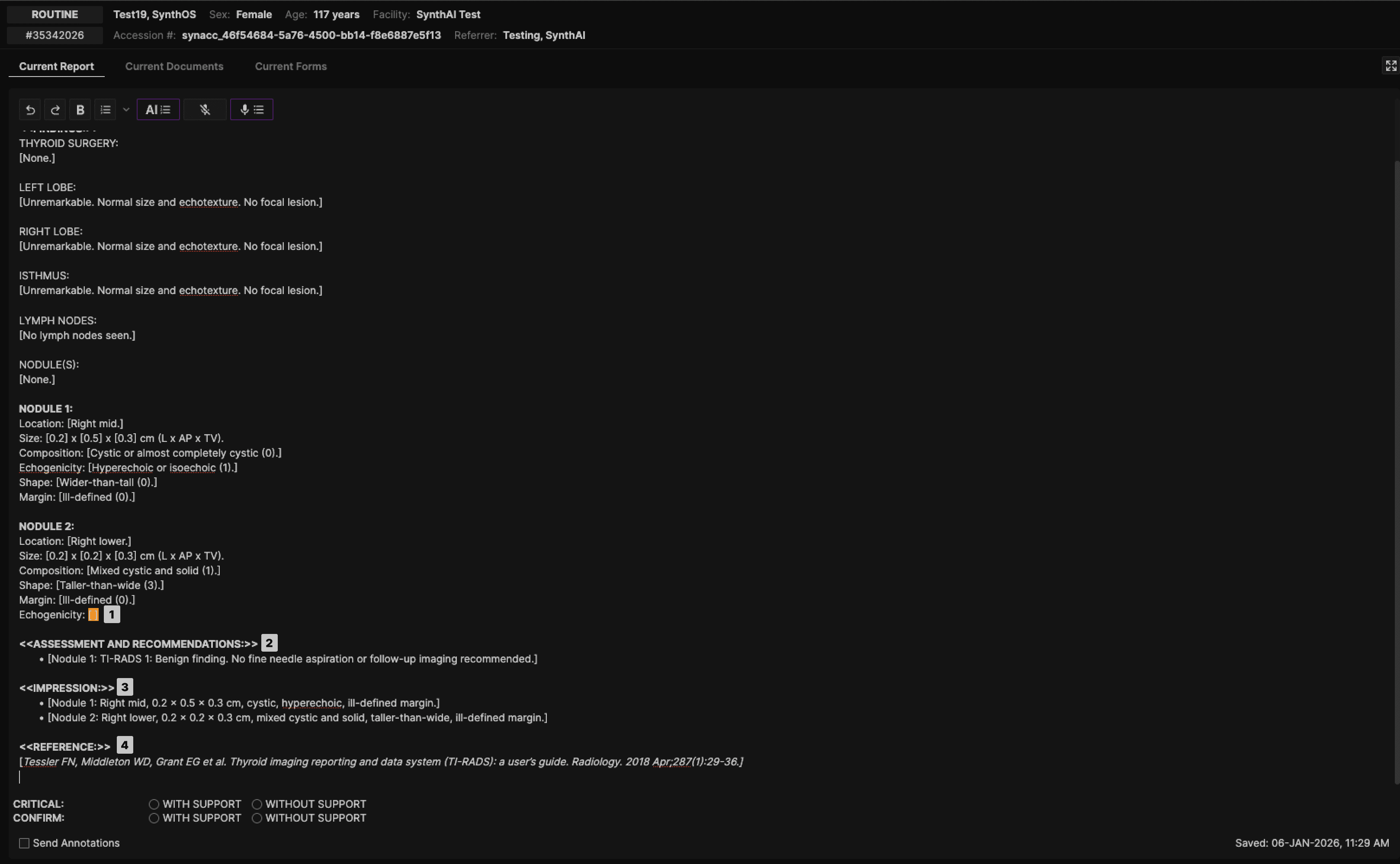
Output | ||||||||||
 | ||||||||||
|
How Does It Work? | |
|---|---|
Input required | |
The reporting system will send the report and metadata, including:
| |
Set up | |
Thyroid reporting is enabled as part of Report Assistant 3.4. Nodule details are captured through the US Thyroid form and inserted into the report. | |
Use | |
When you create a Thyroid report, Report Assistant analyzes the report content and uses the thyroid-related information present in the report to create the Assessment and Recommendations, Impressions and Reference sections in a structured and consistent format. If mandatory information is missing, it highlights missing information in orange. |
Other Important Information | |
|---|---|
Limits | |
The Global US Thyroid form supports insertion of up to four nodules. If any attributes are missing for a nodule, the TI-RADS score for the corresponding nodule will not be generated. | |
Feedback | |
Your feedback helps us improve! We track how often preferences are used and measure satisfaction. |
Breast Reporting 1.1 - Updated Breast Codes | |
|---|---|
Global breast codes added to the breast reporting tool: | |
US: 18336, 18337, 18338, 18255, 18027, 18023 |