Reading physician essentials
Saving Image Edits and Presentation States - User Guide
Overview
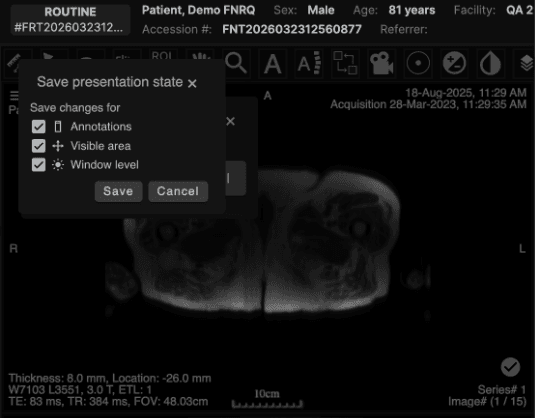
The PACS Viewer supports saving image edits and annotations as DICOM Grayscale Softcopy Presentation States (GSPS). When saved, these Presentation States persist across sessions and can be viewed by other users who open the same exam.
Image edits that can be saved include:
Annotations and measurements
Window Width / Window Level (WW/WL)
Zoom and pan
Saving behavior is governed by two things working together:
The ACL permission assigned to the user's role — controls whether saving is possible at all
The Hanging Protocol (HP) preference — controls whether saving happens automatically or manually (for users who have permission)
2. Permissions — ACL Configuration | ||||||||||||||||
|---|---|---|---|---|---|---|---|---|---|---|---|---|---|---|---|---|
The ACL that controls this feature is found under: Accounts → Role Management → Orders → Save GSPS/Annotations on System Default Viewer | ||||||||||||||||
 | ||||||||||||||||
2.1 CRUD Actions | ||||||||||||||||
This ACL has three CRUD actions. Each controls a distinct capability:
| ||||||||||||||||
⚠ Per the DICOM standard, GSPS objects cannot be physically deleted once stored. Omitting an annotation from a new save effectively removes it from view, but the prior Presentation State (with the annotation) remains accessible. The current delete option does not have any purpose. A future enhancement to the feature will disable the “delete” permission option. | ||||||||||||||||
2.2 Effect of ACL on UI | ||||||||||||||||
The ACL state directly determines what the user sees in both the Hanging Protocol modal and the viewer:
| ||||||||||||||||
⚠ Known Limitation (current release): If a user's Create/Update ACL is disabled, the 'Save Image Edits' toggle in the Hanging Protocol modal may still appear visible in some configurations. The toggle is non-functional in this state — no Presentation State will be created — but the UI does not currently reflect the disabled permission. This will be corrected in a future release. |
3. Hanging Protocol Preference — Save Image Edits |
|---|
For users who have Create or Update permission, the Hanging Protocol (HP) configuration controls whether image edits are saved automatically or manually. To access this setting, open a hanging protocol and select Save image edits under General Display and Interactions: |
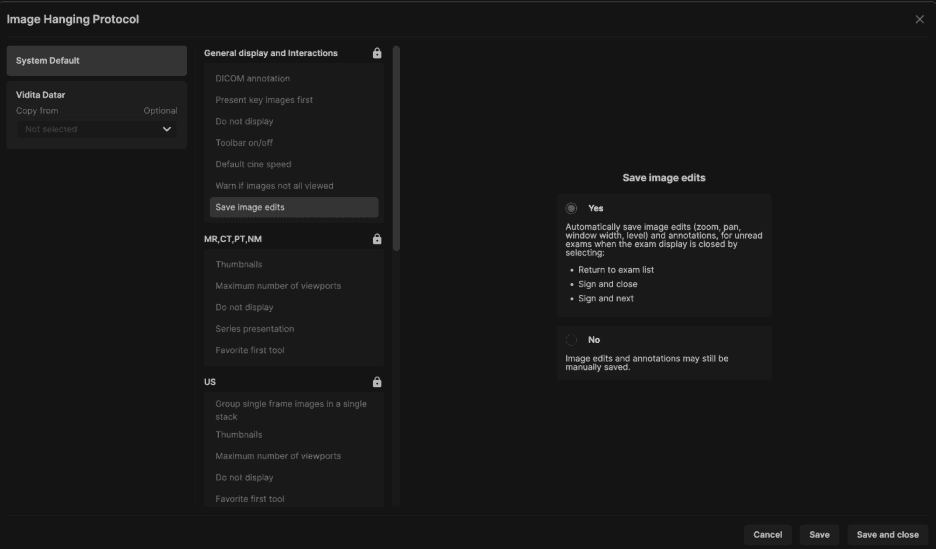 |
3.1 Yes (Always Auto-Save) |
When Yes is selected, image edits (zoom, pan, window width, level) and annotations are automatically saved for unread exams when the exam display is closed by any of the following actions:
|
3.2 No |
When No is selected, image edits and annotations are not automatically saved. However, they may still be manually saved by the user. |
4. Manual Save — Presentation States |
|---|
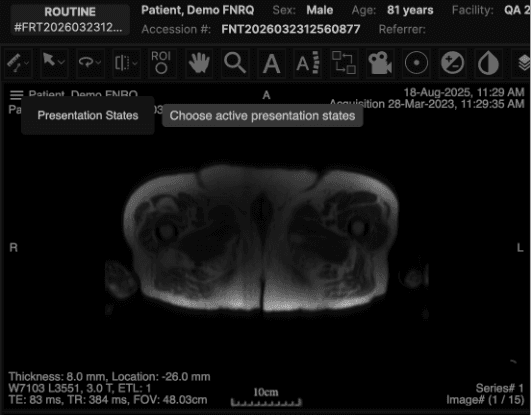
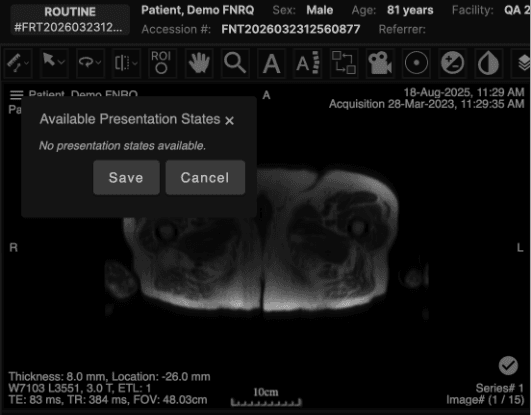
Users with Create or Update permission who are configured for manual saving (or who wish to save mid-session) can save a Presentation State directly from the viewer. |
4.1 How to Manually Save |
|
   |
5. Viewing Presentation States |
|---|
All users with at least Read permission can view Presentation States saved by any user for an exam. |
5.1 How Presentation States Work — Additive Model |
Presentation States are additive. Each time a user saves, they are adding to the existing set of annotations — not replacing them. The most recent Presentation State therefore represents a cumulative summary of all annotations made across all sessions. For example: if a radiologist adds two length measurements in one session and saves, then opens the exam again and adds an ROI annotation and saves again, the second Presentation State will contain all three annotations — both measurements plus the ROI. |
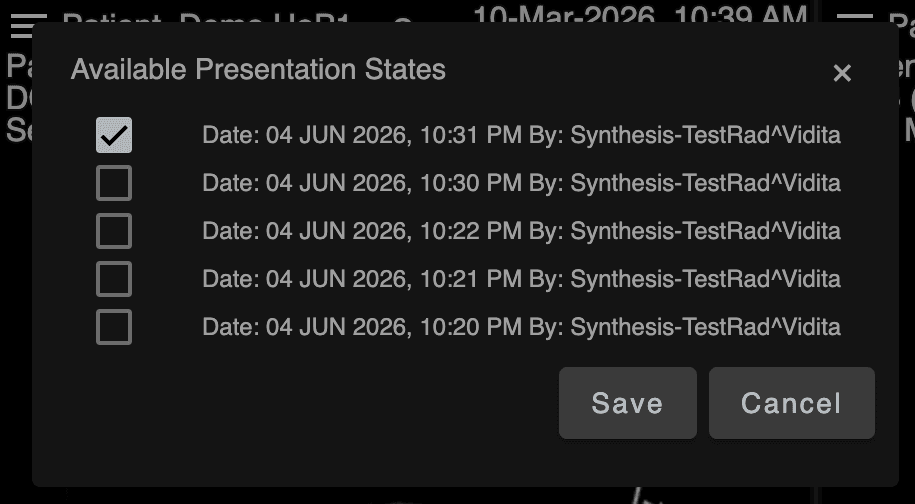
⚠ Each save creates a new GSPS object. Prior Presentation States remain accessible and can be selected individually to see annotations as they existed at any point in time. |
5.2 Default Display Behavior |
When one or more Presentation States exist for displayed images, the most recent Presentation State is applied automatically by default when the exam is opened. Because saves are additive, this means the most complete set of annotations is shown by default. WW/WL: If multiple Presentation States have different WW/WL values for the same image or series, the most recent value is applied. |
5.3 Hiding Presentation States and Annotations |
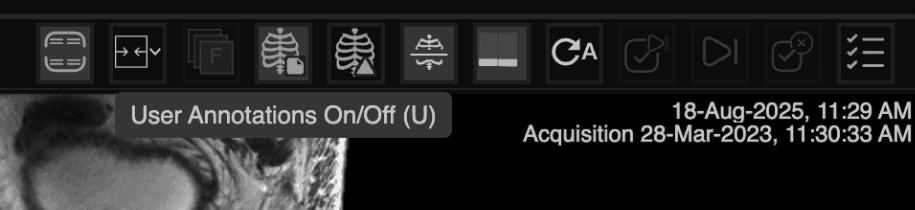
Two separate controls are available to hide saved content without deleting it:
These controls allow users to review the native images without any saved overlays, and then restore them as needed. |
  |