Use the Accounts tab to set up and view Tags and Tasks for a Group. | |
|---|---|
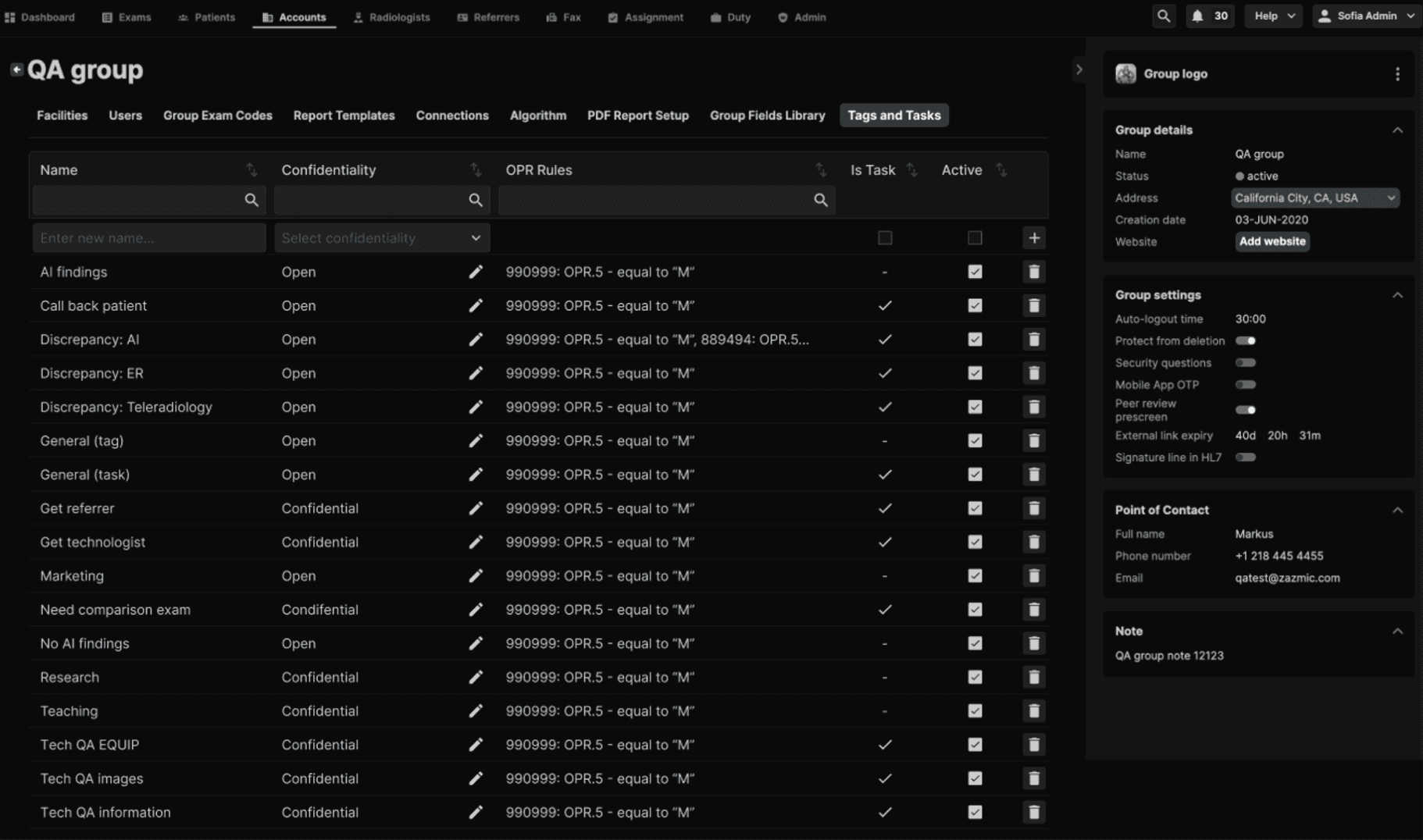 |
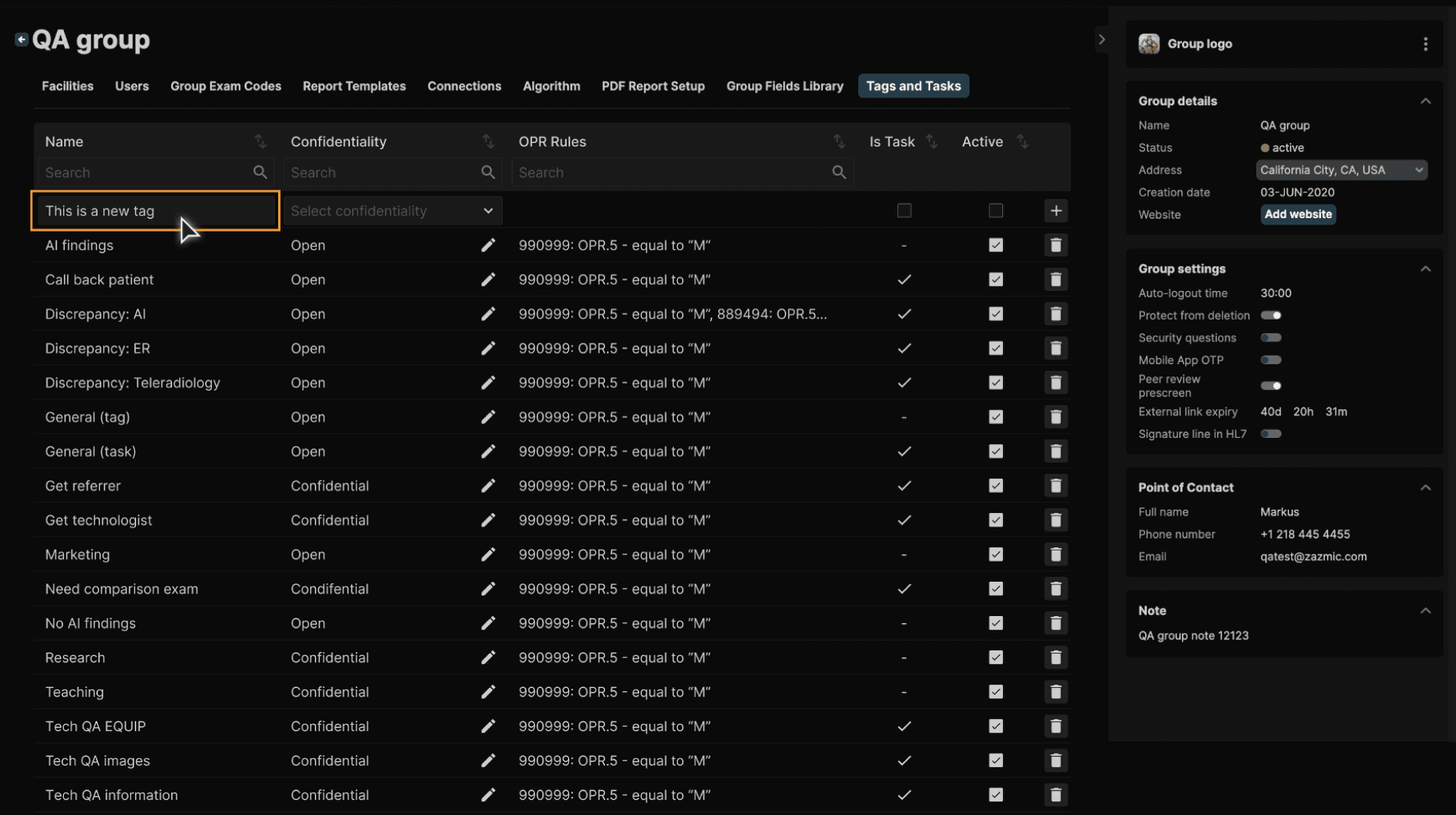
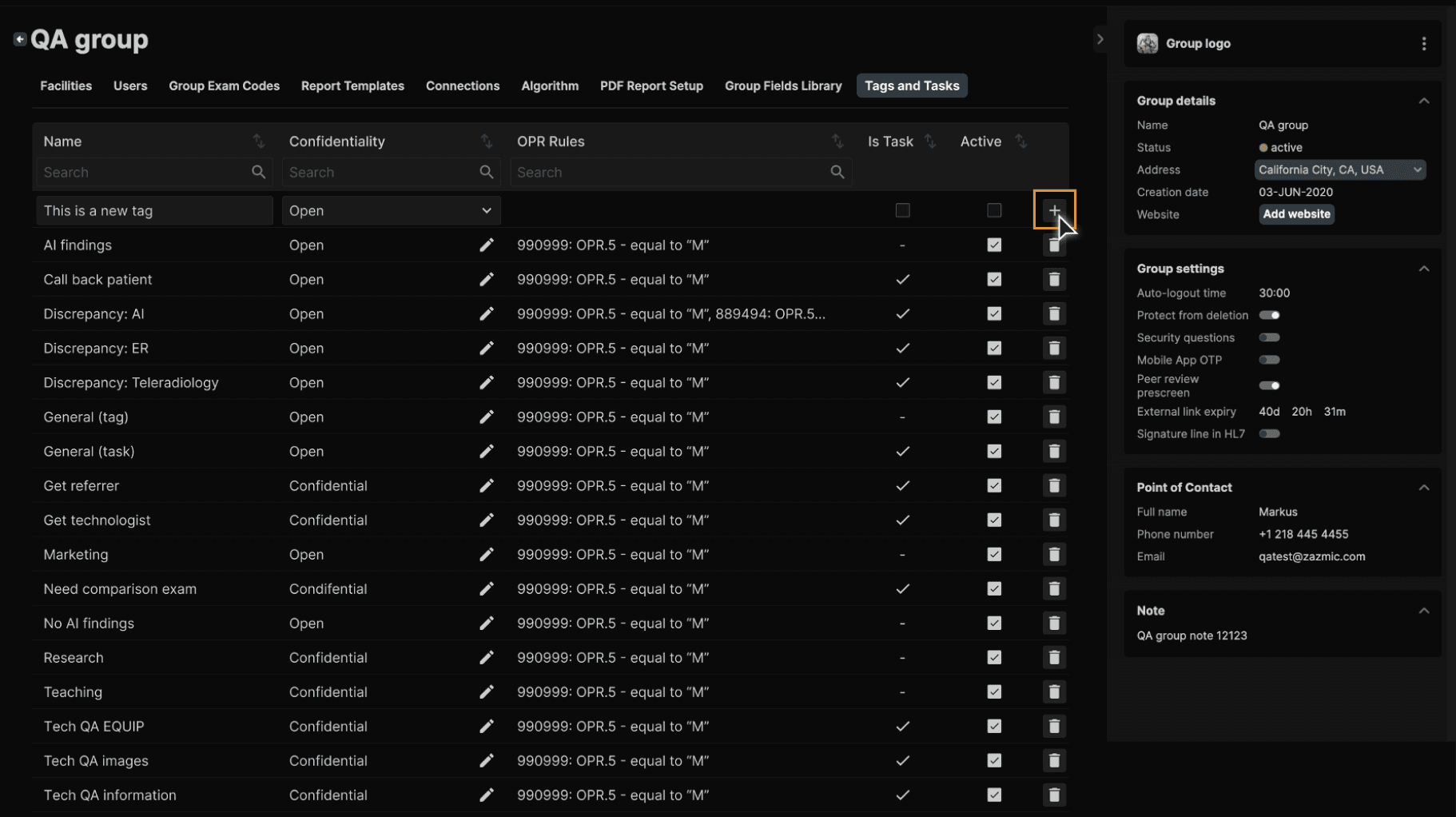
To create a new tag or task, complete the fields in the top row and click + at the right of the row. The Tags and Tasks are sorted by default in alphabetical order. | |
|---|---|
 |
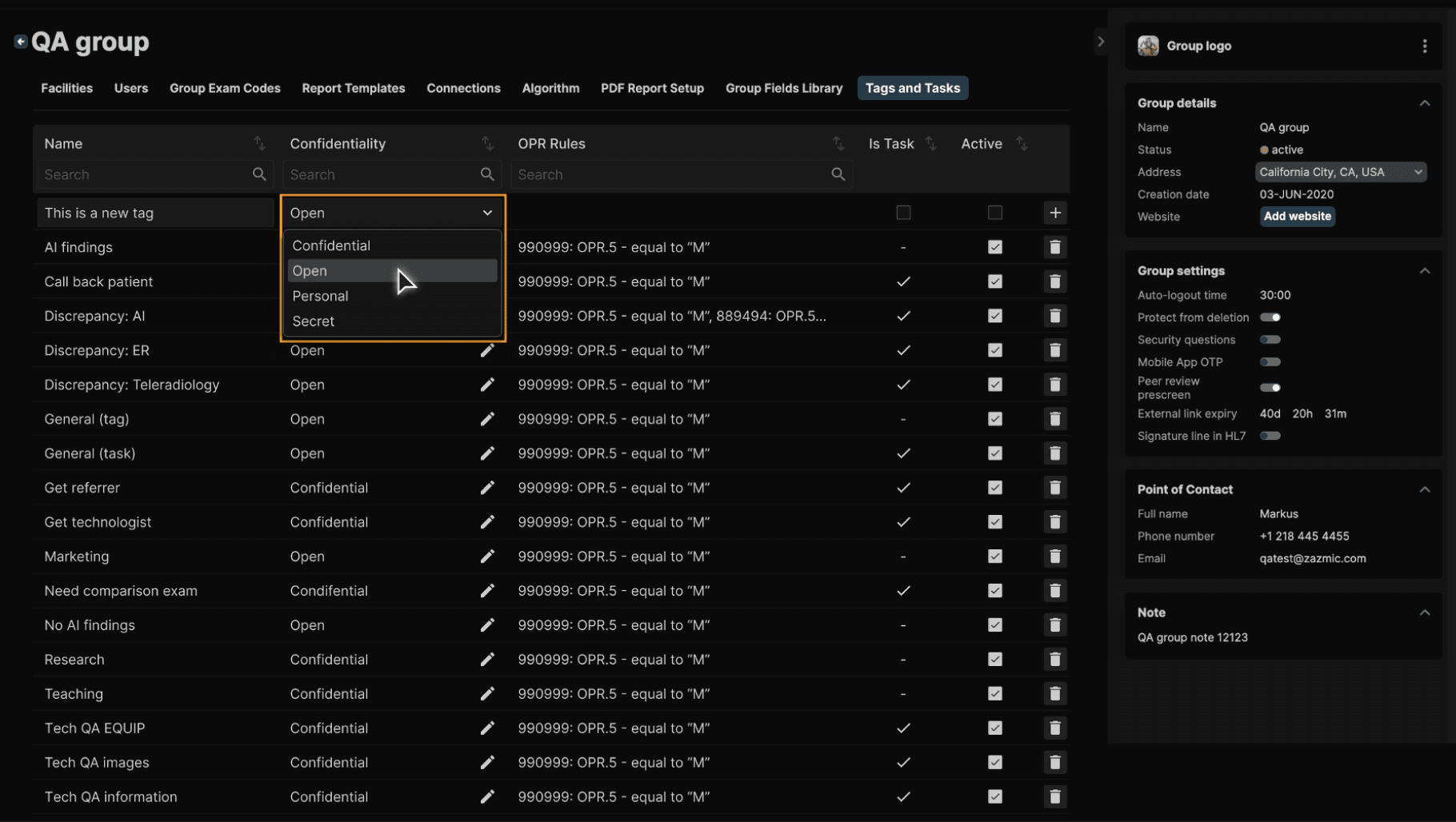
Select the Confidentiality level from the menu. | |
|---|---|
 |
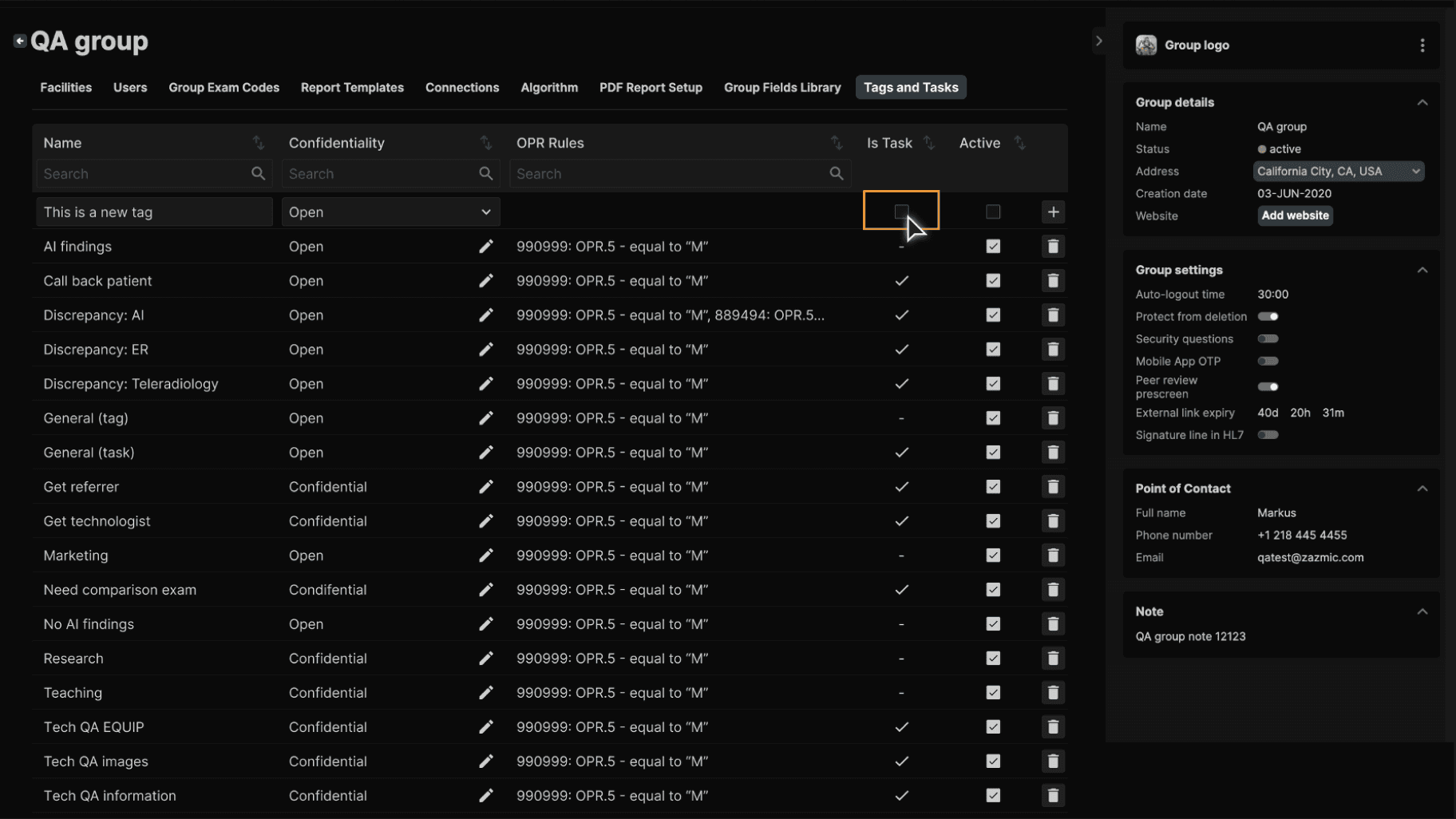
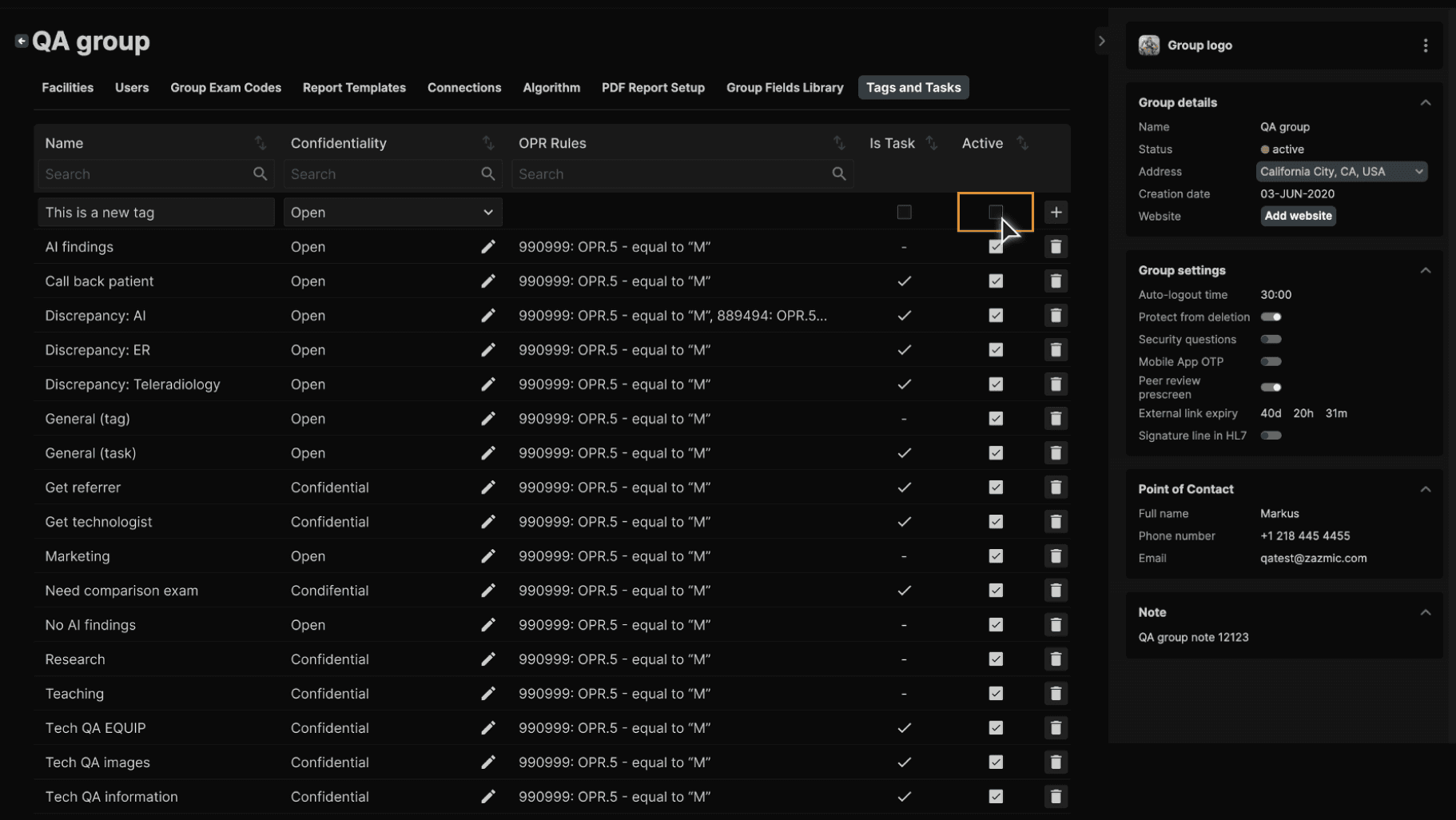
Check the box in the "Is Task" column to indicate that the item is a Task, not a Tag. Remember, the difference between Tags and Tasks is that Tasks can have multiple statuses, such as Requested, In Process, and Complete. | |
|---|---|
 |
Use the Active column to inactivate or activate a Tag or Task. | |
|---|---|
 |
After completing the top row, click + to add the Tag or Task. The Tag or Task will be added and appear in the proper position based on the sort order of the list (alphabetical order by default). | |
|---|---|
 |
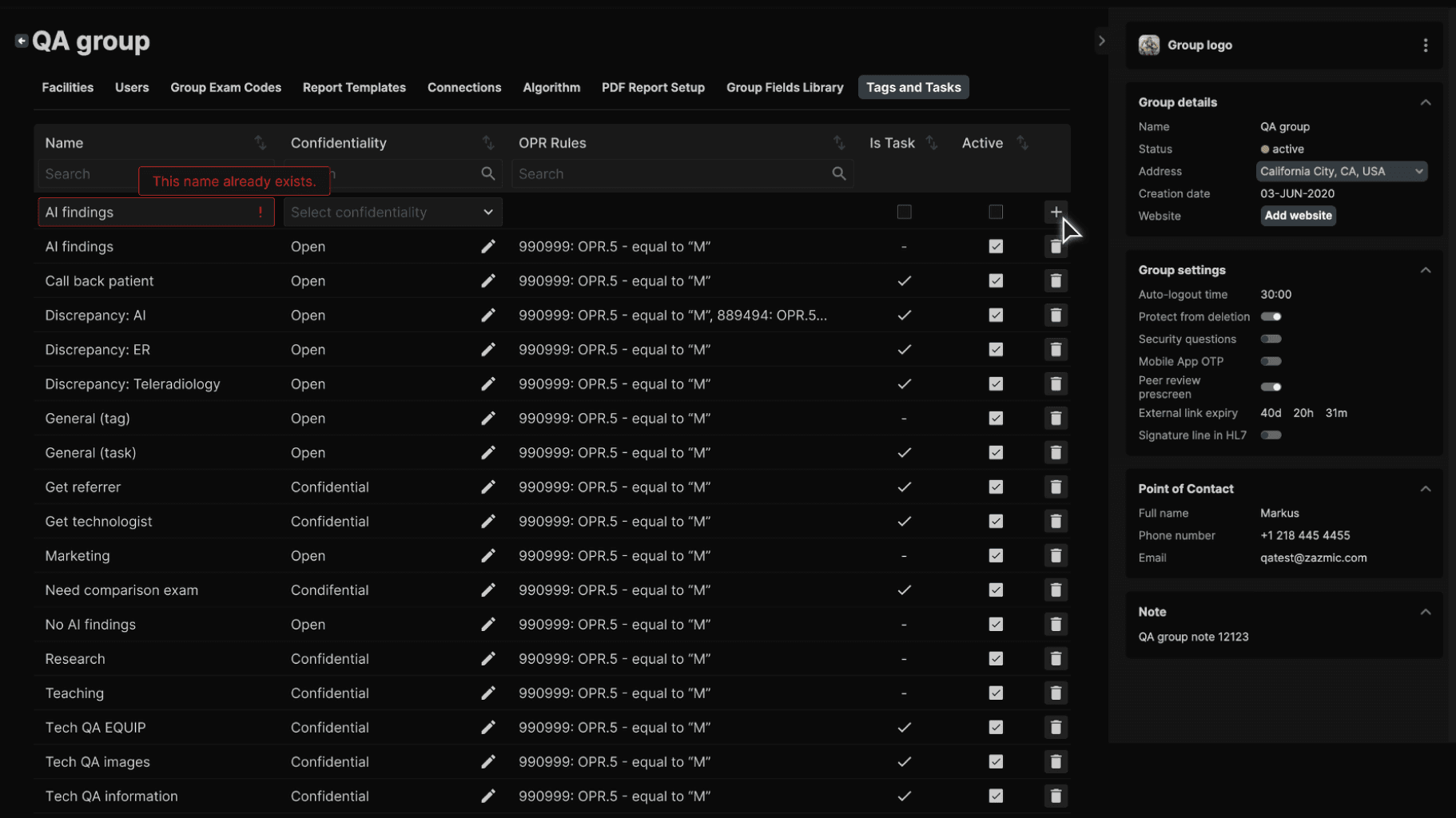
Tags and Tasks must have a unique name. | |
|---|---|
 |
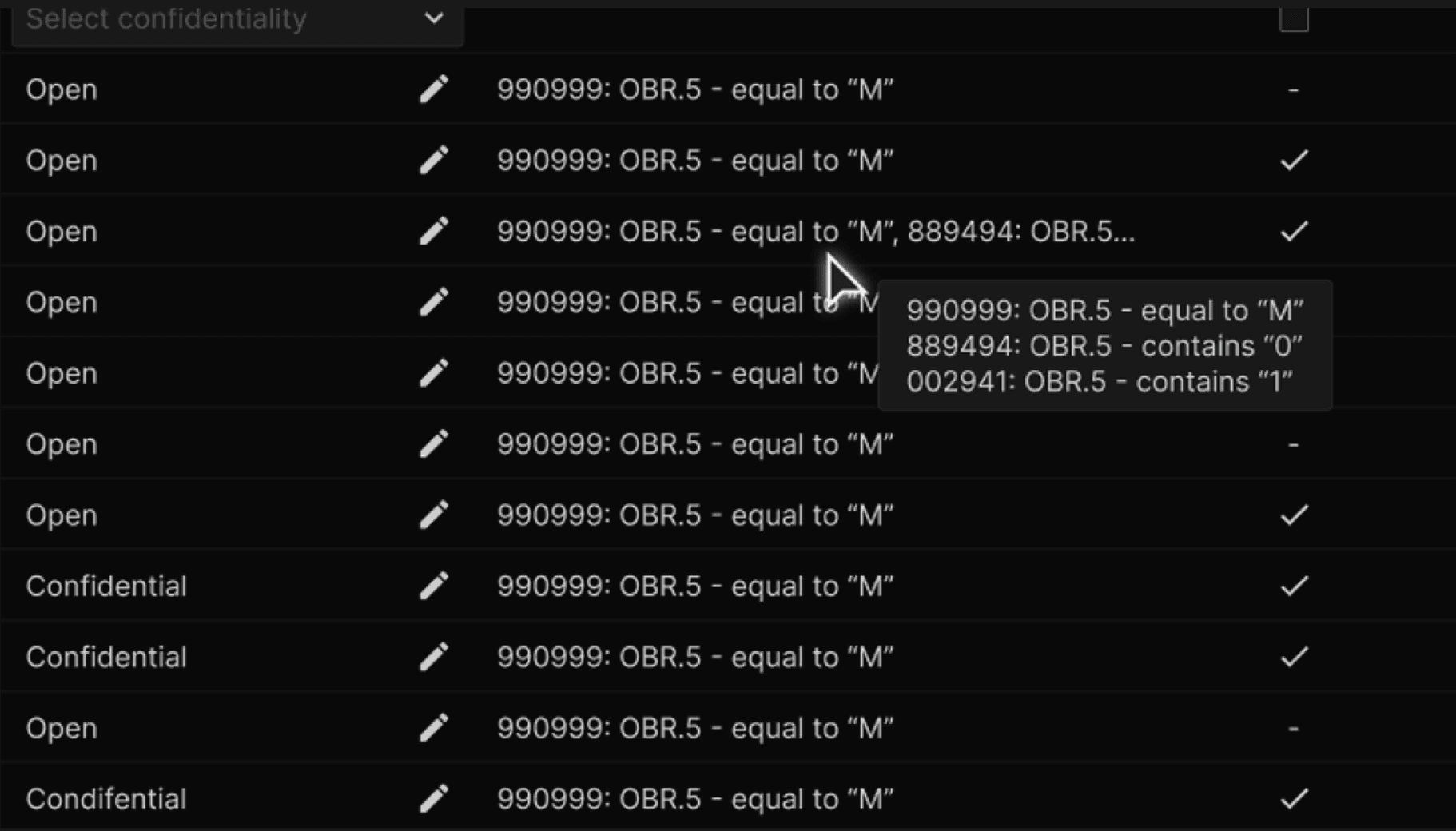
A Tag or Task may be automatically added to an exam via one or more OPR Rules. If multiple rules are present, hover over the rule condition to see all applicable rules. | |
|---|---|
 |
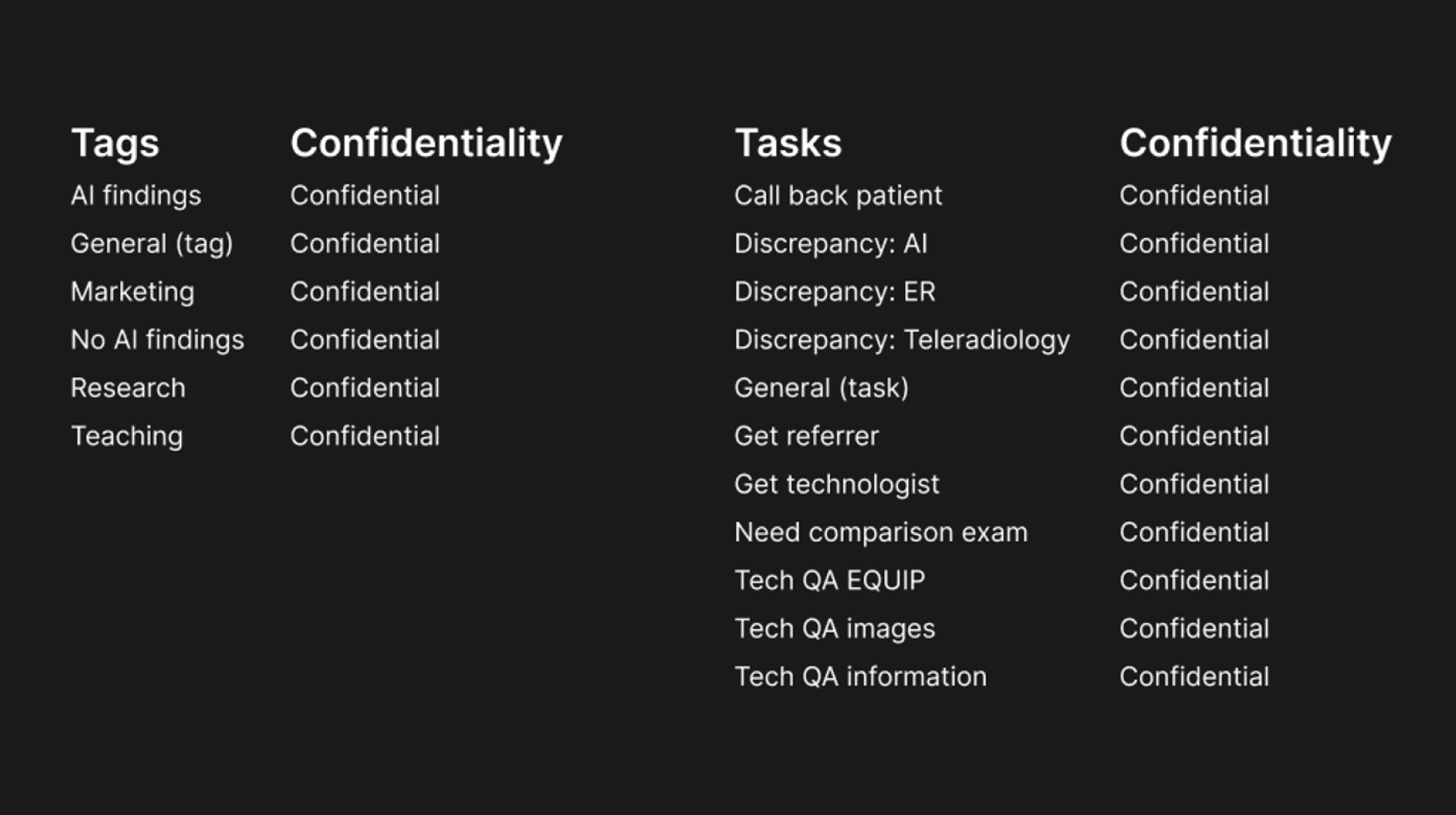
This is the list of default tags and tasks. | |
|---|---|
 |
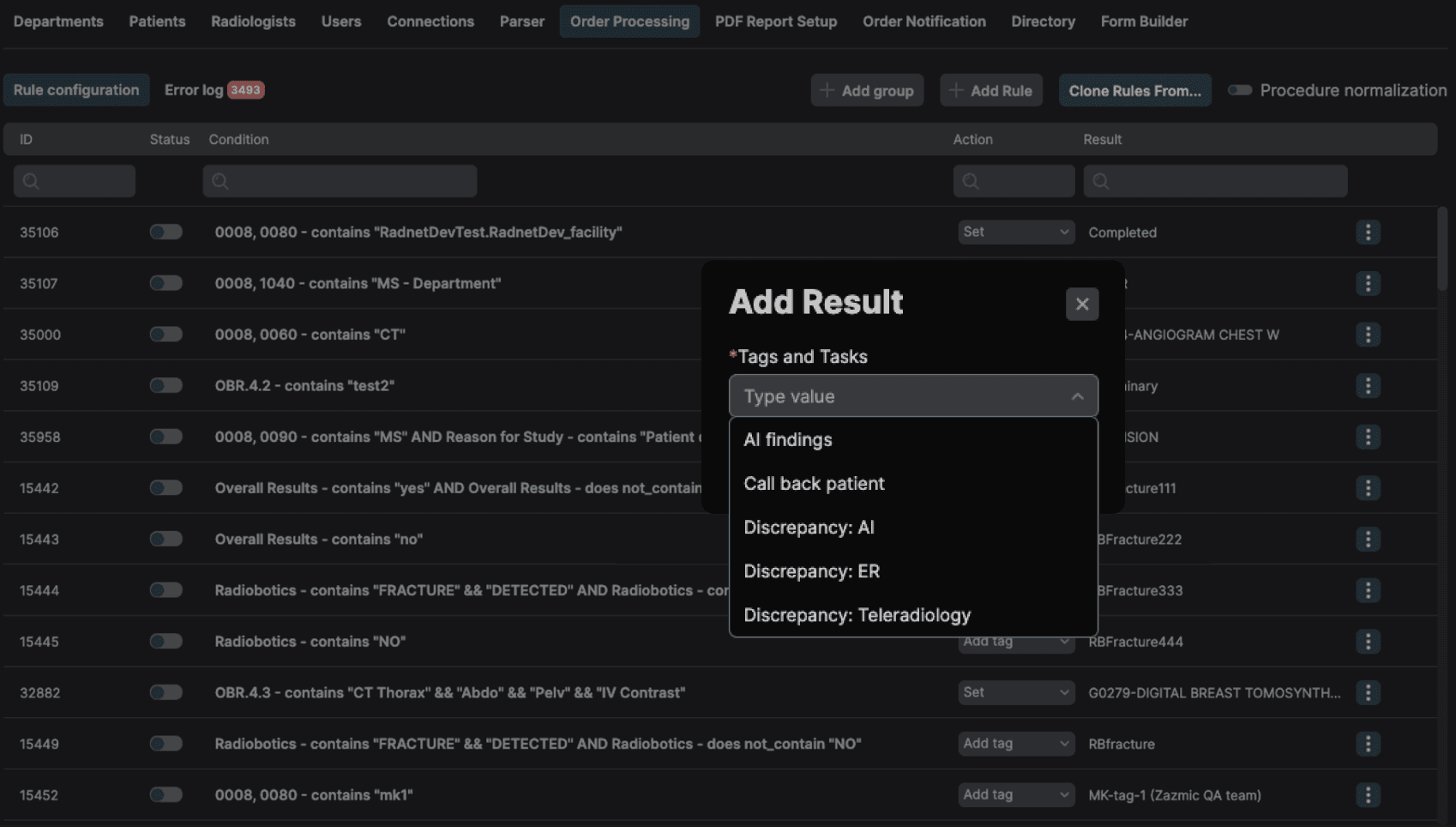
In the "Add Result" dialog box available in the Order Processing page, the “Tags and Tasks" dropdown will display the list of active tags and tasks at the group level. | |
|---|---|
 |