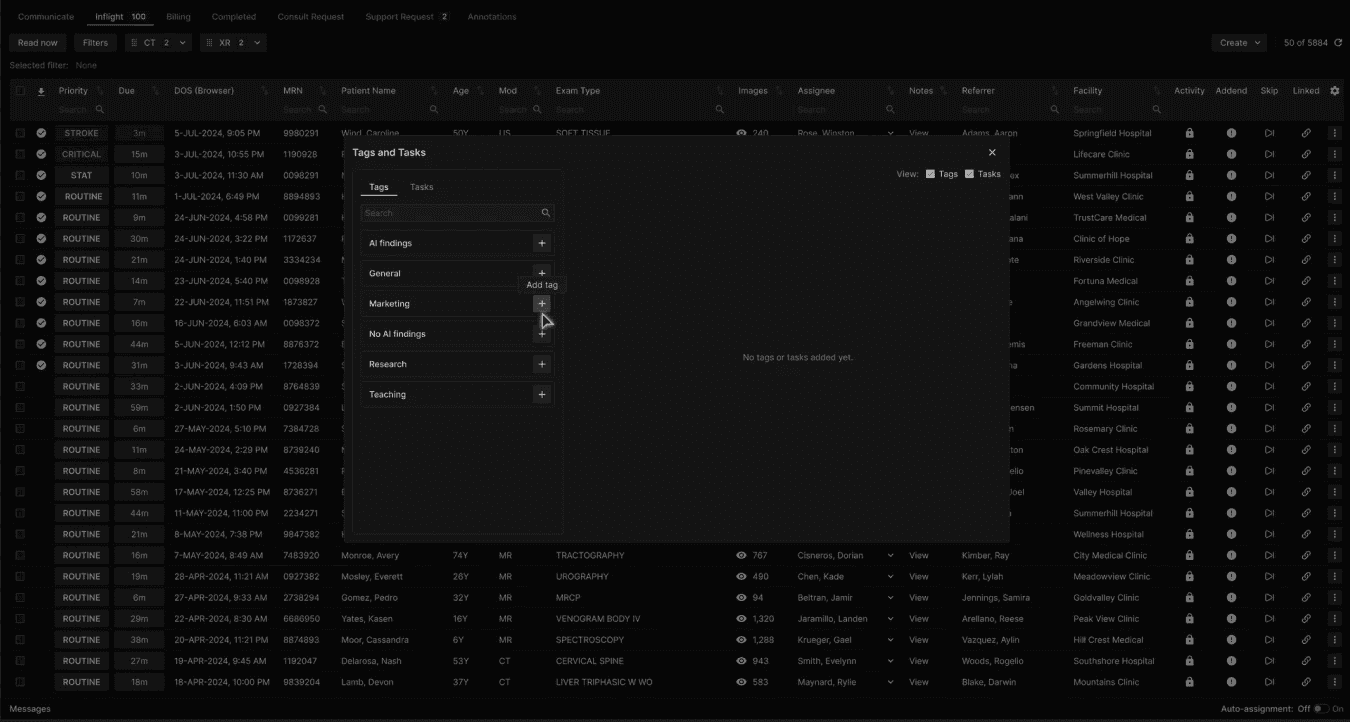
From the Tags tab, select the desired tag option from the menu. | |
|---|---|
 |
The Tag appears on the right. | |
|---|---|
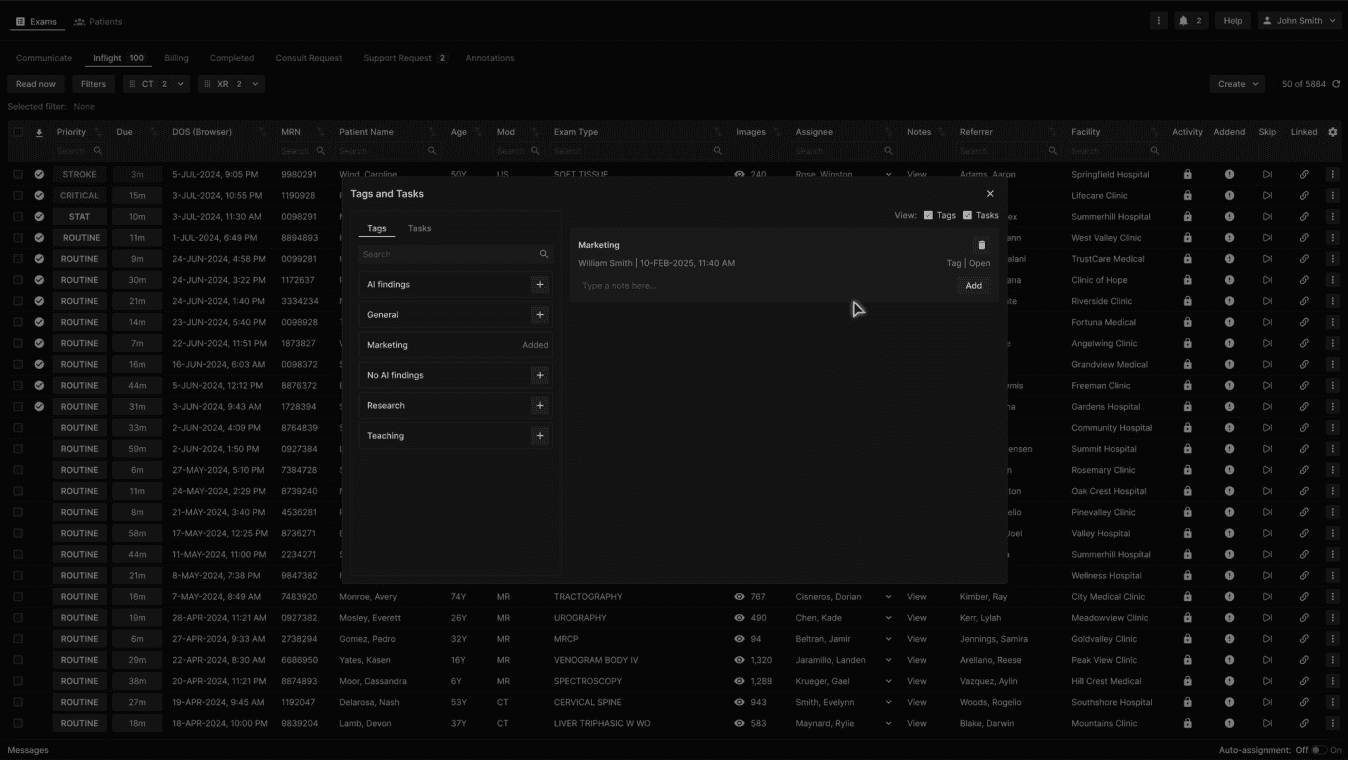 |
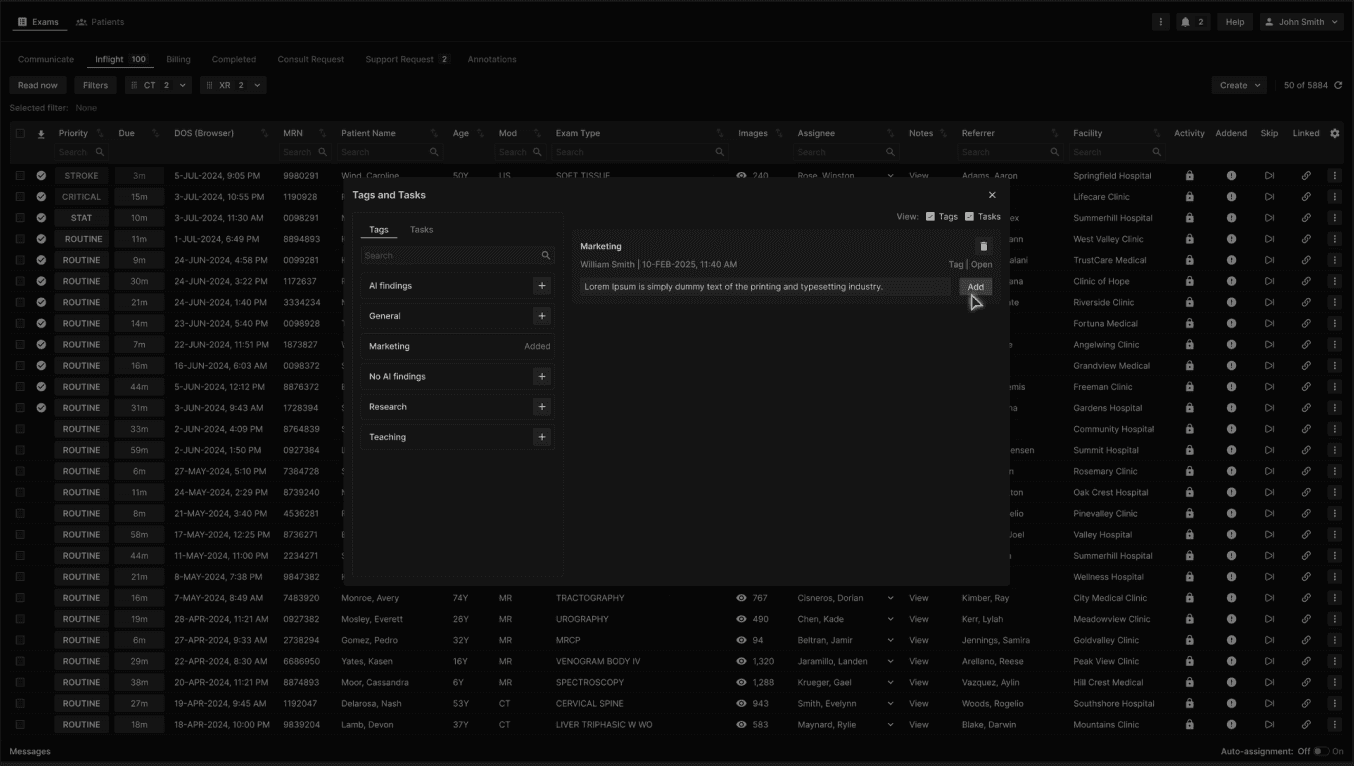
Users with the appropriate roles may view, add a note or delete the Tag. | |
|---|---|
 |
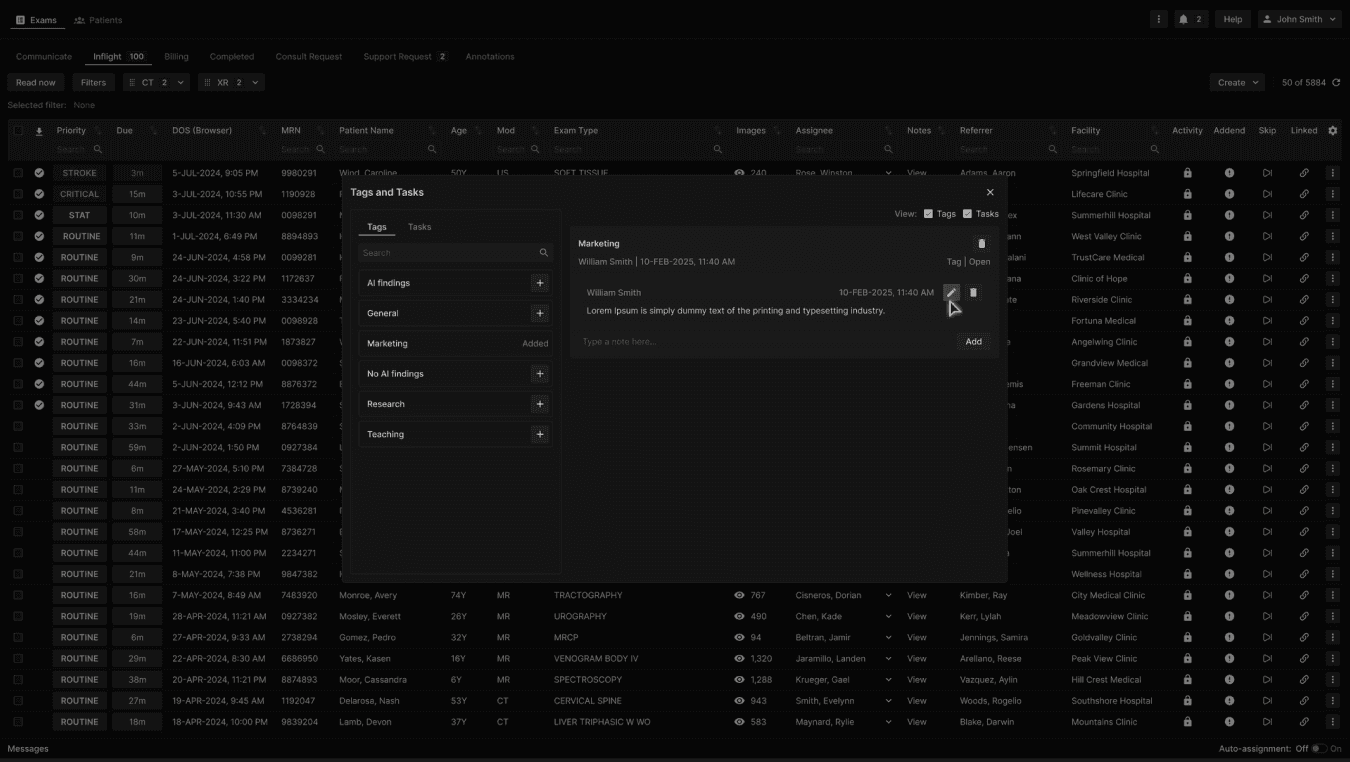
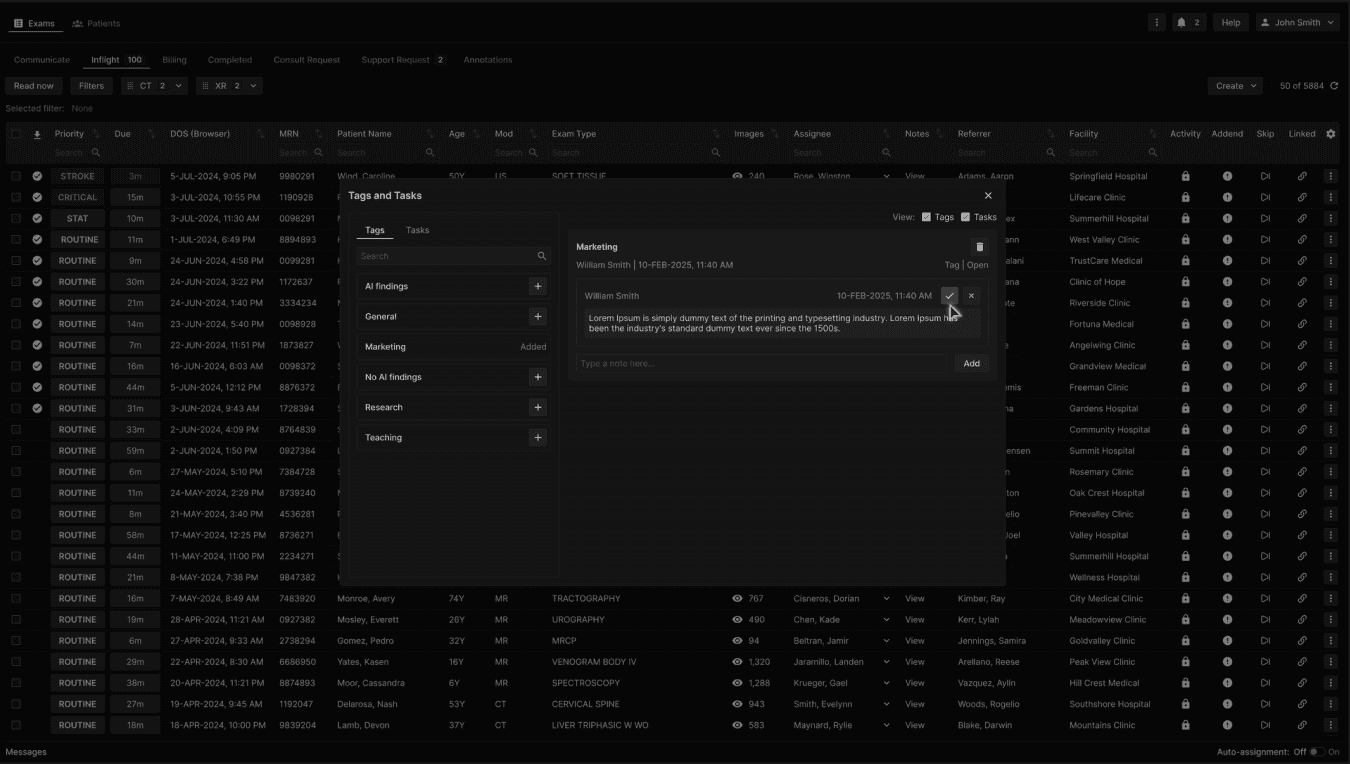
Edit or delete the created note. | |
|---|---|
 |
Click the check mark button to save the note edits. | |
|---|---|
 |
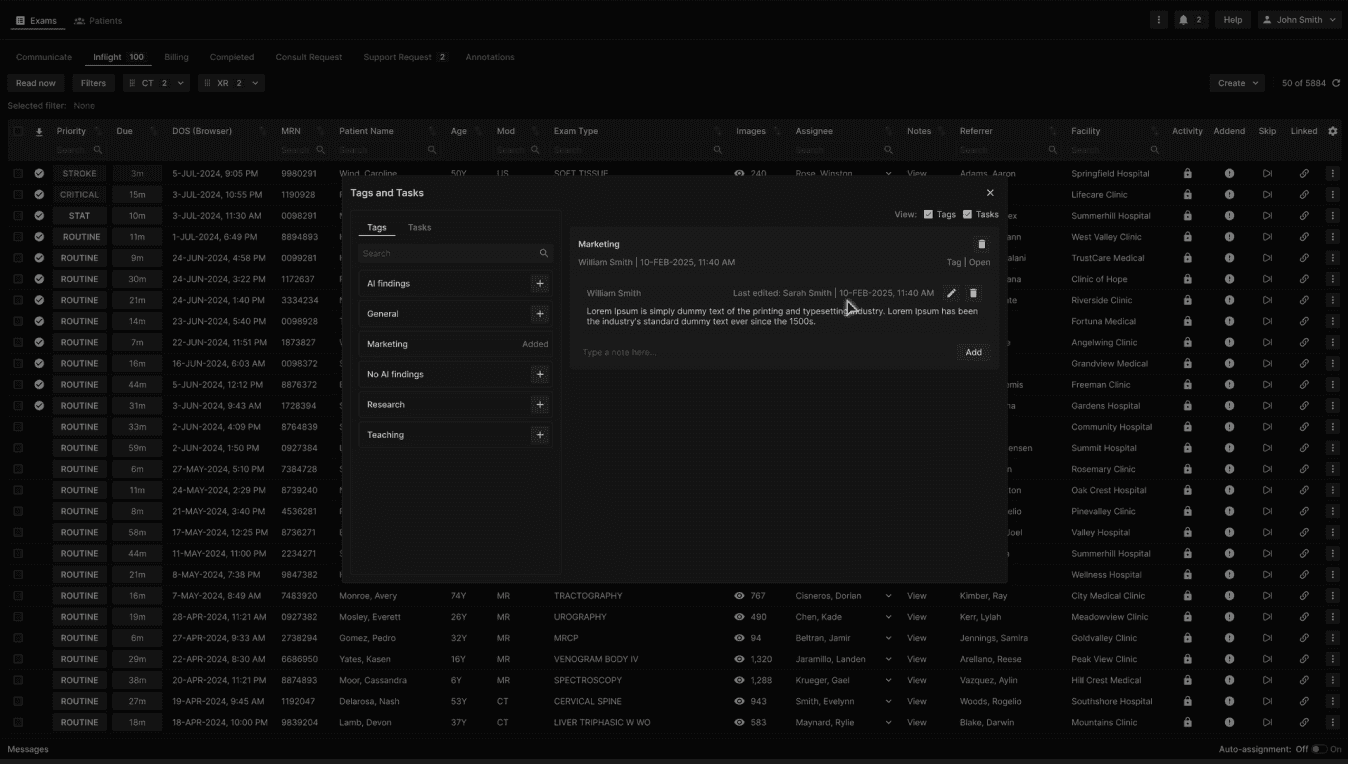
After a note is edited, the label "Last edited by [user's first name and last name] 10-FEB-2025, 11:50 AM" will be added. | |
|---|---|
 |
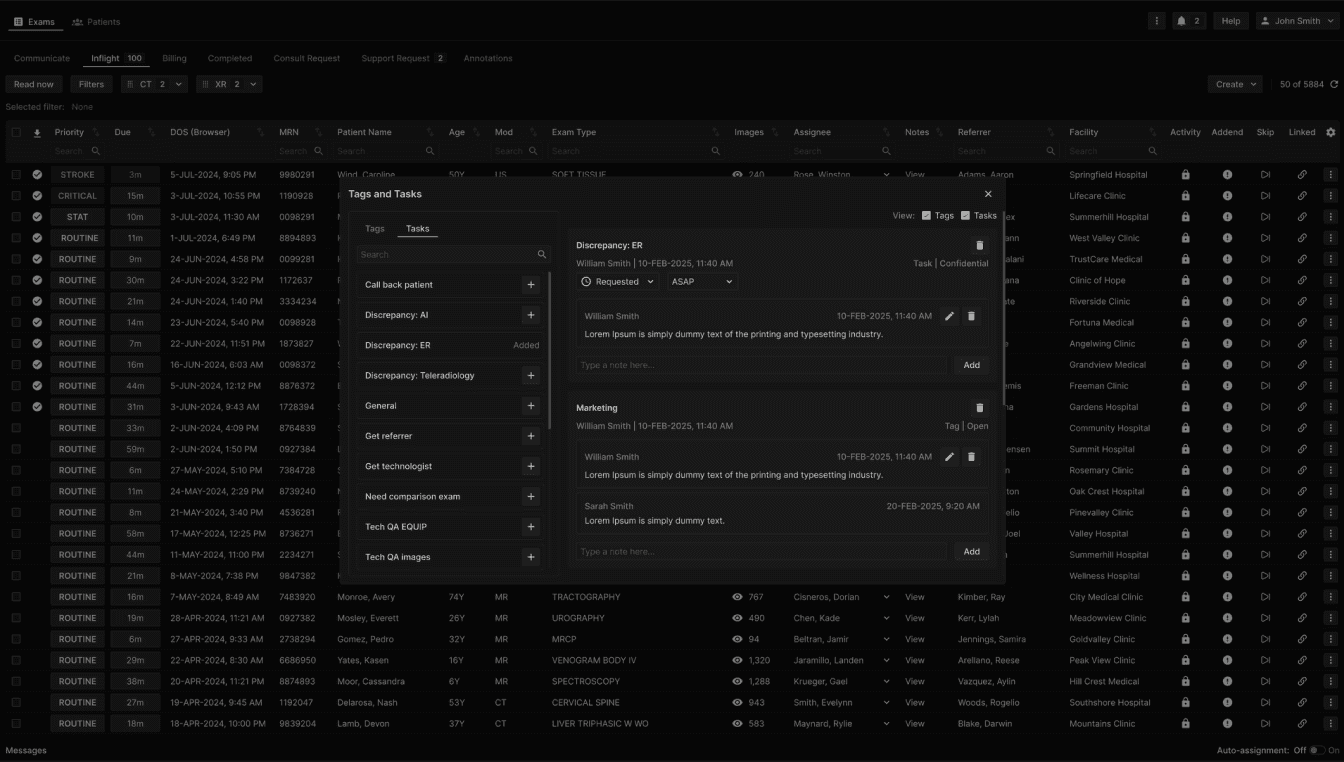
An exam may have one or more Tags and Tasks, each appearing at the right side of the Tags and Tasks dialog. The more recent Tag or Task appears on top. | |
|---|---|
 |