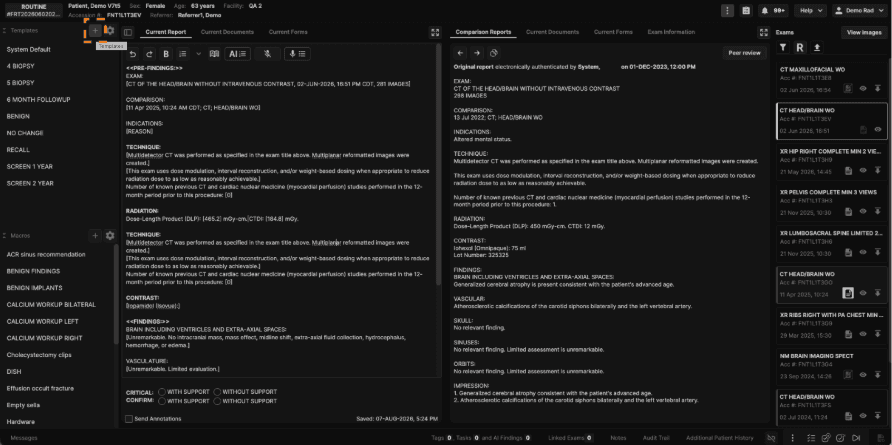
1. Click the "+" icon next to Templates in the sidebar to create a new custom template.
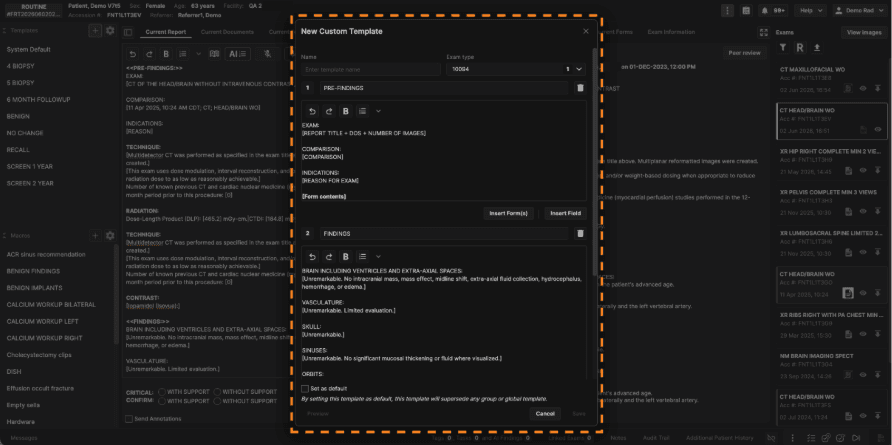
2. The current report contents will be loaded into the new template by default. You may edit the template accordingly using the dialogue below. Click "Save" when complete.
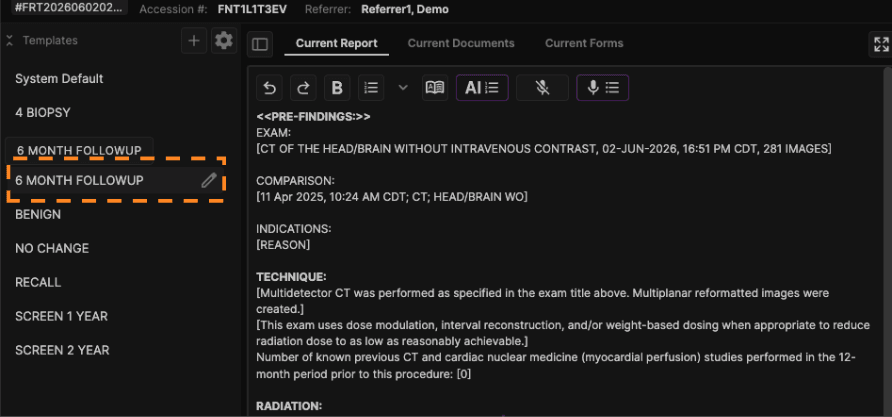
3. To apply a template, simply click on the template name in the sidebar. Hover over the template name and click the pencil icon to edit it.
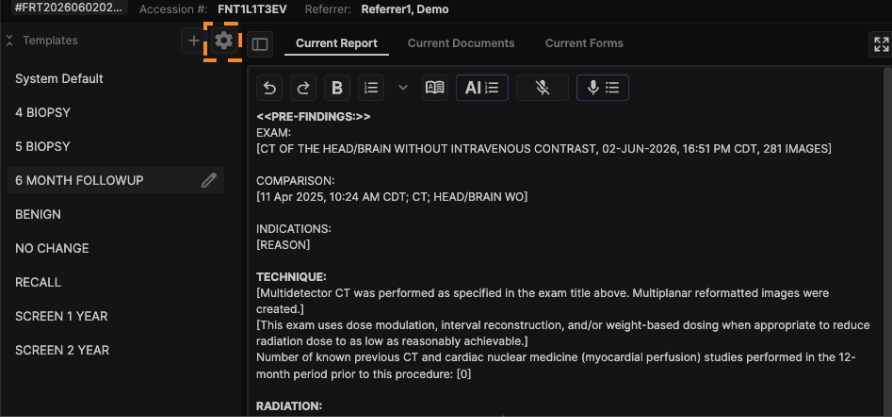
4. Click the gear icon in the sidebar to manage/delete custom templates and macros.