Oct 12, 2025

Release notes: Viewer

Viewer: Version 2.3.0


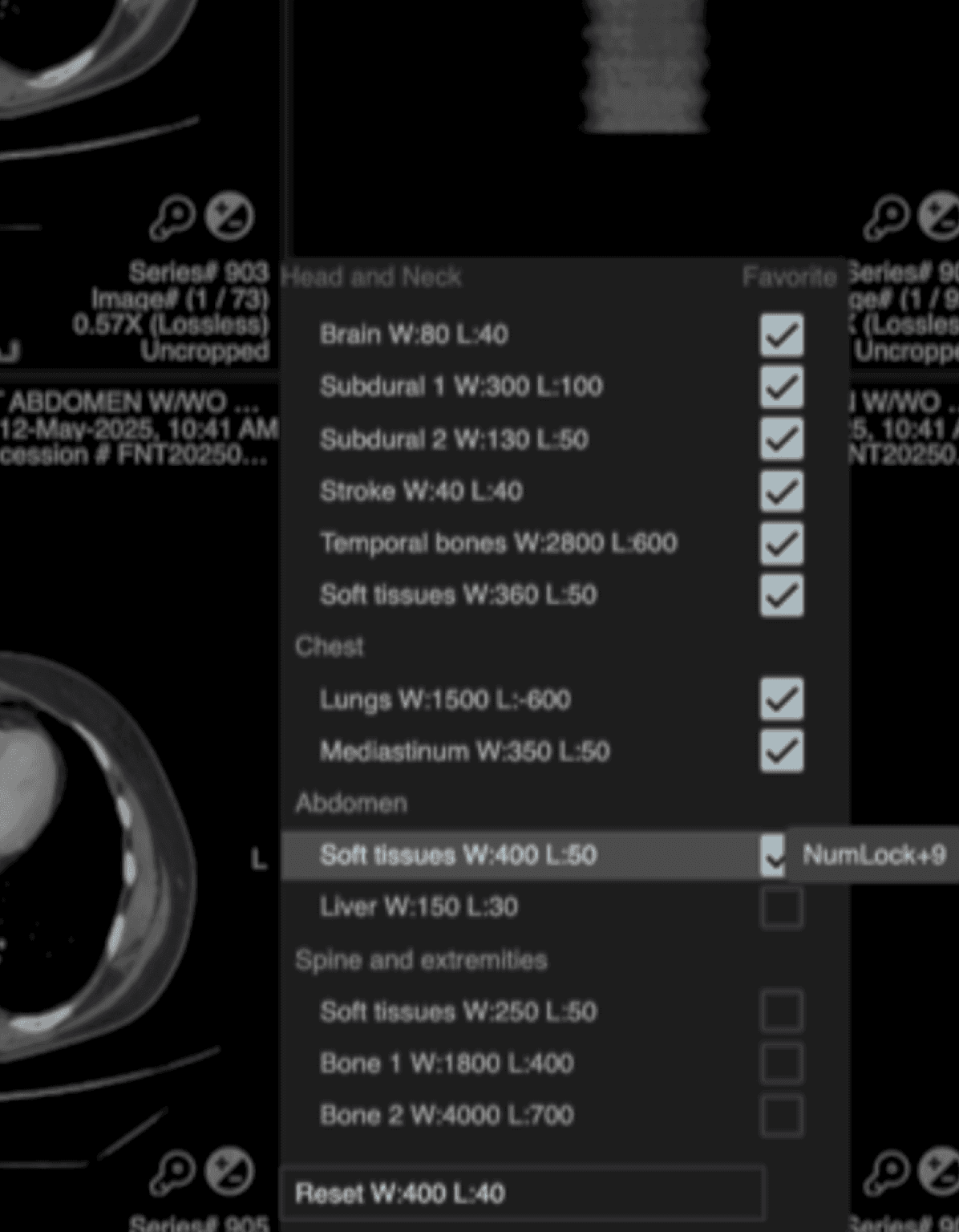
Window/Level Favorites​

Summary: The W/L favorites feature has been expanded to improve efficiency and customization:

  • Users can now save up to 9 W/L favorites.​

  • Number pad keys 1 to 9 act as quick shortcuts to apply favorites, with NumLock ON.​

  • Additionally, clicking on the W/L icon in the bottom right corner of the viewport will allow the user to cycle through the favorites.


Montage Panel Shortcut Enhancement

Summary: Pressing M now toggles between the Montage panel and the previously displayed panel, making it easier to access the Montage.  We suggest reading physicians map the K key (create key image) and M key (toggle Montage on/off) to mouse thumb buttons to expedite reading. 

Example Workflow:

  • While reading an exam, click K to create key images from the current and any number of comparison exams.​

  • Click M to then view the montage, which tells the patient's imaging story.​

  • Then dictate the exam. This paradigm in which image review occurs before dictation results in less head and hand movements and less distractions while reading.


Fusion

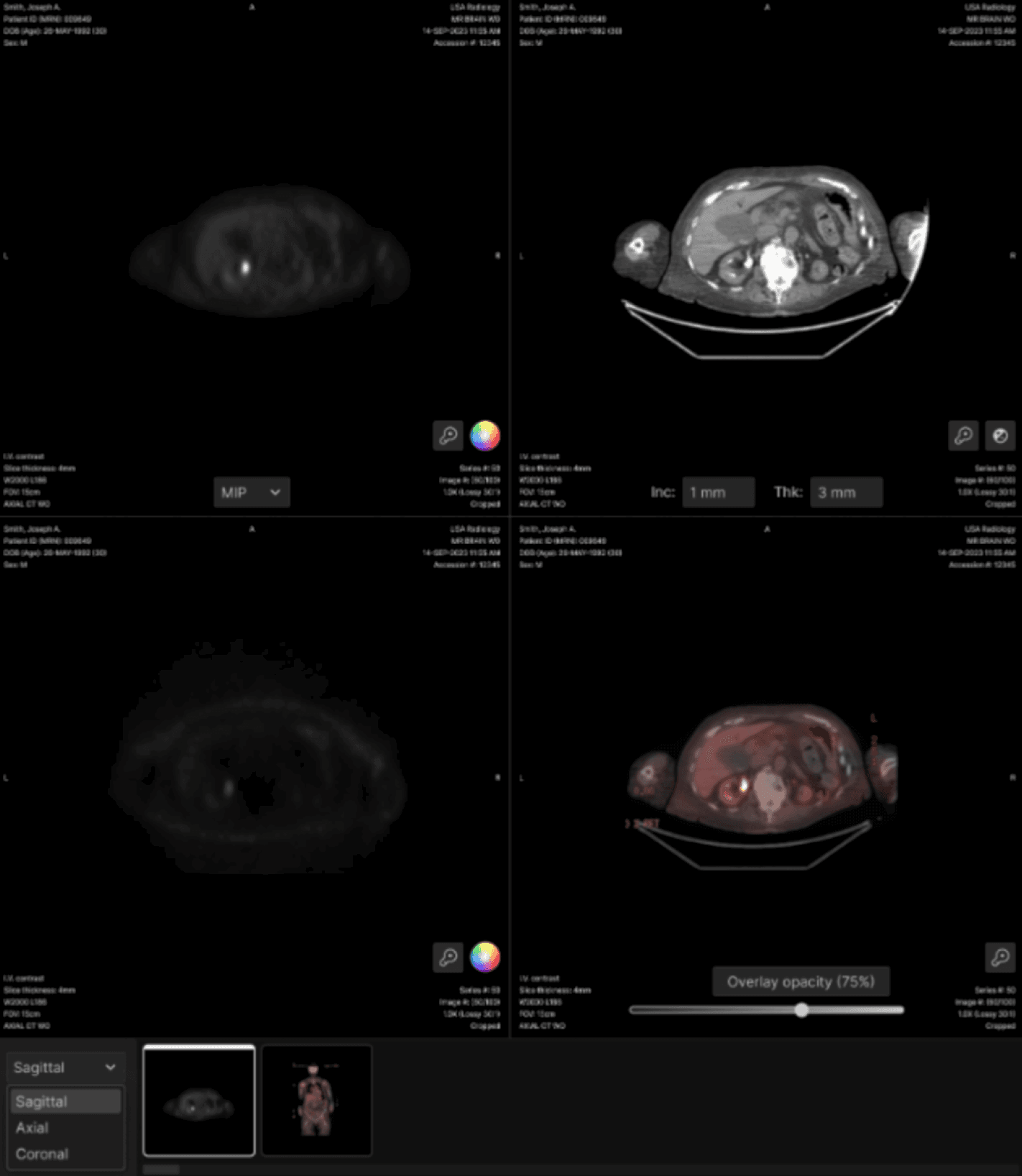
Summary: Manual registration of any two image volumes is now possible, giving users full control over alignment, visualization, and measurements.

  • Users can create and view SUV measurements, including SUVmax, SUVaverage, standard deviation, and regions of interest (ROIs).

  • Manual registration supports selection of primary and overlay series, such as CT as primary and PET as overlay.  One can also fuse different slices from the same series, useful for various orthopedic imaging applications. 

  • A fused series is automatically generated by combining the chosen primary and overlay volumes.

  • Interactive controls allow users to pan, rotate, magnify, and adjust overlay transparency with an opacity slider, as well as reset volumes to their original states.

  • The primary, overlay, and additional series windows support full 2D and 3D viewer functionality, including window/level presets, LUTs, pan, smart magnification, paging, slab, slice thickness, and increment adjustments, with changes reflected in the fused volume.

  • Linked scrolling and zooming are available across any two series, with the option to move them together or independently.

  • The Fusion panel is accessible from multiple entry points: a keyboard shortcut, toolbox button, toolbar button, and thumbnail bar button.


Mammogram DICOM and Labelling Improvements

Summary: The DICOM overlay has been enhanced to include essential metadata and improved image indicators for clarity and compliance.

  • Added the following DICOM information:

    • Institution Address​

    • Operator’s Name ​

    • Cassette ID​

    • Station Name 

  • Improved image labeling for better usability:

    • Display current image number and total images in the stack just below the laterality and view position.


Cine Speed Hanging Protocol​

Summary: Reading physicians can now define a preferred frame rate (FPS) for cine playback, improving workflow consistency and reducing manual adjustments.

How to Enable:

  • Navigate to Hanging Protocol Editor in Core.​

  • Under General Display and Interactions, locate the Default Cine Speed setting.​

  • Set a desired FPS value between 1 and 30.

(Optional) Enable the checkbox “Use speed indicated in the DICOM metafile” to override the configured FPS with the value embedded in the DICOM data.