Series Name & Image Count on Thumbnails | ||
|---|---|---|
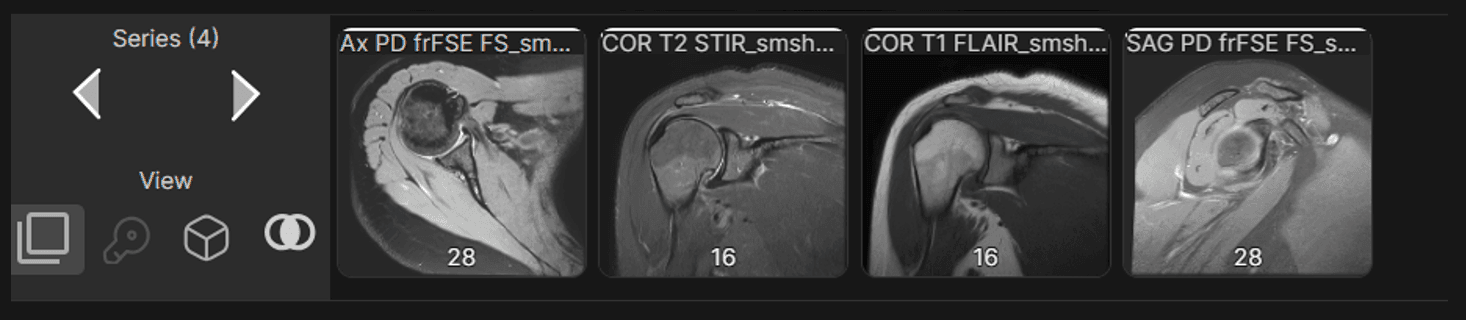
The viewer now displays key series details including series name and image count directly on the thumbnails. | ||
 |
Toolbar Display | ||
|---|---|---|
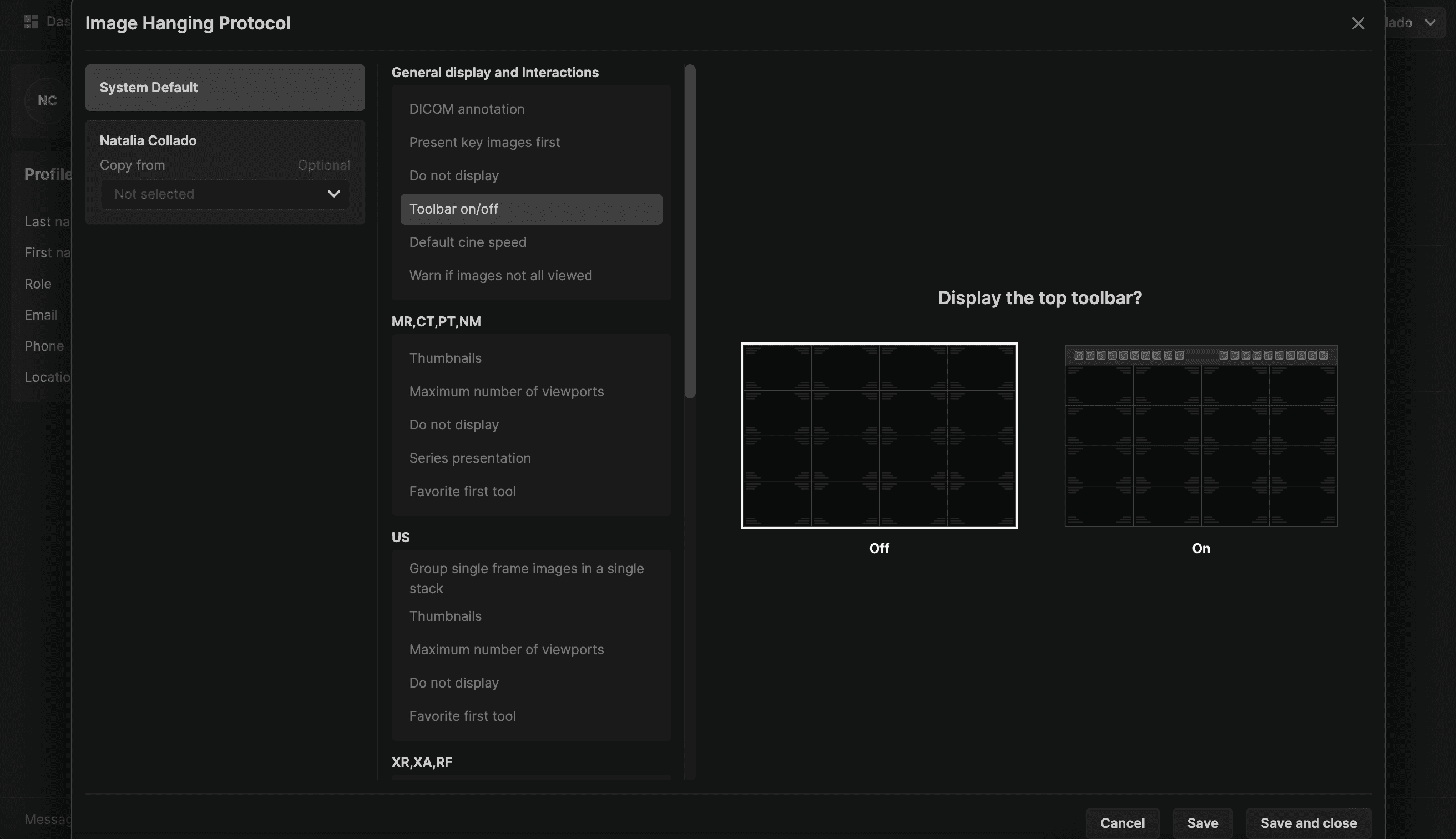
The toolbar will now be displayed by default. When turned off, the toolbox can be accessed by selecting the T keyboard shortcut or right mouse press while holding the mouse still. | ||
 |
Favorite First Tool | ||
|---|---|---|
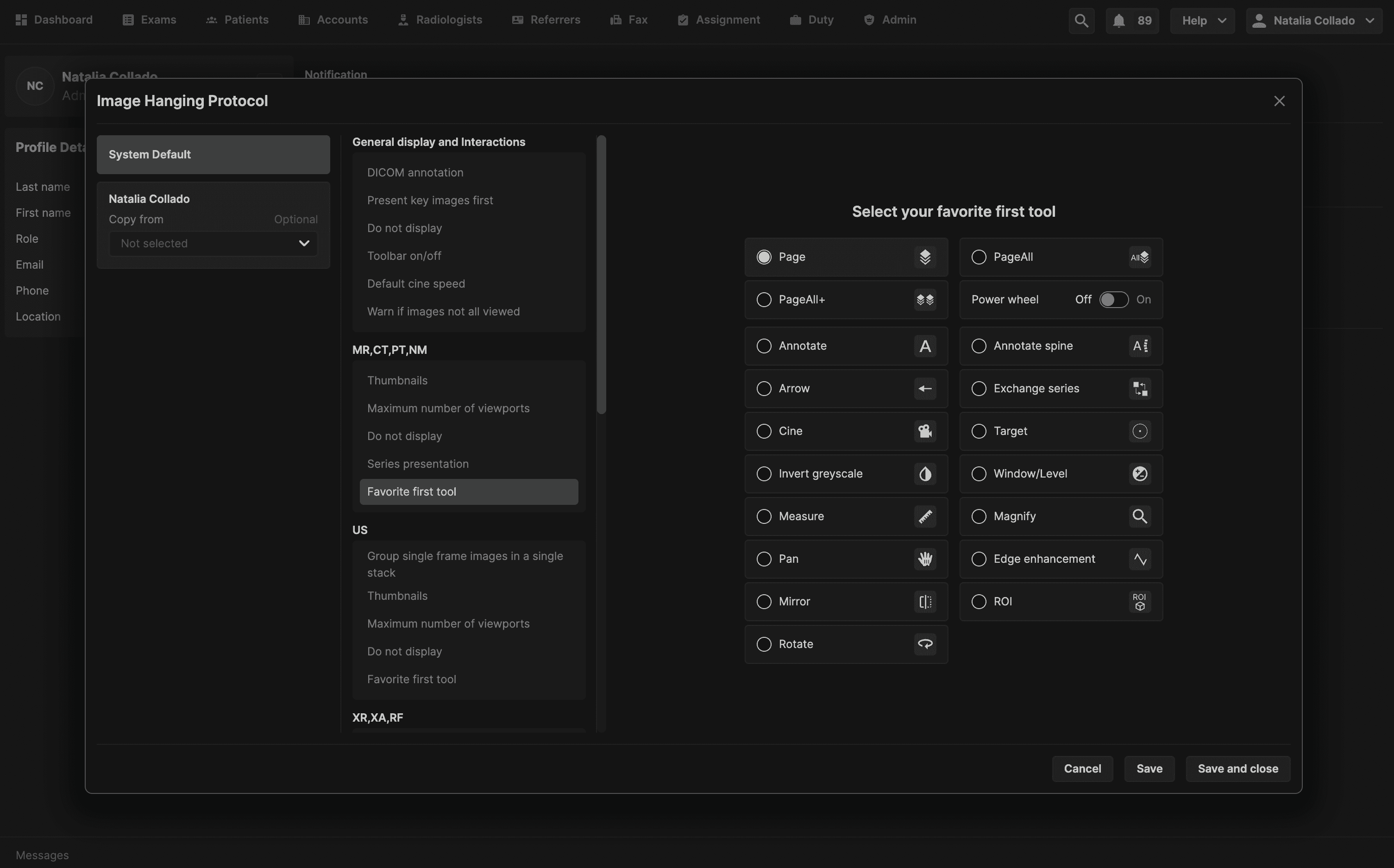
With the new hanging protocol, users have the option of selecting which tool is activated per modality by default when an exam is opened in the viewer. This helps streamline the workflow and ensures the user's preferred tool is always ready for use. If you have not selected a favorite tool, the default is the Page tool. Users also have the option to have the power wheel on or off when accessed. | ||
 |
Warning if all images are not displayed | ||
|---|---|---|
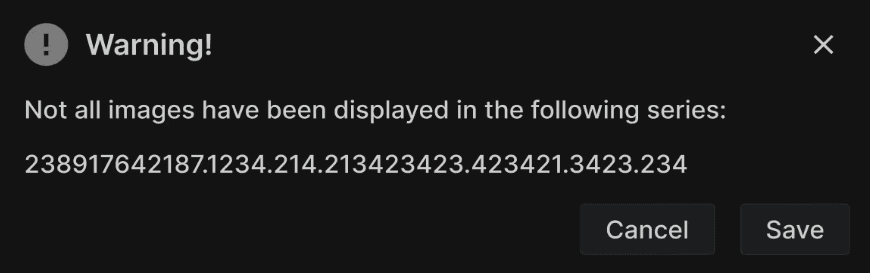
A warning message now indicates whether all images have not been viewed when an exam is marked as read. The user may configure this message off. | ||
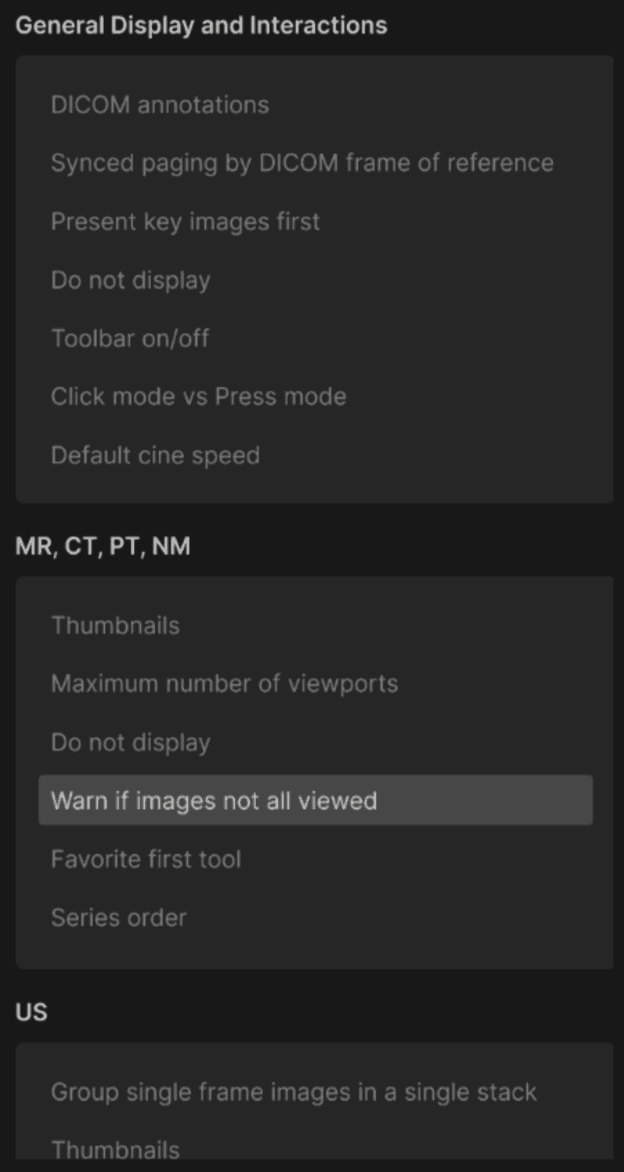 | ||
If the hanging protocol is enabled: The reading physician will receive a warning indicating that not all images have been viewed before they sign off on a report in the primary exam. However, the reading physician can proceed with viewing the images when they press Continue. If the hanging protocol is disabled: The reading physician can complete the exam without any warning, even if some images were not viewed in the primary exam. | ||
 |
Quick Flip Feature | ||
|---|---|---|
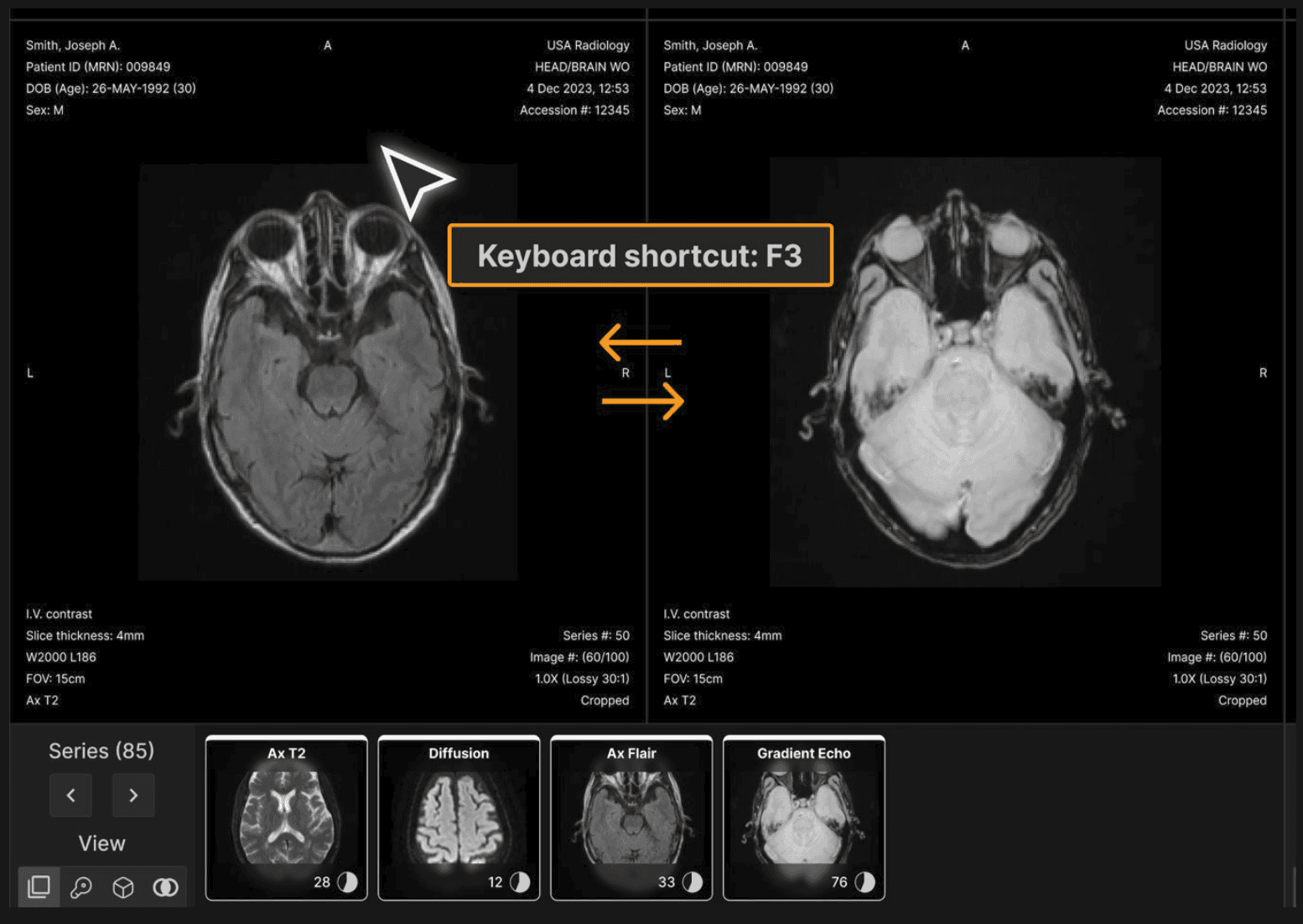
Images in adjacent viewports exchange when F3 is pressed, facilitating assessment of differences between the images. | ||
 |
Key Images in PDF | ||
|---|---|---|
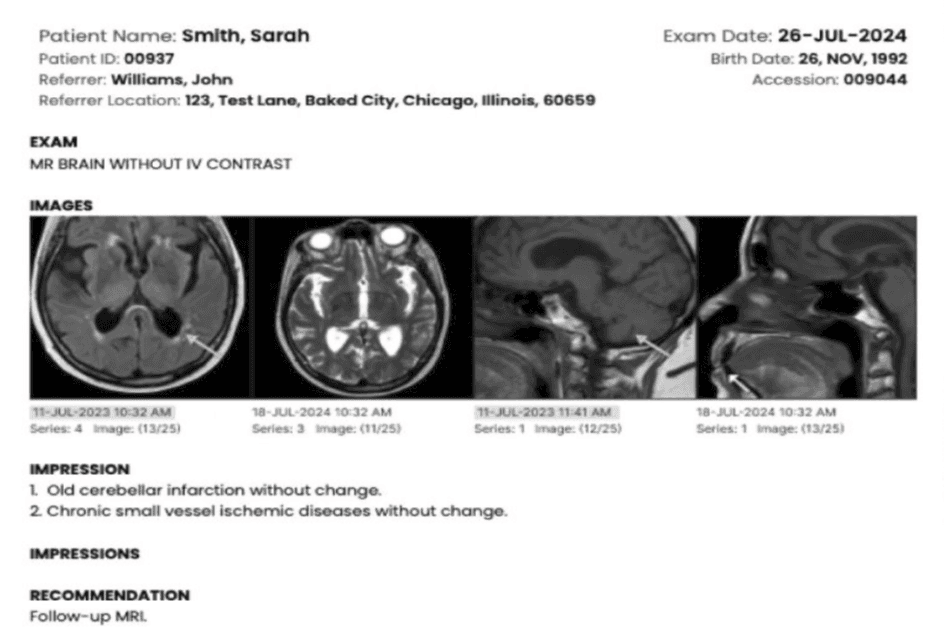
Reading physicians can now select up to four key images to include in the final PDF report. | ||
Selecting Key Images
| ||
Image Presentation in Reports
| ||
 |
Enhanced Mammography Protocols | ||
|---|---|---|
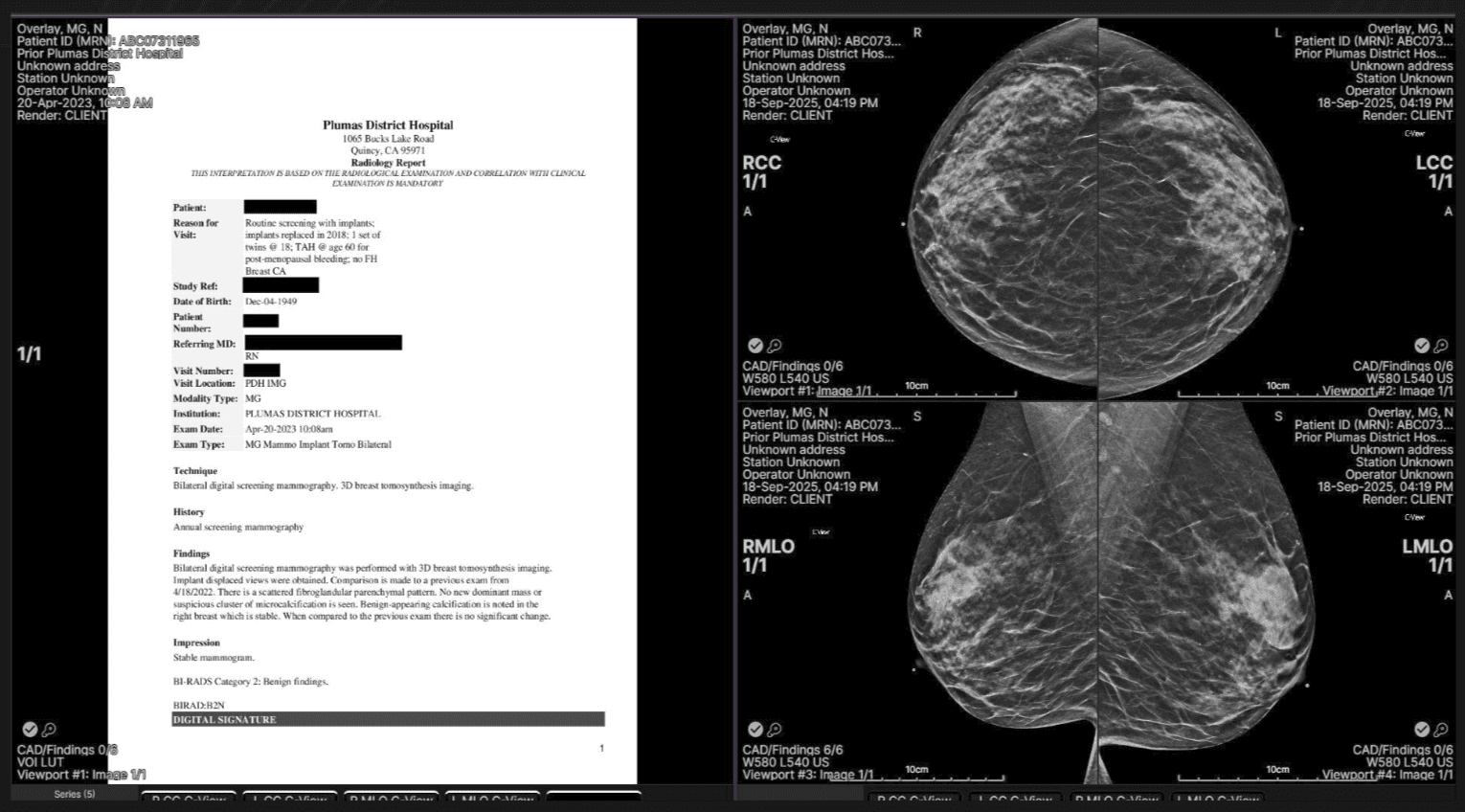
Protocol 42: Documents on the primary panel complemented with four screening views on the comparison panel. | ||
 | ||
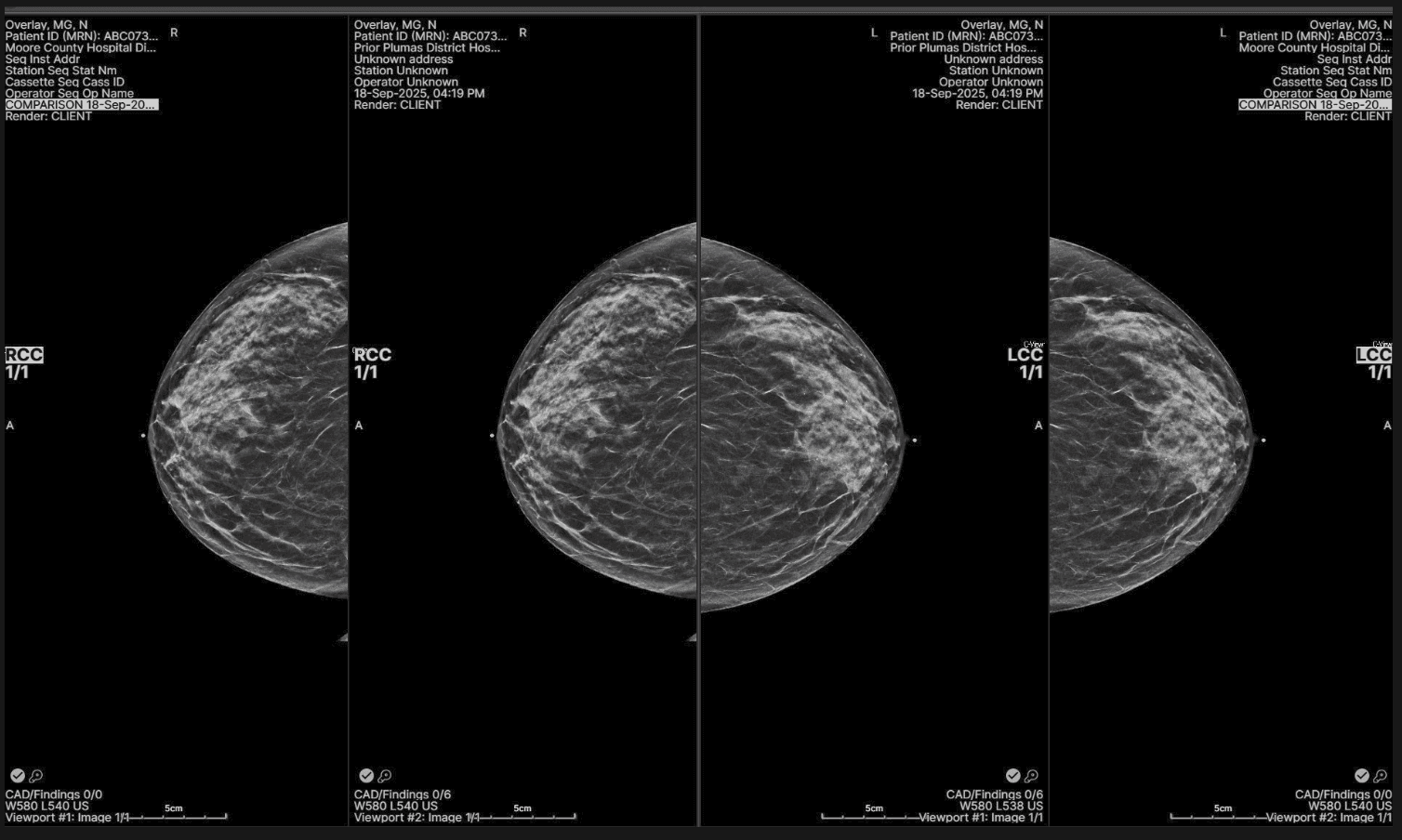
Protocol 43: Displays four images in one row (right to left): Old RCC - Current RCC - Current LCC - Old LCC. | ||
 |
Reset for W/L - Keyboard Shortcut | ||
|---|---|---|
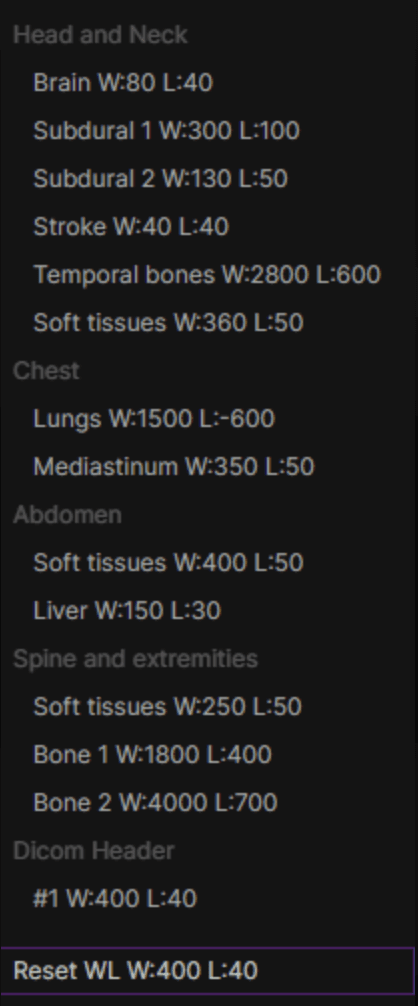
This feature enables users to quickly restore the image’s default window/level settings for accurate interpretation. This feature allows users to quickly restore the image’s original window/level settings. Press NumLock + 0 or right-click on the window/level presets and select ‘Reset’ to reset window/level values on the viewport under the mouse cursor. | ||
 |
Localizer Lines on Oblique Images | ||
|---|---|---|
Previously, localizer lines were only displayed on images in the standard anatomical planes-axial, sagittal, or coronal. With this update, localizer lines are now also supported on oblique images. This enhancement is especially valuable for joint scans, such as shoulder MRIs, where oblique imaging is frequently used. |