Version 1.0

Effective date:

Feb 5, 2026

Release notes: Viewer

Viewer: Version 2.7.0


Compare Mode ​

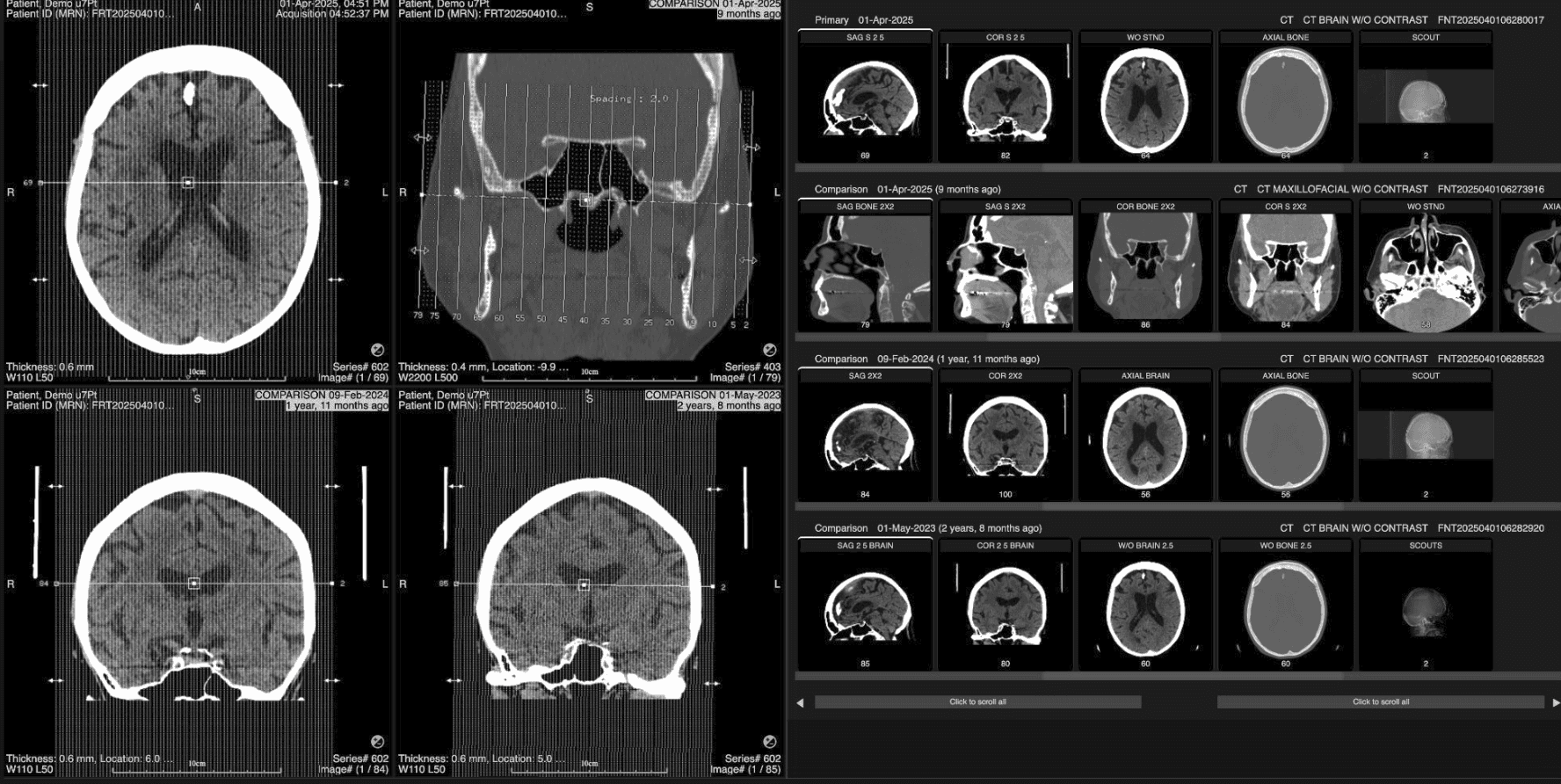
​Compare Mode lets you review the current study with up to three prior studies in a single view.​

  1. Faster comparison across studies​: View the current exam and up to three priors on the right image panel (the "Compare Panel")

  2. Each prior exam is now labeled with a study age label (e.g. "2 months ago" or "one year 2 months ago")​

  3. More control over what you see, and where​: Choose exactly which series appears in each viewport by dragging thumbnails

  4. Double‑clicking a column of images will load each of the respective series in the left image panel.​

  5. Easier navigation through large exams​: Use global scroll (large buttons at the bottom of the Compare Panel) to move all exams together; per‑row scrollbars can be used to adjust a single exam without moving the others.​

  6. No disruption to your existing layouts​: Turn Compare Mode on only when you need side‑by‑side review using the keyboard shortcut "D"; turn it off (using the same "D" shortcut) to return to your usual 2D/MPR/Fusion layout and tools.​


How to use Compare Mode

Layout

  • The left panel has up to four image viewports. The right panel has up to four thumbnail rows, with 1 current and 3 comparison exams.

Accessing the view

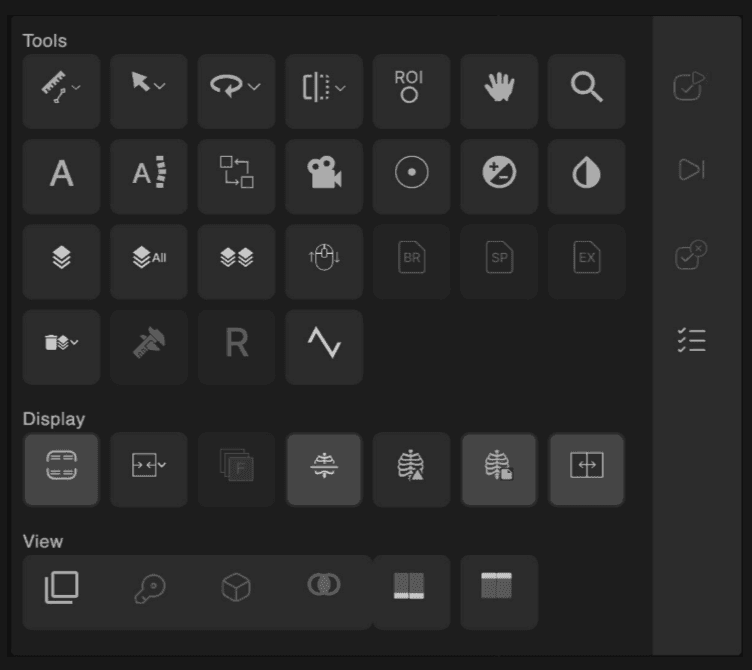
  • Use the Compare Mode toolbar button or press keyboard shortcut 'D'.​

  • Turning it off returns you to your previous layout; turning it on again starts from the default empty Compare layout - the Compare Mode state is not saved automatically.

Load and align series

  • To choose additional exams, select the eye icon on the worklist to populate into Compare Mode.​

  • Use global left and right buttons to move all rows one column at a time, or press and hold to auto‑scroll.​

  • Use each row's scrollbar to adjust only that exam​

  • Drag a thumbnail into a viewport for a custom layout.​

  • Double‑click a thumbnail column to load that column’s images from all exams into up to four viewports; missing series will leave viewports empty

Note: Compare Mode is available when you open CT, MR, PET, NM, US, or XR and there is at least one prior exam. It is not available for Mammography.


Distance Calibration Tool ​

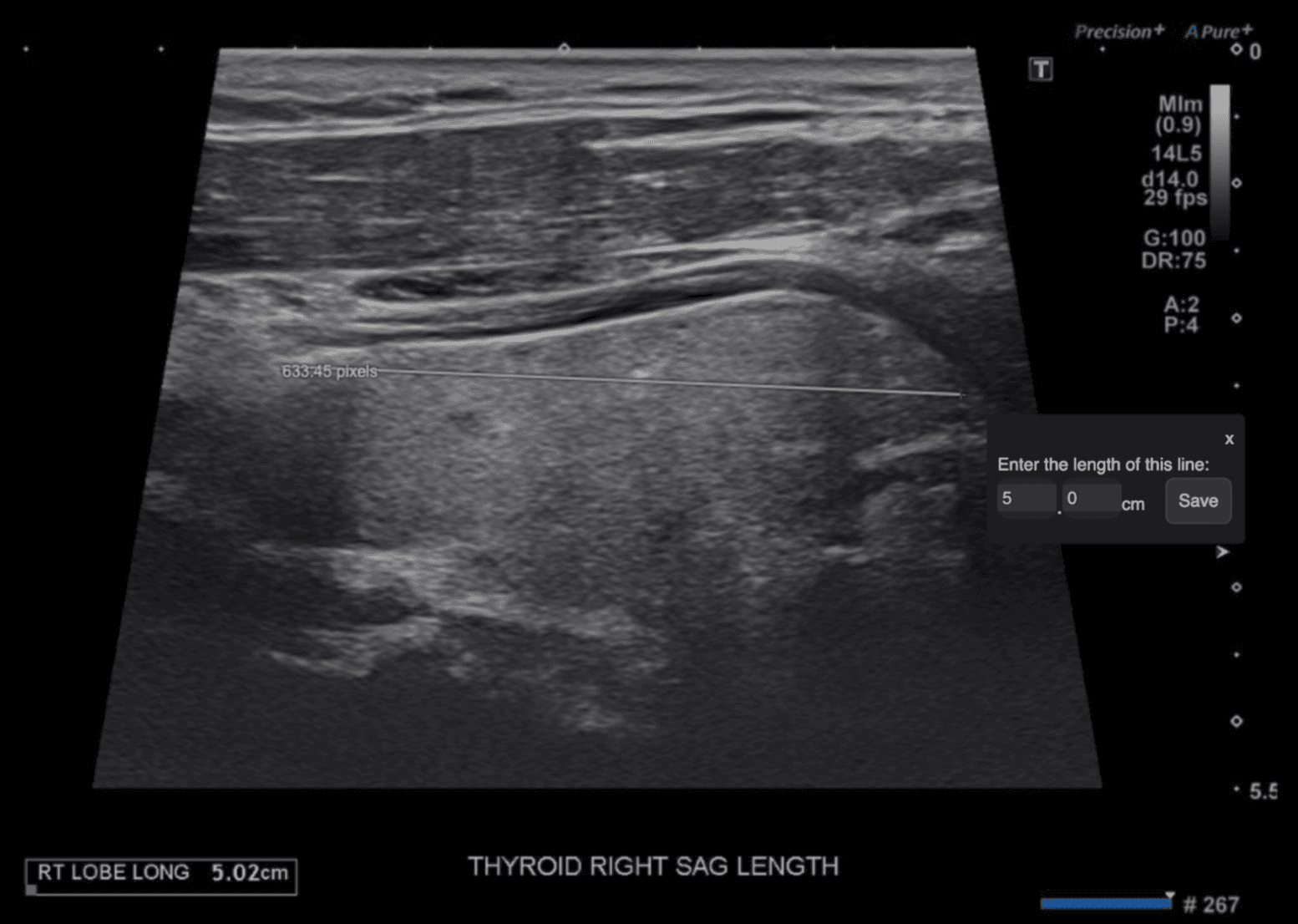
Calibrate uncalibrated images by drawing a reference line and entering its real length, so distance measurements use cm/mm instead of pixels.

Benefits

  • You can get usable distance measurements on ultrasound and other images that do not have DICOM measurement calibration.​

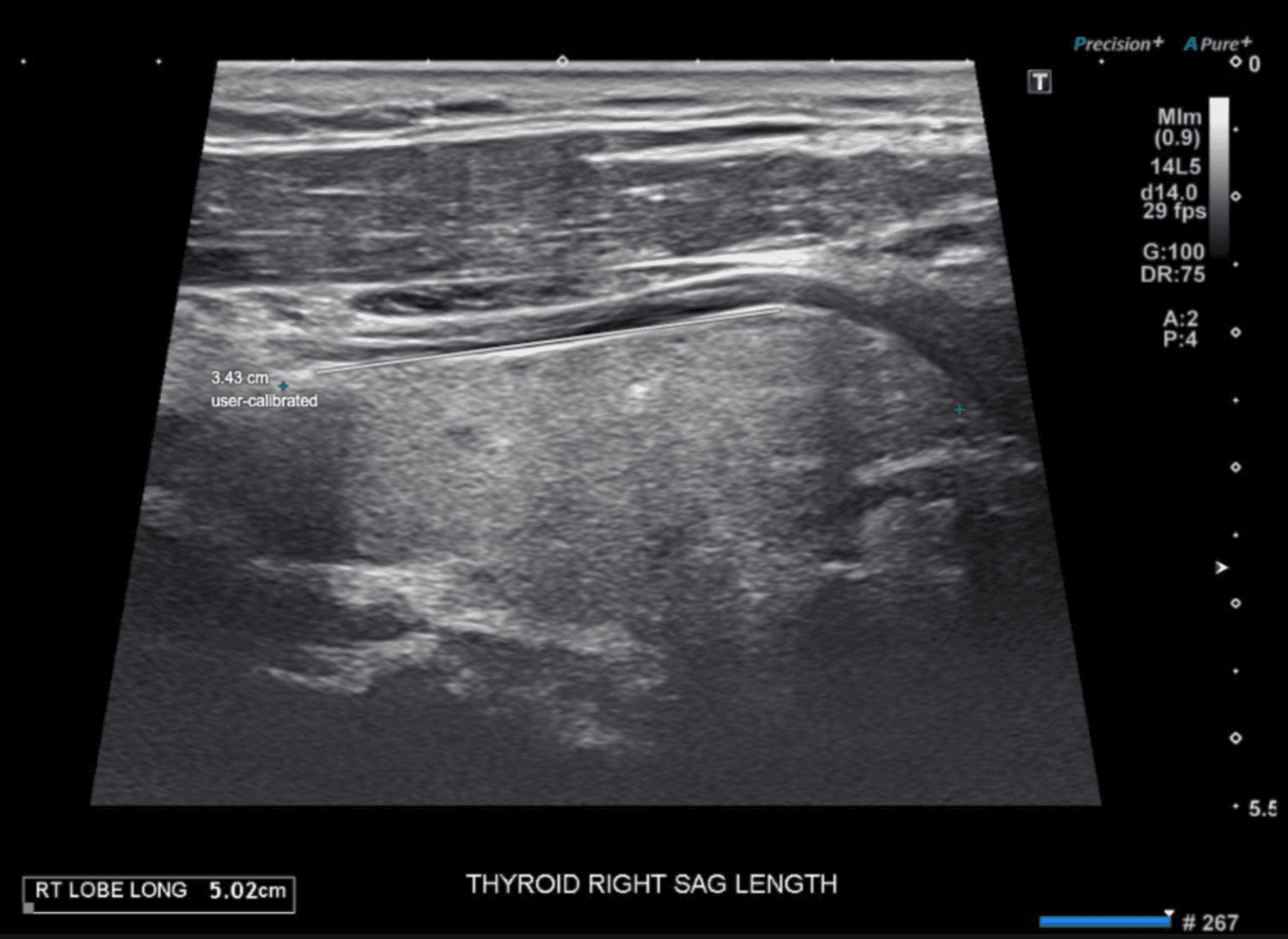
  • You do not need to switch tools: existing and new measurements on that image will update automatically.

How to use the Distance Calibration Tool

  • On an uncalibrated image, draw a line using a known distance or fiducial markers, enter its length and units, then click Save.​

  • Measure as usual; all measurements on that image use the calibration and are labeled “User calibrated”.​

  • Access this via the toolbox or Alt + C

Note: This tool is disabled for DICOM-calibrated images. Calibration is per image and not saved after you close the exam. Only one calibration is needed per image.


Auto Window/Level

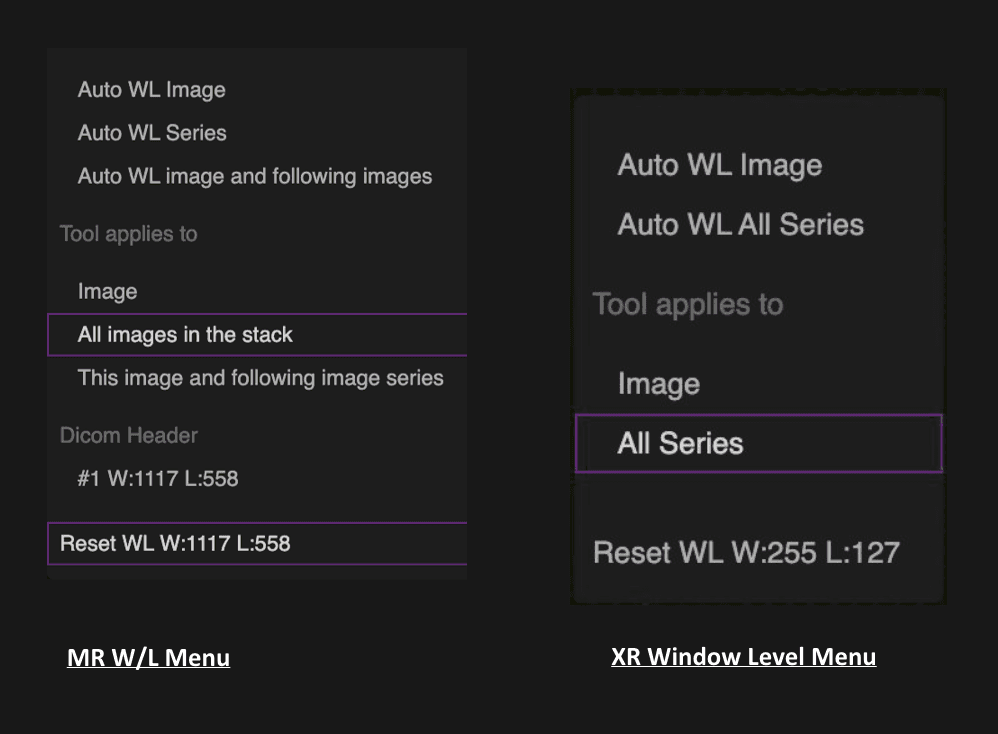
Auto Window Level (W/L) MR and XR now allows you to optimize image brightness and contrast automatically.  

How to use it:

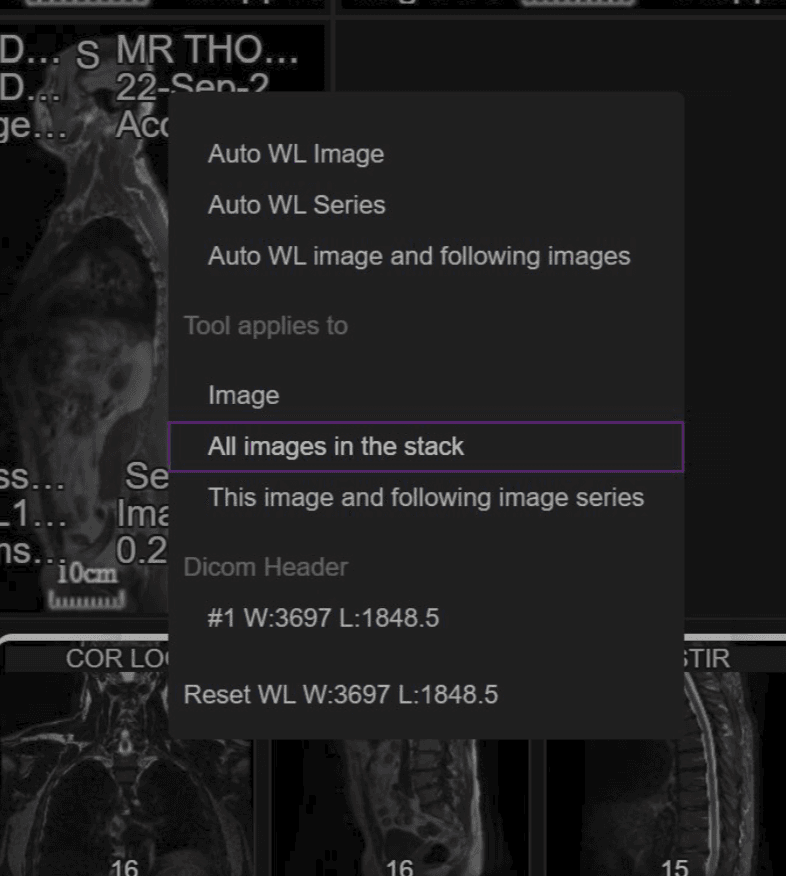
  1. When an an MR or XR exam is opened, right‑click the image to view the Window Level menu or use the keyboard shortcut "W".​

  2. For an MR, choose Auto W/L Image, Auto W/L Image and Following, or AutoW/L Series from the Window Level menu.​

  3. For XR, choose Auto W/L Image or Auto W/L All Series.


Manual Window/Level Additions

Manual Window Level (W/L) now allows you to adjust the W/L for a single image or multiple images at once with MR exams. Keyboard shortcuts let you change the window level much faster.

How to use it:

  • Open an MR exam, choose the W/L tool from the toolbar, and adjust the window/level settings.​

  • Right-click on the image and select one of the following options: Window level this image, Window level this and following images, or Window level this series.​

    • Hold Shift and drag: 100x faster​

    • Hold Ctrl + Shift and drag: 30x faster​

    • Hold Alt + Shift and drag: 10x faster​

  • To revert changes, right-click again and choose Reset.


Overlay and Labelling Improvements​

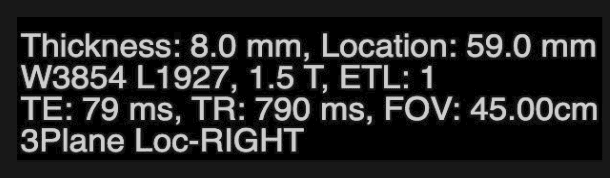
MRI DICOM Overlay Additions:

  • Repetition Time (TR)​

  • Echo Time (TE)​

  • Slice Location (in millimetres)​

  • Echo Train Length (ETL)​

  • Acquisition time (hh:mm:ss)

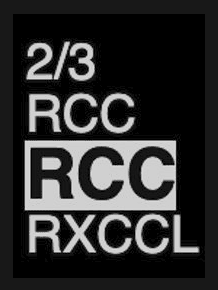
MG View Position Labelling: 

  • Clearer mammogram labels (current image in larger bold text, other images within the series will have smaller font size) making it obvious which view is active, even when rapidly flickering between images