Release notes: Workflow and reporting
Workflow and reporting: Version 13.0.0
All Exams Tab and Exam List and Filter Improvements |
|---|
The Exams menu provides separate tabs for each exam status (Inflight, Completed, Pending, Unmatched, and others), but there is no single view that spans all statuses. Users who do not know which tab an exam resides in must check each tab individually. A global search function existed but was separate from the tab structure. The Completed tab automatically applies a “Last 3 Days” filter on load, which can obscure older exams unless the filter is cleared. The exam list columns do not include patient sex, date of birth, or reason for exam, and the Assignee column does not support searching for unassigned exams. The Exams list has been redesigned to give all users faster access to patient information, more powerful search and filter capabilities, and a single unified view across all exam statuses. These improvements address long-standing requests from clinical and administrative users to reduce the time spent locating cases and managing worklists. |
New All Exams Tab  |
A new All Exams tab has been added to the Exams menu, giving users a single location to search and filter across every exam status without knowing in advance which status tab the exam resides in. The tab replaces the previous global search function.
|
Revised Tab Arrangement  The existing exam tabs have been reorganised. The All Exams tab is accessible from the main Exams menu alongside the existing status-specific tabs, and replaces the previous global search. |
New Patient Columns Across All Tabs 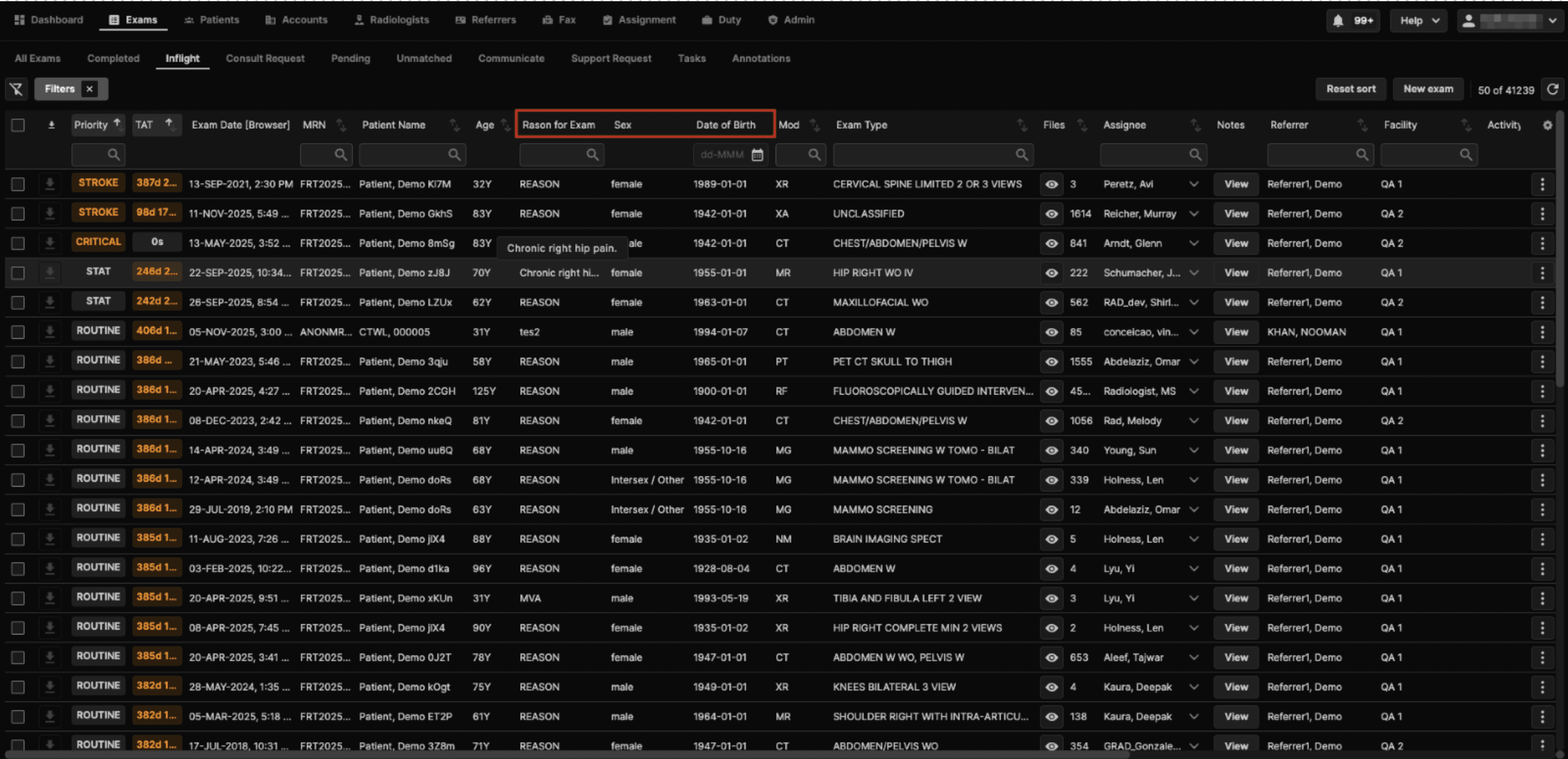 Three additional columns are now available on all exam list tabs (Inflight, Completed, Unmatched, Support Request, Communicate, All Exams, and others):
Additional Tab-Specific Columns
|
Enhanced Filter Options 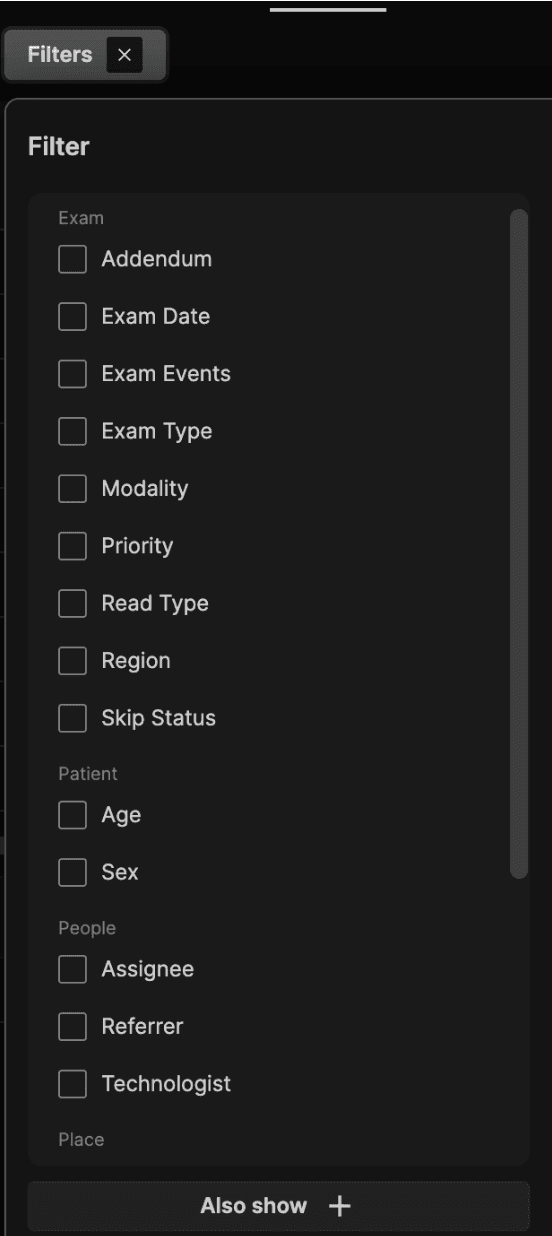 The following filter options have been added across all applicable tabs (Inflight, Completed, Unmatched, Support Request, Communicate, All Exams, and others):
|
Assignee Search Enhancement 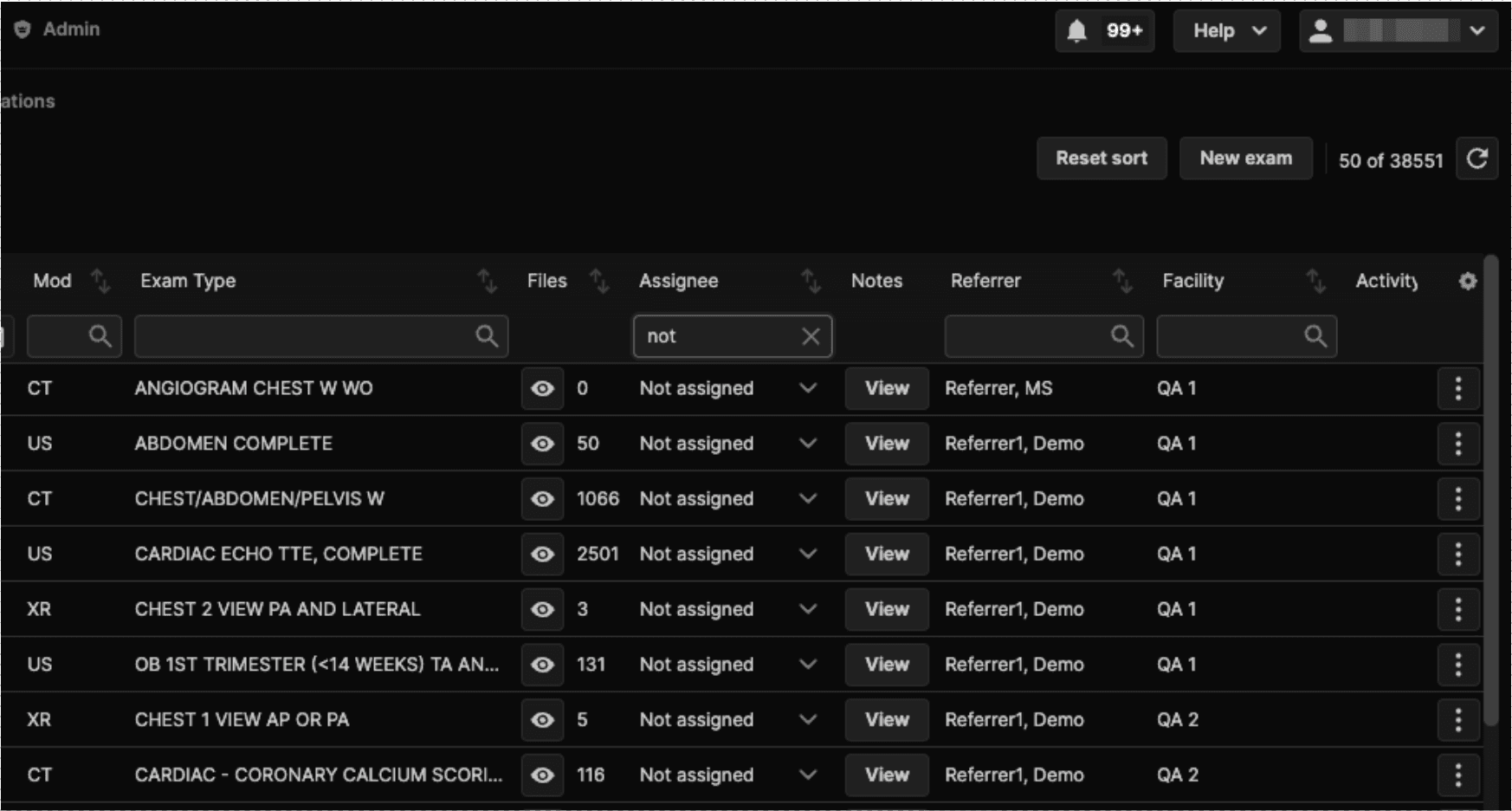 Users can now search for “Not Assigned” in the Assignee column to surface all exams with no assigned user. As the user begins typing “not…”, matching results begin to appear — case-insensitive, consistent with how radiologist name searches work. |
Unmatched Tab Filter Updates 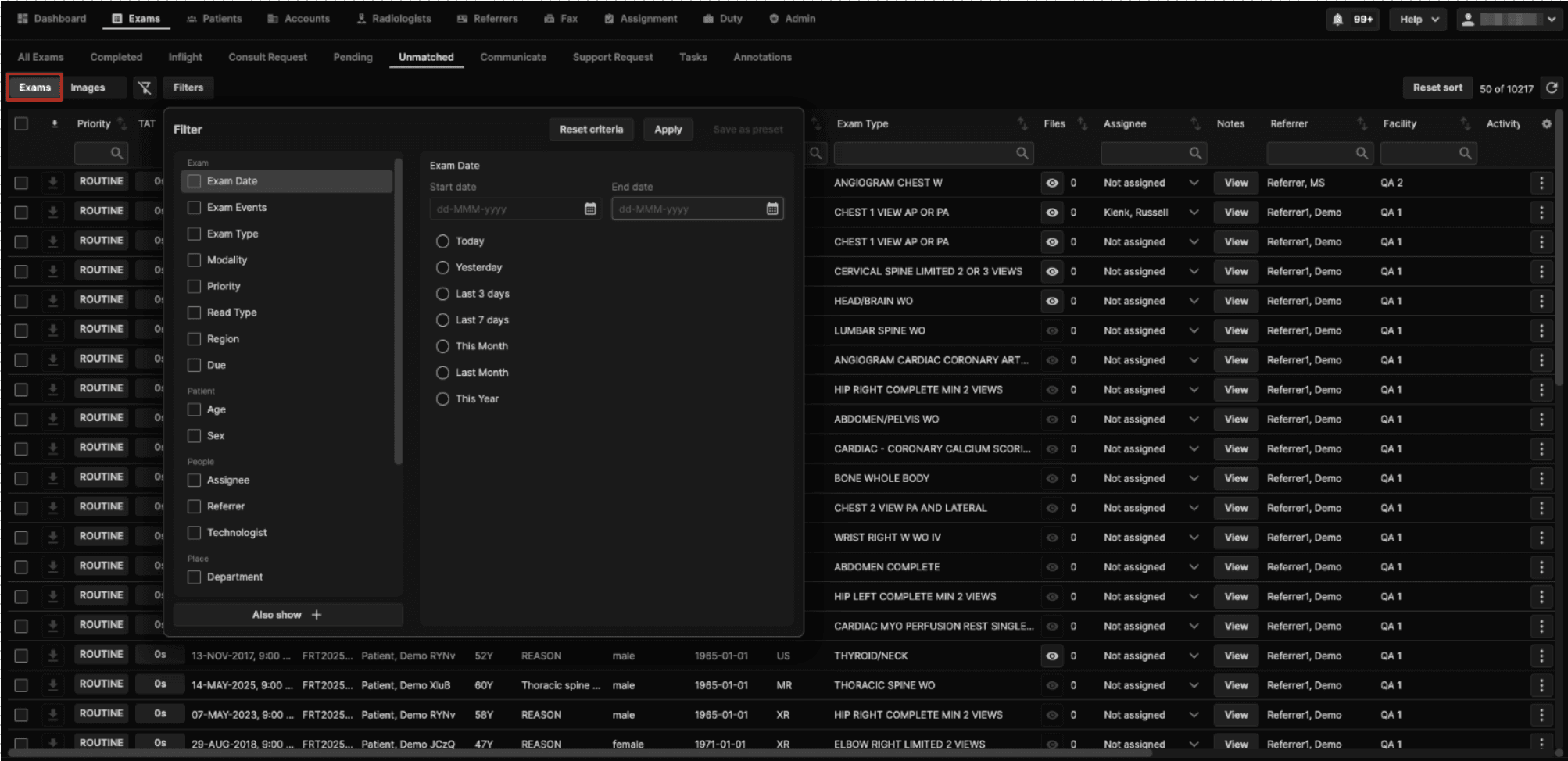 Filters in the Unmatched → Exams sub-menu have been updated to match the default filter configuration used on the Pending, Consult, and Support Request tabs. The Unmatched → Images sub-menu filter configuration is unchanged. |
View Images Button and Relevancy Control Users working with patients who have many prior exams must manually scroll through the full comparison exam list to identify relevant priors. There is no quick way to filter the list to clinically relevant exams only. Clicking the eye icon on a comparison exam does not reliably open the viewer if it is not already running, and there is no dedicated button to launch images directly from the exam list. 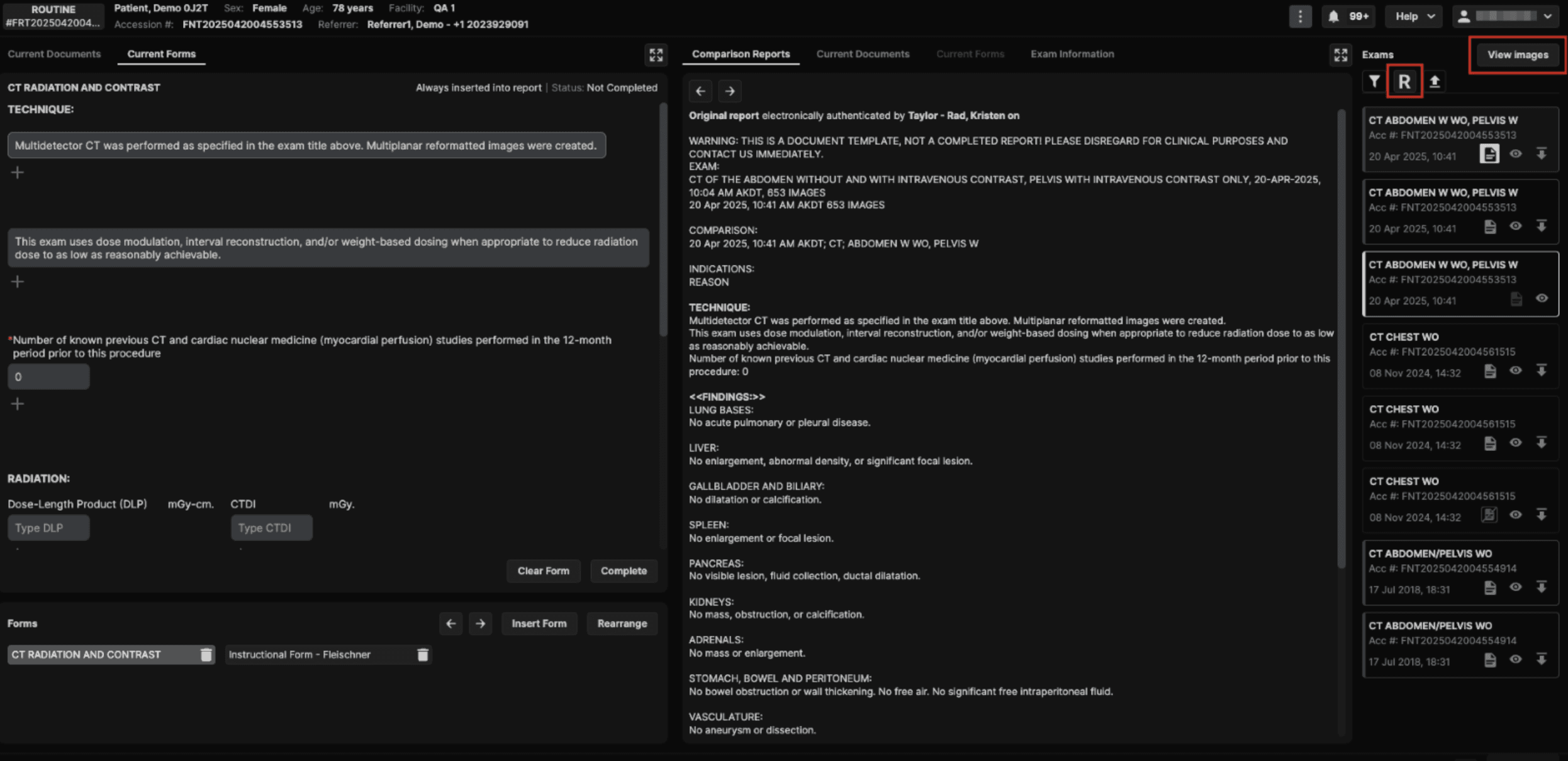 Two new controls have been added to the Exams list to help users quickly launch images and focus on clinically relevant prior exams:
|
Hide View Button for Standalone Priors in Patients Menu The Patients menu displays prior exams for a patient, including a View button and eye icon that appear to allow launching the viewer. However, the viewer requires an exam group created in token-auth, which in turn requires an exam ID. Standalone priors do not have an exam ID, so clicking View in the Patients → Priors sub-tab does not successfully open the viewer. In the Patients menu (Patient → Priors sub-tab), the View button and eye icon under Files is now hidden. Standalone priors cannot be launched in the viewer because the current architecture requires an exam ID to create an exam group for token-auth, and standalone priors do not have one. The file and image count continues to display.
|
Miscellaneous Usability
|
Reporting Permissions and Custom Role Management |
|---|
Admins can create custom roles using the Radiologist alias, however these roles inherit all Radiologist permissions, including signing ability, and role permissions. Radiologist users are fixed and cannot be customized. While radiologists can generate, create, and edit reports, signing is required, and actions such as Sign and Close and Sign and Next are hardcoded to the Radiologist role. This means admins have no control over which roles are permitted to perform signing-related actions. Additionally, when an admin creates a custom role using the Radiologist alias, that role cannot be selected from the dropdown when creating a user based on the custom role. This release introduces a set of enhancements to role management and access control, giving administrators greater flexibility to configure custom radiologist roles, control signing authority, and scope ACL editing to custom roles only. |
Custom Radiologist Roles with Configurable Signing Administrators can now create custom roles based on the Radiologist role alias and independently configure whether those roles can perform signing actions. This addresses scenarios where a user needs to edit and draft reports but should not be permitted to finalize them.

|
ACL Editing Restricted to Custom Roles ACL editing in Admin → Roles is now restricted based on whether the selected role is a default system role or a custom role, and based on the user’s administrative scope:
This change prevents unintended modifications to default system roles while preserving full flexibility for clients who manage their own custom roles. |
Duty Assignment: Auto-Assign Exams to Offline Radiologists |
|---|
In the 9.0.0 release, a new requirement was introduced to prevent exams assigned via Duty Assignment from being auto-assigned to offline radiologists, even when the Auto-Assignment switcher is enabled. This safeguard ensures that exams are not routed to radiologists who are logged out or whose session has timed out. However, this logic introduced an unintended side effect in workflows where Duty Assignment is used to route exams to external reading groups. Since the updated logic blocks assignment to any offline user, studies are no longer being routed to external groups as intended, disrupting these workflows. To resolve this, Duty Assignment requires an optional configuration that gives administrators the flexibility to allow assignments to offline radiologists when the workflow demands it. Duty Assignment now includes a configurable option to allow auto-assignment of exams to radiologists who are offline. This addresses workflows that rely on offline service or routing accounts — such as dummy radiologist accounts used to route exams to external reading groups — which were previously blocked by the restriction introduced in release 9.0.0. |
New Checkbox: Auto-Assign Exams to Offline Radiologists When creating or editing a Duty Assignment rule, administrators now see a checkbox labelled “Auto-assign exams to Offline Radiologists.” The checkbox is unselected by default and is available on both facility group and facility-level duties. Each duty has its own independent checkbox.
|
Interaction with the Radiologist Auto-Assignment Switcher The new checkbox does not override the radiologist’s personal Auto-Assignment switcher. A radiologist will only receive auto-assigned exams when all of the following conditions are met: their Auto-Assignment switcher is enabled, they are part of the duty group, and the duty rule conditions are satisfied. Manual assignment of exams is unaffected by this setting. 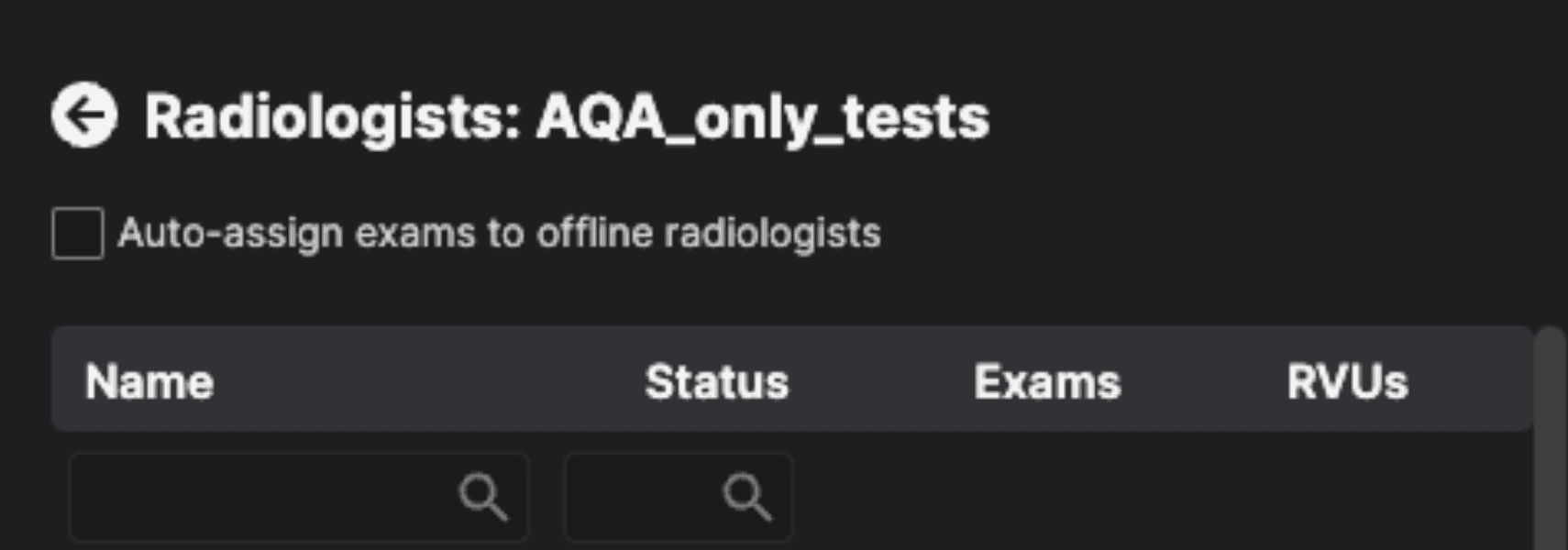 |
Impression List UI Enhancements |
|---|
Currently, the drag handle (⠿) and delete icon (✕) on impression list items are hidden and only appear on hover or after interaction. This creates a discoverability problem — users don't know the controls are there until they happen to mouse over the right area. Two usability improvements have been made to the Impression section of the reporting panel, addressing discoverability and interface tidiness. |
Always-Visible Drag Handle and Delete Icon The drag handle and delete icon on impression list items were previously hidden and only appeared on hover, making them difficult to discover. These controls are now always visible when an exam is open, without requiring the user to hover over an impression line.
|
Removal of Unused UI Selector A three-option selector that was no longer in use has been removed from the impression list editor component. Its removal has no effect on report editing functionality. |