Sep 17, 2025

Release notes: Workflow and reporting

Workflow and reporting: Version 4.0.0


Maintain format and exam code association when uploading templates and macros

Summary: In prior versions, the exam type association and the formatting were lost when downloading templates and macros from one user and uploading to another.  This problem is fixed!

Details:

When a user downloads a custom template from a radiologist and then uploads that same file to another user:​

  • The formatting in each template/macro section is maintained: Line breaks, spacing, text formatting (bold, italics) numbered and bulleted lists are maintained.​

If the templates/macros are associated to one or more exam types: ​

  • The system associates the template/macro with an active global exam type.​

  • If no matching active global exam type is found, the system associates the template/macro with an active group exam type from the user's

  • primary facility group.​

  • If no matching active global/group exam type is found, the macro/template is created without an exam type association.​

Exam Fields and Form Fields:​

  • All exam fields are recognized and correctly mapped.​

  • Form fields are only mapped to the active global level fields. ​

  • If no matching active global field is found, the field is displayed as [field name] in the template.​

Individual Forms and Form Contents:​

  • Individual forms are only mapped to the active global level forms. ​

  • If no matching active global form is found, the form is displayed as [form name] in the template.​

  • Form contents are correctly mapped to all group and global level forms that are present in the exam.


Maintain format and exam code association when uploading templates and macros

Summary:

  • We have streamlined the radiologist user creation process for an improved user experience and to ensure the correct role is respected during the creation process.​

  • Prior to this improvement, when radiologist users were added from the pathway, "Admin menu > Users > Add User > Group > Radiologist", the default role selected was incorrectly assigned; however, when creating radiologists from the pathway, "Radiologists menu > Add Radiologist > Group", the default role was correctly assigned.

Details:

  • The ability to create radiologist users from the Administrative menu has been entirely removed. ​

  • Radiologist users can only be created from the Radiologist menu.  They can either be added manually or by using the upload options. This improvement ensures that the appropriate role is selected every time a user is created.


Allow for creating a new local role that copies user permissions​ from a global role

Summary:

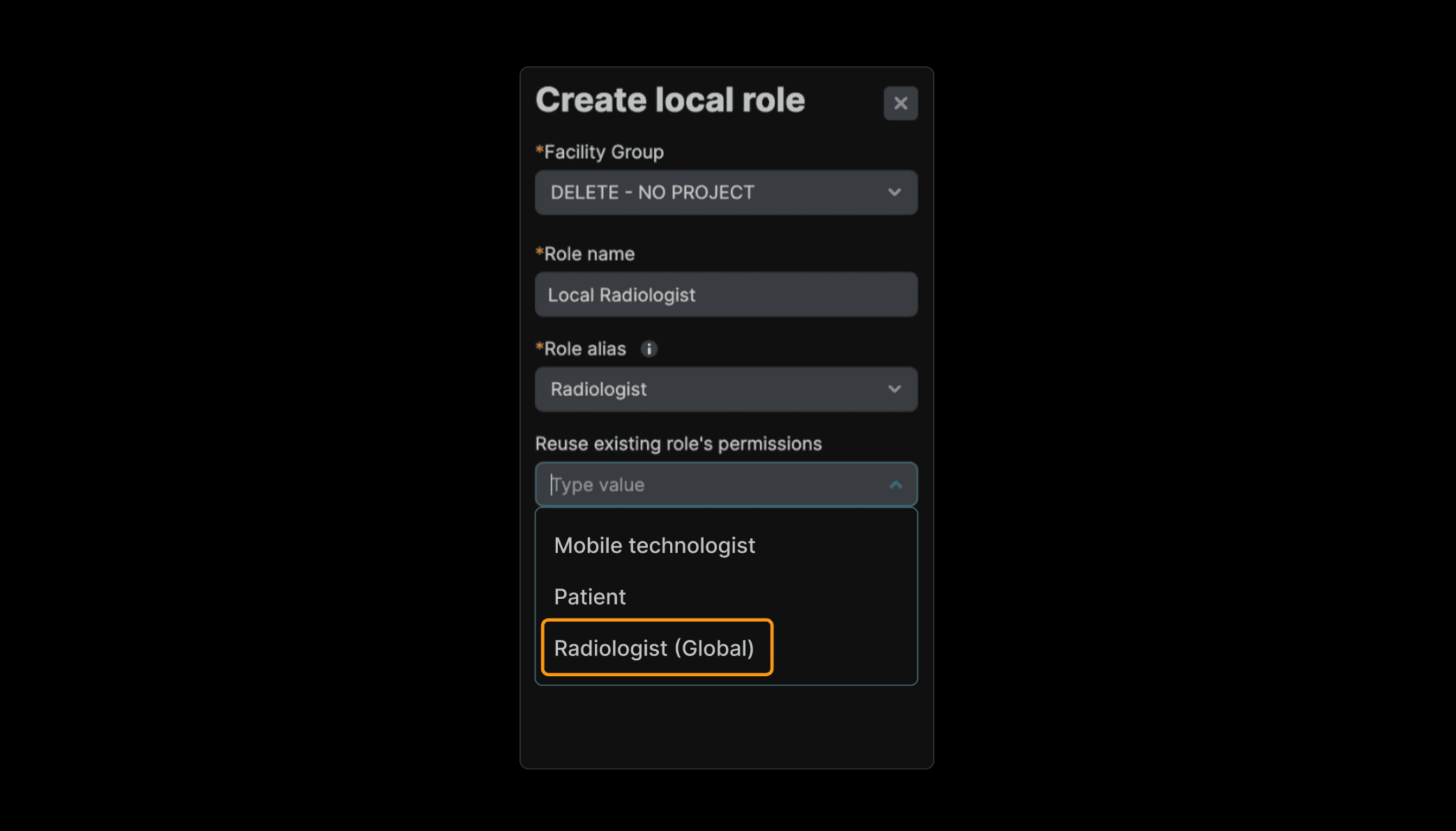
It is not possible to "Reuse existing role's permissions" when the global "Radiologist" role. 

Details:

  • When creating a new local role from the Administrative menu > Roles page, it was not possible to copy permissions from an existing global role using the, “Reuse existing role’s permissions” option. Only local roles were available.​

  • The global “Radiologist” role is now included in the “Reuse existing role’s permissions” list when a global level user is creating a local role.​

  • The role appears as: Radiologist (Global).​

  • The list of roles in this list is ordered alphabetically.


Allow for creating a new local role that copies user permissions​ from a global role

Summary:

Previously, users were able to save and view annotations in the default viewer, but were unable to send those saved annotations externally. With the GSPS Send feature enabled for a facility group, the system now supports annotation transmission from viewer when the Send Annotation feature is used. 

Details:

When a reading physician signs a report and selects “Send Annotation,” the system executes the following:

  • Initiates the GSPS extraction process.

  • Evaluates annotations created in the viewer to ensure they are properly prepared for delivery when the Send Annotation feature is active.

  • Identifies GSPS series generated by the viewer by inspecting specific DICOM tags: SOP Class UID, StudyInstanceUID, Manufacturer.