Oct 12, 2025

Release notes: Workflow and reporting

Workflow and reporting: Version 5.0.0


Maintain format and exam code association when uploading templates and macros

Summary: As an admin, I want radiologists to confirm their reading location at login, so the correct location is recorded in PDF and HL7 reports.

Key Functionality:

Admin Setup:

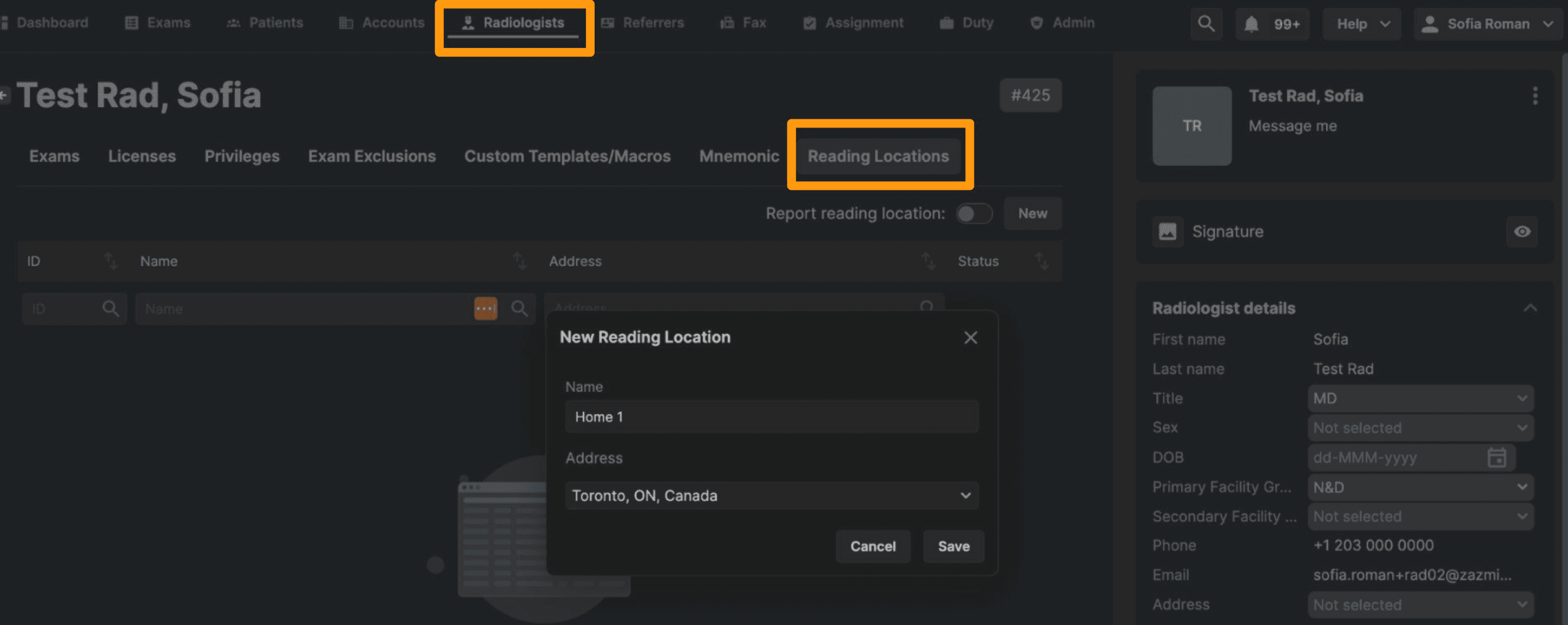
  • Configure reading locations in Radiologist > Reading Locations tab.​

  • Add/edit location name + address (both required, must be unique).​

  • Enable/disable “Report reading location” setting (on by default for new radiologist accounts).

Radiologist Experience:

  • Upon login, a dialog prompts the radiologist to select a location.​

  • Defaults to the last used location.​

  • Selection required to proceed.​

  • Selected location is inserted into:​

    • PDF signature line​

    • HL7 ORU (OBR 32.6)

System Behavior & Edge Cases:

  • Locations can't be deleted, only disabled.​

  • Deleted facilities still display ID if previously selected.


Update DICOM Metafile

Summary: As a technologist or admin, I want to update DICOM tag metadata (e.g., Patient ID, Accession Number) so that data is accurate for PACS/RIS sync and billing.​

Key Functionality:

Permissions & Roles:

  • New “Update DICOM Metafiles” permission (Update-only).​

  • Enabled by default for Technologist and Global Admin roles.​

  • Button only shown to users with this permission and for non-completed exams.

UI Behavior:

  • Button Location: Top-right of the Exam Information tab.​

  • Button disabled by default; enabled if user edits any of the following fields:​

    • Exam Type​

    • Accession Number​

    • Laterality​

    • Last Name / First Name​

    • DOB / Sex​

    • MRN​

  • If field matches DICOM value → button remains disabled.

Modal Interaction:

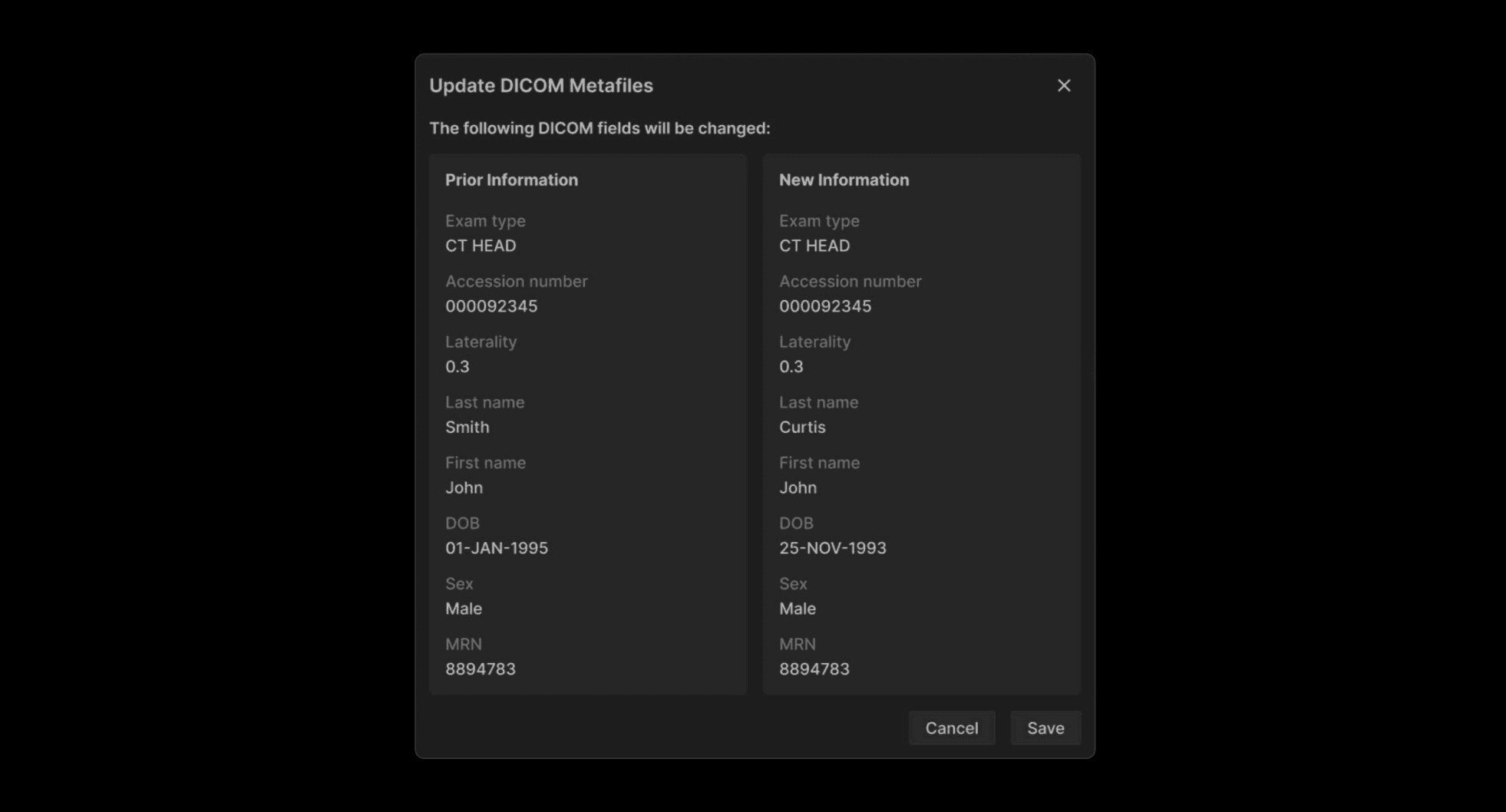
  • On click, modal shows:​

    • Prior values vs New values​

    • Cancel / Close → no changes applied​

    • Save → updates DICOM tags​

  • Validation: All required fields must be filled; otherwise, prevent save.


Split Exams – Technologist/Admin Tool

Summary: As an admin/technologist, I want to move image series from one exam to another existing exam, so images are properly organized under the correct studies.

Key Features & Workflow:

  • New ACL Permission: Split & Merge (CRUD), enabled for Technologist & Global Admin.​

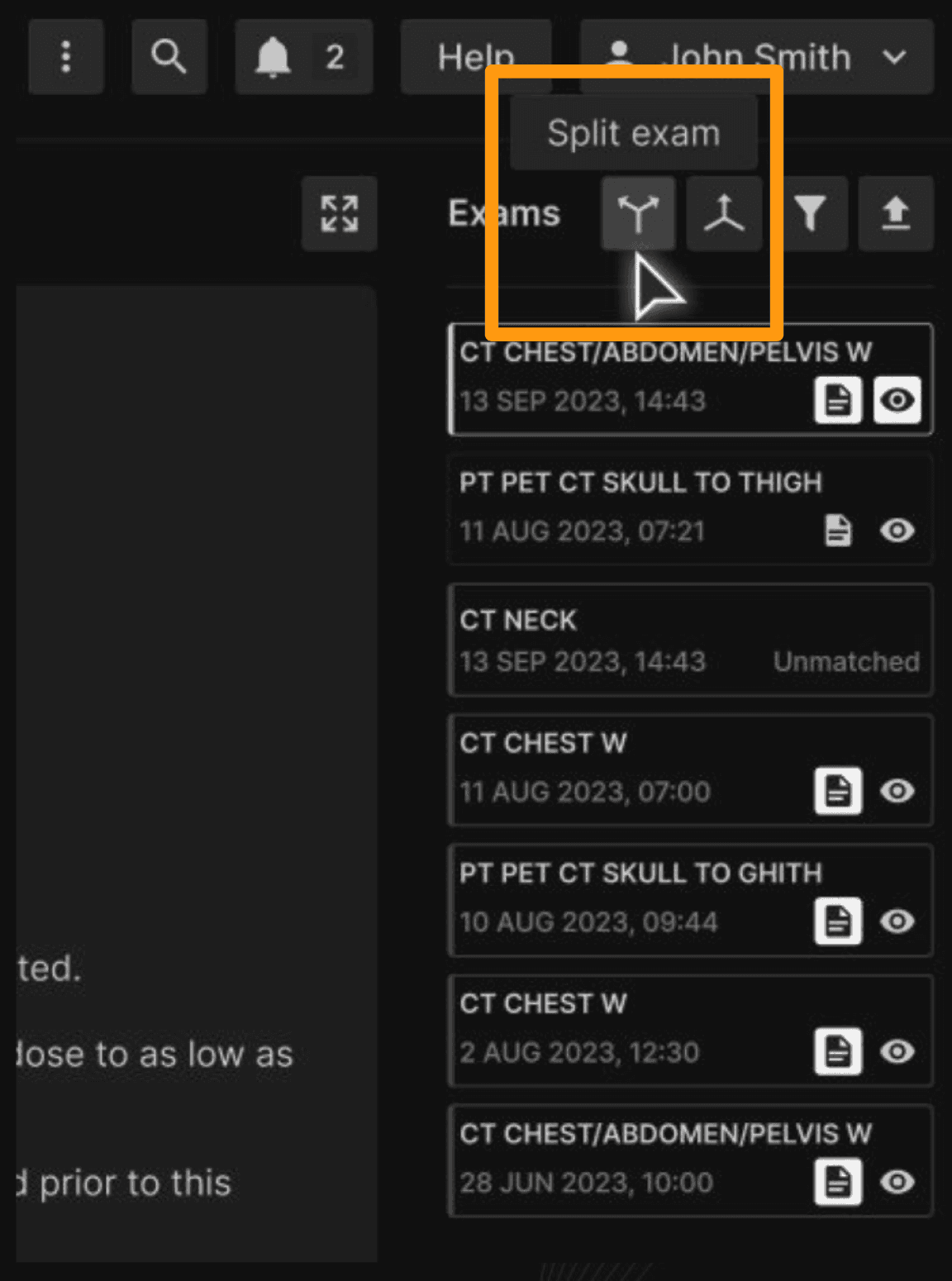
  • Accessible From: Report screen (Pending & Inflight tabs only).​

  • Viewer Required: Vision only (icon not shown for others).

3-Step Wizard Modal:

  • Select Exam: Choose target exam (must be unmatched or unsigned).​

  • Move Series in Vision: Drag/drop series from source to target.​

  • Confirm Split: Review series moved, source/target exams → Save.

Additional Behaviors:

  • Split process locks both exams until complete.​

  • Audit log records: who, when, which exams/series.​

  • If source exam has 0 series after split, it is retained (not deleted).​

  • Series-level movement only; not individual images.​

  • Target exam must be from same facility.​

  • Split does not allow moving into signed exams.

Use Cases:

  • Split images between two orders for same patient.​

  • Reassign part of an exam to a different patient.​

  • Clean up shared accession errors.​

  • Fix wrong patient ID or order-level mismatches.

Note:

  • Until the new delete feature is released, users can delete specific series or images by:​

    • Using the current “Delete Series” functionality (Support Request tab → right-click on exam →

    • “Exam: Delete files” → Delete series).​

    • Contacting Support (L1 team) for assistance.​

  • The enhanced deletion feature will be available in the November release.


Merge Exams – Technologist/Admin Tool

Summary: As a technologist, I want to merge image series from one exam into another, so all relevant imaging is available in one exam for reporting and review.

Key Features & Workflow

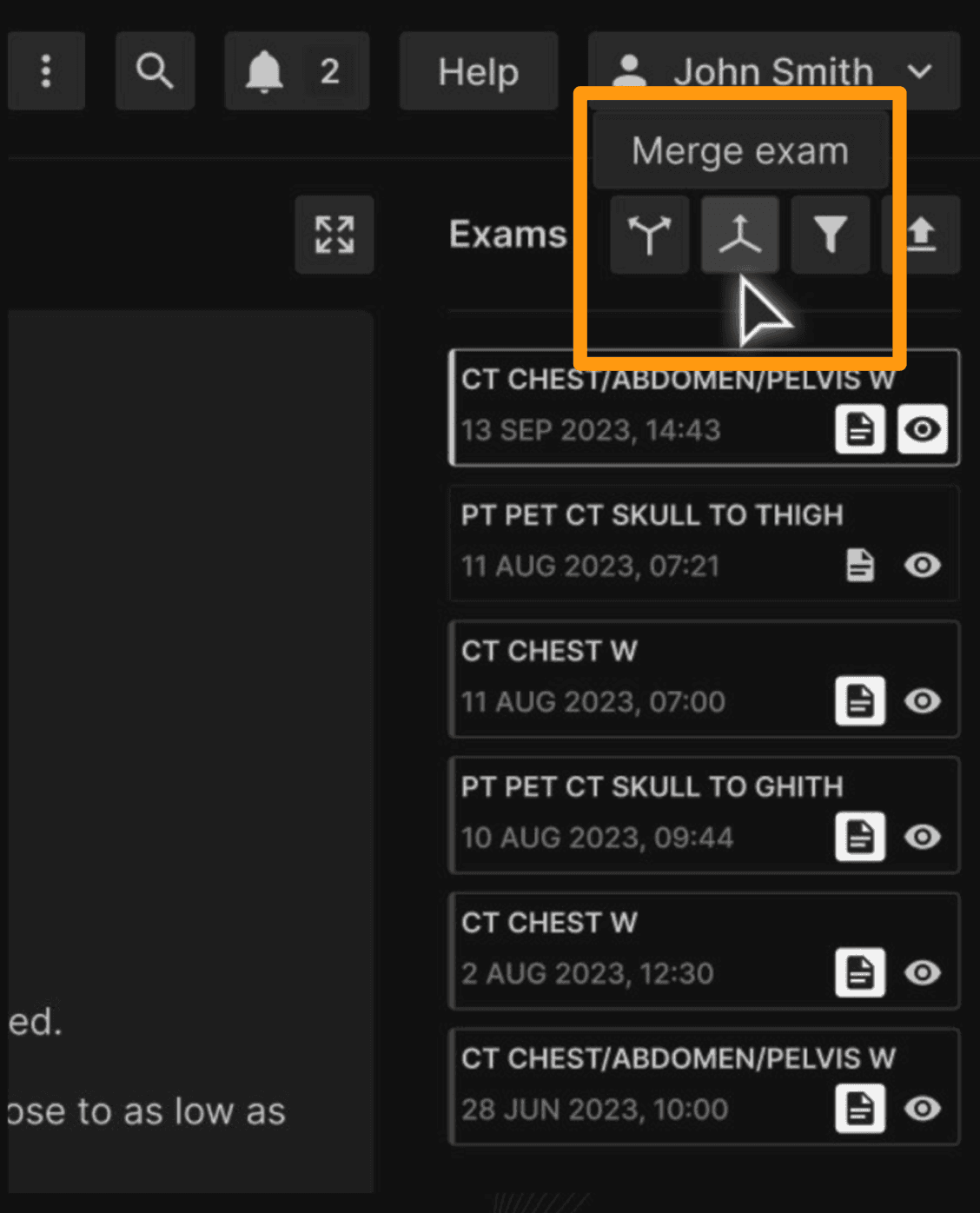
  • New Action: “Merge Exams” button on Reporting Screen (next to Split).​

  • Permissions-Based: Visible only to authorized users (no viewer restriction).​

  • Merge Mode Modal:​

    • Step 1: Select exam from same patient and modality only.​

    • Step 2: Confirm Merge Direction (which exam will be retained).​

    • Step 3: Save → series moved, primary exam updated, secondary exam deleted.

Rules & Safeguards:

  • Cannot merge exams with signed reports.​

  • Exams are locked during the merge process.​

  • Audit log tracks: user, timestamp, affected exams/series.​

  • If current exam is discarded → user is redirected to worklist.

What Gets Merged?

  • Image Series from both exams.​

  • Forms, documents, and structured reports are combined under the final exam.

Validation & Restrictions

  • Same modality required; if not, user prompted to resolve mismatch.​

  • Linked/cloned exam behavior and status rules TBD.​

  • Merge can only be done with exams from the same patient.